How to Sync Shopify Data with CRMs
Sync only commerce fields, use webhooks for real-time updates, run daily reconciliations, and prevent duplicates for clean CRM records.

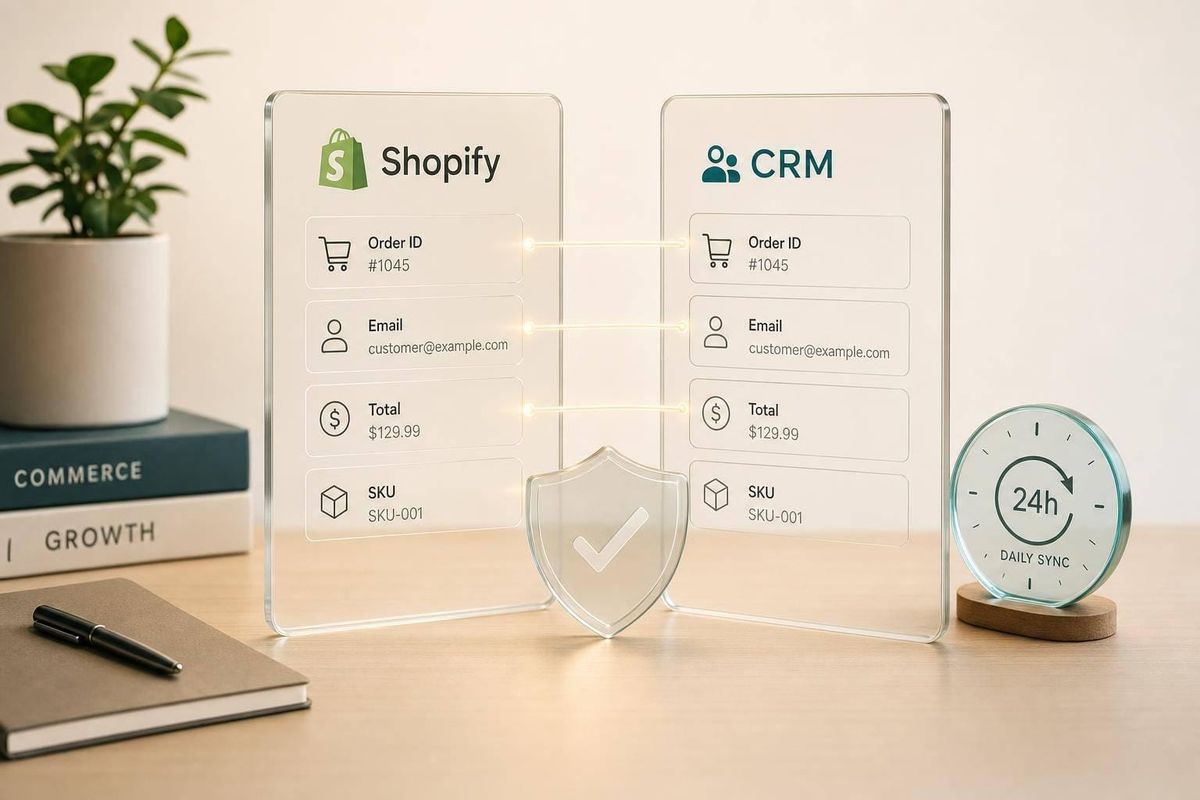
If your Shopify-to-CRM sync copies everything, it will clutter your CRM. I’d keep it simple: sync the fields sales can act on, use webhooks for order and customer changes, match records by email plus a Shopify ID, and run daily checks so bad data does not pile up.
Here’s the short version:
- I’d send customer, order, refund, and lifecycle data into the CRM
- I’d keep Shopify as the source for commerce fields like spend and order count
- I’d keep the CRM as the source for rep-managed fields like owner and lead status
- I’d use webhooks for near-live updates and batch jobs for backfills and checks
- I’d use deduplication rules before the first sync, not after problems start
- I’d avoid two-way syncs unless there is a clear reason
- I’d log every webhook, retry failures, and compare records on a set schedule
A few numbers stand out. Shopify webhooks time out after 5 seconds and may retry delivery up to 19 times over 48 hours. And API limits can be tight: standard stores may be around 2 requests per second (you can analyze Shopify store tech stacks to see how other high-volume brands manage their apps), while Shopify Plus can allow up to 20 requests per second. So the setup has to be clean from day one.
If I had to sum up the whole article in one line, it would be this: don’t build a data pipe - build a sync that gives sales clean records and clear follow-up signals.
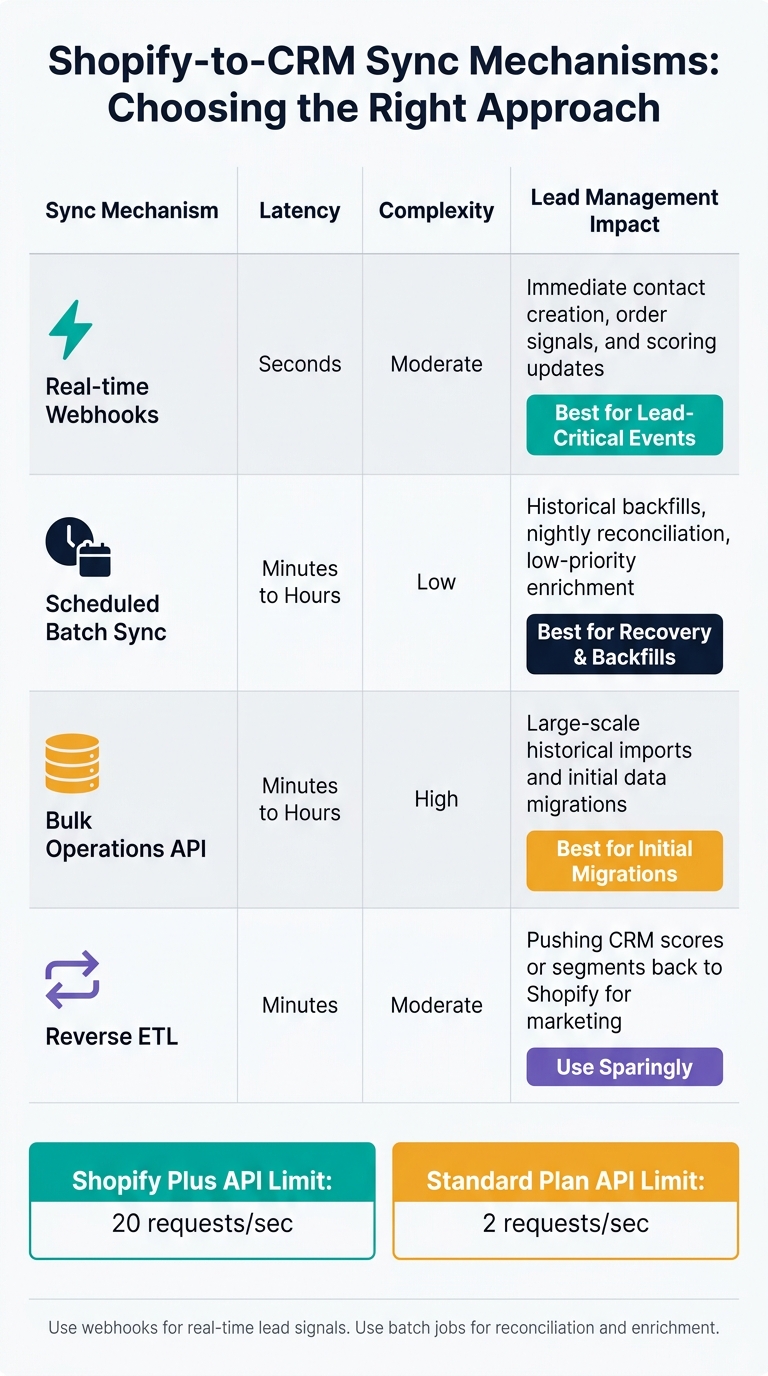
Shopify-to-CRM Sync Mechanisms: Choosing the Right Approach
Shopify to HubSpot Automation - Sync Customers, Orders & Sales Data
sbb-itb-61169e3
1. Decide which Shopify data belongs in your CRM
Start by mapping only the Shopify data your CRM can use. Keep Shopify as the source for transaction data, and keep the CRM as the source for relationship data. That line matters. It helps stop the sync from overwriting fields that sales reps manage by hand.
Map Shopify customers, orders, and events to CRM objects
For B2C stores, map Shopify customers to CRM Contacts. For B2B stores, map Shopify companies to Accounts and buyers to Contacts under each Account.
Orders need stricter rules. In high-volume stores, don’t create a deal for every order. Instead, sync total_spent, orders_count, and last_order_at to the Contact record. Use Deals only when pipeline reporting matters.
| Data Type | Shopify Source Fields | Recommended CRM Object/Fields | Primary Lead-Management Use Case |
|---|---|---|---|
| Customer | email, phone, first_name, last_name |
Contact: Email, Phone, Lead Source |
Identity resolution and outreach |
| Purchase Power | total_spent, orders_count |
Contact: LTV, Average Order Value |
Segment VIPs vs. low-value contacts |
| Order | id, total_price, financial_status |
Deal/Opportunity: Amount, Stage |
Revenue tracking and pipeline reporting |
| Refunds | refund_line_items, note |
Activity/Note: Refund Status |
Churn risk and dissatisfaction signals |
| Tags | tags |
Custom Properties/Segments | VIP tiering and personalized outreach |
| Lifecycle Events | created_at, last_order_id |
Timeline Events/Lifecycle Stage | Re-engagement and follow-up triggers |
Use email-based matching as your main identity resolution method, with phone number as a fallback. This cuts down on duplicate Contact records when customers check out as guests or use slightly different email aliases.
Sync signals, not raw dumps
Raw Shopify fields rarely tell a sales rep what to do next. A field like orders_count: 7 is just data. A field labeled "Repeat Purchaser" is a signal.
Before syncing, run Shopify data through a transformation step that creates derived fields such as VIP Buyer (based on lifetime value), High-AOV Customer (average order value above your store's median), or Refund Risk (multiple refunds). These computed fields give account managers a fast read on account quality without forcing them to dig through raw order history.
If a field won’t change follow-up, segmenting, or scoring, leave it out of the CRM. Set ownership now: Shopify writes commerce fields like total_spent and orders_count; the CRM owns lead status and owner ID.
Once the field map is set, define app access, webhook topics, and deduplication rules before you write the sync.
2. Set up Shopify and your CRM before writing any code
Get the app and CRM ready first. That way, the sync starts with clean IDs, steady updates, and lead signals you can actually use. You only need two pieces in place at this stage: a Shopify custom app with the right access, and a CRM that can store commerce data without turning into a mess.
Once access, webhooks, and CRM fields are in place, you can map Shopify events into a lead-focused data model.
Create a Shopify custom app and set API scopes
Go to Shopify Admin > Settings > Apps and Sales Channels > Develop Apps and create a new custom app. Keep scopes tight so the sync only touches the fields it owns.
Use:
read_customersread_ordersread_products
Only add write scopes if your sync sends updates back to Shopify.
After installation, Shopify gives you an Admin API access token. Store it in a backend environment variable or a secrets manager. Never hard-code it in a front-end script, push it to a public repo, or expose your webhook secret in the same careless way.
Register the webhook topics you need for ongoing sync
Register these six topics to cover the main sync cases: customers/create, customers/update, orders/create, orders/updated, orders/fulfilled, and refunds/create.
Those events cover:
- new contact creation
- purchase activity
- fulfillment status
- refund signals
Use webhooks for changes that need fast CRM updates. Verify each payload with X-Shopify-Hmac-SHA256, return HTTP 200 right away, and handle the CRM update asynchronously. That part matters. Shopify times out after 5 seconds and retries delivery up to 19 times over 48 hours, so a slow synchronous flow can pile up into a backlog fast.
These events feed the fields and scoring rules in the next step.
Define CRM fields, IDs, and deduplication rules before syncing
Before the first record syncs, add fields for revenue, lifecycle, and account quality so Shopify activity can feed scoring rules cleanly in the next section.
Create a custom field in your CRM to store the Shopify customer ID. In Salesforce, that means Shopify_Customer_ID__c set as a Unique External ID. In HubSpot, it means a custom contact property such as shopify_customer_id. This external ID makes upserts dependable and helps stop duplicate records.
Also create a Shopify external ID field, then add custom properties for total_spent, orders_count, average_order_value, and shopify_customer_tags. For deduplication, use email first and phone as a backup. Add these fields for segmentation and scoring.
Field ownership should stay clear: Shopify writes commerce fields, while the CRM owns relationship fields like lead_status and owner_id.
| Platform | Required Configuration | Security Considerations |
|---|---|---|
| Shopify | Create a Custom App; set minimal Admin API scopes (read_customers, read_orders, read_products); register webhook topics |
Store API credentials in a secure backend; verify HMAC signatures on all incoming webhooks |
| HubSpot | Create a Private App; add custom contact properties; define Deal pipelines for order stages | Use Private App access tokens; validate webhook endpoints over HTTPS |
| Salesforce | Create Shopify_Customer_ID__c as a Unique External ID; map Orders to Opportunities or Order objects |
Use OAuth 2.0; apply Duplicate Management rules to catch sync conflicts |
With the app and CRM prepared, the next step is mapping Shopify signals to CRM objects and lead scores.
3. Build a data model that supports lead management
With your Shopify app connected and your CRM fields in place, the next step is turning raw store data into signals your sales team can use. In plain English: decide which Shopify metrics should live as CRM fields, which events should trigger follow-up, and which records need extra context from outside sources.
Map revenue, lifecycle, and account quality to CRM fields
Raw Shopify data, by itself, doesn't tell a sales rep much. You need to translate it into fields that mean something.
total_spent becomes Lifetime Value (LTV). orders_count becomes Purchase Frequency. created_at becomes Customer Tenure. last_order_date powers Recency. Refund behavior maps to a Risk Flag.
A good rule here is simple: put aggregate order metrics on the contact record, and skip the one-deal-per-order setup in high-volume stores. Let commerce fields stay integration-owned, and keep relationship fields CRM-owned. Shopify should control record creation, while the CRM should control manual edits.
Turn Shopify events into CRM actions and scoring rules
Once your field map is set, connect each signal to an action. This is where data starts doing actual work.
| Raw Shopify Metric | Derived CRM Field | Outbound Action |
|---|---|---|
total_spent |
Lifetime Value (LTV) | Trigger a VIP discount code or move the record into a "High Value" segment |
orders_count |
Purchase Frequency | Invite the contact to a loyalty or referral campaign |
created_at (Order) |
Recency / Last Order Date | Trigger a winback flow if it's been more than 90 days since the last purchase |
financial_status: refunded |
Risk Flag / Churn Risk | Create an account review task for a sales rep |
total_price > $500.00 |
High-Value Order | Alert a VIP sales rep via Slack or increase lead score |
tags |
Lifecycle Stage | Apply pricing tiers or customer segments |
abandoned_checkout |
Recovery Lead | Create a high-priority follow-up task for a sales rep |
These rules help your team stay focused. They make it easier to handle retention, spot upsell moments, and avoid spending time on low-priority accounts. A first purchase can trigger a follow-up task. A refund can kick off a review. That kind of setup keeps reps working the accounts that matter most.
Use StoreCensus to enrich synced records with merchant intelligence
Once the core sync is stable, add account-level intelligence to your merchant records. Shopify shows what a customer did. It doesn't show what kind of merchant they are, how fast they're growing, or whether they should move ahead of the next name in your queue.
That's where StoreCensus comes in. After a merchant record lands in your CRM, StoreCensus can enrich it with revenue tier, tech stack, theme, country, growth signals, and decision-maker contacts. For agencies, that makes lead routing and account scoring much sharper. You can assign by territory, sort by growth path, and time outreach based on signals Shopify alone can't provide.
Run enrichment as a scheduled batch job after the sync finishes. Write the data back to the same CRM record using the existing external ID. Keep StoreCensus fields CRM-owned so the Shopify sync doesn't overwrite them. That gives you one CRM record with both transaction history and merchant intelligence, which makes prioritization and outreach timing much easier.
4. Build the sync with webhooks, APIs, and scheduled jobs
Once field ownership is in place, the next step is turning those rules into working data flows. That usually means real-time updates for changes that matter now and scheduled jobs for catch-up work later. Webhooks handle live events. Batch jobs handle backfills, reconciliation, and lower-priority updates.
| Sync Mechanism | Latency | Complexity | Lead Management Impact |
|---|---|---|---|
| Real-time Webhooks | Seconds | Moderate | Immediate contact creation, order signals, and scoring updates |
| Scheduled Batch Sync | Minutes to hours | Low | Historical backfills, nightly reconciliation, low-priority enrichment |
| Bulk Operations API | Minutes to hours | High | Large-scale historical imports and initial data migrations |
| Reverse ETL | Minutes | Moderate | Pushing CRM scores or segments back to Shopify for marketing |
Use webhooks for lead-critical changes. Keep batch jobs for recovery, backfills, and enrichment.
Process Shopify webhooks and upsert CRM records
Start by verifying the HMAC signature. Then push the payload into a queue for async processing. That keeps your webhook endpoint fast and gives your worker room to do the heavier lifting.
Inside the worker, map the payload to your CRM fields and match records in this order: Shopify customer ID first, then email. If a record exists, update it. If not, create it.
To cut down on duplicate processing, cache the webhook ID in Redis and skip any payload you've already seen. Also keep a local mapping table between Shopify IDs and CRM IDs, so later events don't need to hit the CRM every single time.
That setup gives you a clean pattern: receive, verify, queue, match, and upsert.
Use scheduled API syncs for backfills and low-priority data
Real-time delivery is great, but things get missed. Scheduled reconciliation jobs help close those gaps.
A nightly batch job using Shopify's Bulk Operations API works well for pulling historical orders, checking record counts, and handling lower-priority enrichment. It's also a good fit for the first big import, when you're moving a lot of old data at once.
A few guardrails matter here:
- Schedule jobs with care.
- Use backoff when you hit rate limits.
- Log each run with record counts and mismatches.
Shopify Plus allows 20 requests per second. Standard plans are limited to 2 requests per second. If you don't plan around that, sync jobs can bog down fast.
Good logging helps you spot drift early. If counts stop lining up or mismatches start piling up, you'll want to know before sales or marketing feels the pain.
Handle two-way updates only where they add clear value
By default, keep ownership one-way. Write data back to Shopify only when Shopify needs something from the CRM, such as segments or scores for marketing.
In those cases, a scheduled Reverse ETL job is usually cleaner and safer than a live bidirectional sync. It gives you more control and lowers the odds of systems stepping on each other.
It's also smart to be picky about what goes both ways. Avoid syncing free-text fields like notes. And stay away from bidirectional updates on fields like lifecycle stage unless there's a direct business case for it.
The simple rule is this: if a two-way sync doesn't solve a clear problem, it's probably more trouble than it's worth.
5. Monitor errors, protect data quality, and keep the sync useful
Once the sync is live, the job changes. You're not building anymore. You're watching it, checking it, and making sure the data stays clean enough for sales to trust.
That means logging every event, reconciling data on a set schedule, and keeping field ownership clear. If you skip that part, the sync may still run, but the CRM can drift away from what customers are actually doing.
Log every webhook, API response, and failed record
For every transaction, log the Shopify object ID, webhook topic, event timestamp (UTC), and delivery status: received, retried, or failed. When a record goes missing in the CRM, that trail gives you something concrete to check instead of guessing where things broke.
If an event runs through all retry attempts and still doesn't process, send it to a Dead Letter Queue (DLQ) in SQS or Redis so your team can review it and replay it safely.
Logs help you spot broken deliveries. Reconciliation helps you catch the quieter problem: data drift that slips through without throwing an error.
Run reconciliation and deduplication on a fixed schedule
A daily job that compares record counts and checksums between Shopify and your CRM can surface silent failures - records that looked fine during processing but still ended up out of sync. This isn't just about cleanup. It's about making sure the CRM still lines up with actual buying behavior. For more on identifying and analyzing high-value targets, see our Shopify store guides.
Here are the most common issues and how to deal with them:
| Data Issue | Detection Method | Resolution Workflow |
|---|---|---|
| Duplicate Records | Email or external ID matching during upsert | Merge records based on the most recent timestamp; update the cross-reference table |
| Missing Records | Weekly comparison of Shopify order counts vs. CRM Opportunity counts | Replay missing events from the DLQ or trigger a manual backfill for specific IDs |
| Out-of-date Data | Checksum comparisons or timestamp drift analysis between systems | Apply last-write-wins logic or re-sync the record from the designated source of truth |
| Validation Failures | Real-time logging of API rejection responses (e.g., 400 Bad Request) | Route to an exception queue; notify admin to fix field mapping or data format |
| Unmapped Values | Catch MappingError during enum/status transformation |
Update the transformation lookup table with new Shopify status codes |
PII needs the same level of care. Use scoped OAuth tokens and a dedicated service account. Keep sensitive payment data inside Shopify's PCI-compliant infrastructure - don't sync it to the CRM. Least-privilege access is the rule here.
Conclusion: Build for clean data, not just connected systems
Getting Shopify data into a CRM is the easy part. Keeping that data accurate enough for sales and account teams to use every day is where the hard work starts. That comes down to clear field ownership, steady logging, and reconciliation that catches problems before they show up in your pipeline.
FAQs
Which Shopify fields should I sync to my CRM first?
Start with the core customer identifiers: first name, last name, email, and phone number. Use a verified email address, format phone numbers in E.164, and convert timestamps to UTC so your data stays consistent across systems.
Then sync order details like order ID, total price, and line items. If you need more depth for segmentation, you can also include custom metafields such as tax IDs or loyalty tiers.
How do I prevent duplicate contacts during a Shopify sync?
Use a strong identity-resolution process in your middleware before data reaches the CRM. Email matching is a good place to start, but it can miss customers who use different email addresses. That’s why it helps to use phone as a backup or match people with a mix of fields.
Once you find or create a contact, store the CRM contact ID next to the Shopify customer ID and use that mapping for future syncs. And every time data comes through, search the CRM first before you create a new record.
When should I use webhooks instead of batch syncs?
Use webhooks when you need near real-time sync, especially for transactional events like order creation, customer updates, or fulfillment changes.
Use scheduled batch syncs for work that can wait a bit, like contact enrichment or bulk attribute updates.
A lot of high-performance integrations use both.