How to Sync Shopify Data with Apollo
Automate syncing Shopify store data into Apollo to pre-qualify leads, enrich contacts, and trigger event-driven sales workflows.

Tired of wasting hours on manual lead research? Syncing Shopify data with Apollo can save your team time and boost your sales efforts. By automating data enrichment, Apollo instantly provides key insights like store traffic, tech stack gaps, and verified contacts. This lets your sales team focus on closing deals instead of tedious data entry.
Here’s how to do it:
- Plan your data strategy: Focus on syncing only the Shopify fields that support your sales goals, like revenue, traffic, and app usage.
- Set up the sync: Use tools like Zapier for simple setups or Stacksync for real-time, two-way updates.
- Pre-qualify leads: Filter stores with tools like StoreCensus before pushing them into Apollo to avoid wasting enrichment credits.
- Optimize workflows: Create event-driven outreach sequences in Apollo based on Shopify data changes, like a store’s new app installs or revenue growth.
- Maintain quality: Regularly update field mappings and monitor for sync errors to ensure your data stays accurate and actionable.
This approach helps you target high-value leads, personalize outreach, and improve reply rates. For example, identifying Shopify stores without email marketing apps can increase reply rates from 0.5% to 5–8%. Stop guessing and start selling smarter.
How to Enrich Your CRM or a CSV Using Apollo
sbb-itb-61169e3
Plan Your Data Strategy Before You Integrate
Skipping the planning phase before syncing Shopify with Apollo can lead to unnecessary complications - and wasted resources. One of the most frequent missteps is pushing too much data into Apollo, which quickly drains enrichment credits. Spending a few hours upfront to map out your data strategy can save weeks of cleanup and ensure each step of the integration process adds real value.
Define Your Core Data Objects and Use Cases
Before tweaking integration settings, identify the Shopify fields that directly support your sales goals, or target Shopify stores based on specific business attributes. Not all Shopify data is useful in Apollo - focus on the fields that drive specific sales actions.
Four key data categories to prioritize include:
- Financial and traffic signals: Metrics like revenue tier, monthly visits, and Shopify Plus status.
- Tech stack data: Information about installed apps, missing apps, and theme types.
- Contact details: Verified emails, job titles, and LinkedIn URLs.
- Activity signals: Changes in product count, new app installations, and traffic shifts.
Each of these categories ties to a specific sales action, whether it's qualifying leads or timing outreach. For instance, if your goal is to sell email marketing services, only sync data indicating whether a store has an email marketing app installed. Why? Because 59% of Shopify stores lack an email marketing app, making it an immediate opportunity you can leverage in your outreach.
Once you've outlined your data categories, the next step is to plan how data will flow between Shopify and Apollo.
Set Sync Direction and Frequency
Most teams opt for a one-way sync (Shopify → Apollo) when starting out. While this works for prospecting, it can lead to outdated data. For example, if a salesperson updates a contact’s job title in Apollo, that change might be overwritten during the next batch import.
A two-way sync solves this issue by keeping both platforms updated. Changes made in Apollo reflect back to Shopify, and vice versa. Pair this with real-time syncing for active sales cycles, so updates - like a new app installation or a role change - appear instantly in Apollo.
"Real-time two-way sync continuously detects record changes in both Apollo.io and Shopify and propagates updates instantly in both directions. When a record is created, updated, or deleted in either system, the change is reflected in the other within seconds." - Stacksync
For less urgent accounts or large prospecting lists, scheduled syncing (daily or weekly) works just fine and helps reduce API usage. A good rule of thumb: use real-time syncing for active sequences and batch syncing for cold prospecting.
Use StoreCensus to Pre-Qualify Before Syncing
Here’s a step many overlook: Apollo doesn’t automatically know details like a store’s tech stack, revenue, or traffic. If you push raw Shopify domains into Apollo and enrich them there, you’ll waste credits on stores that don’t belong in your pipeline.
A better approach is to use a store-first, then contact-first workflow. Tools like StoreCensus let you pre-qualify stores based on revenue, traffic, installed apps, and growth signals before they reach Apollo. For example, you could filter for stores in the $1M–$10M revenue range, based in the U.S., with 50,000–500,000 monthly visitors, and no email marketing app. This step narrows a broad list of thousands down to high-value targets. After pre-qualifying, you can enrich these records with decision-maker contacts and push them to Apollo.
The numbers speak for themselves: targeted outreach to a list of 200 pre-qualified stores can generate 3–5 meetings, while a generic list of 1,000 stores might only yield 1–2. Pre-qualification doesn’t just save credits - it ensures your outreach efforts hit the right targets.
Prepare Shopify and Apollo for Integration

Getting Shopify and Apollo ready for integration is a critical step to avoid sync errors and prevent wasting enrichment credits. Skipping this preparation often leads to duplicate records, broken field mappings, and wasted resources. As the Apollo Team wisely states:
"Bad data in means bad automation out."
Start by cleaning up your Shopify data before moving on to configure Apollo’s custom fields.
Shopify Setup: Standardize Your Data
Raw lists of Shopify stores are often riddled with inconsistencies. For instance, customer tags might have mismatched capitalization, geographic fields could show variations like "United States", "US", or "USA", and phone numbers may follow inconsistent formatting. To avoid these problems, standardize your data before syncing:
- Use
TRIM()to eliminate extra spaces in name fields. - Normalize geographic values (e.g., always use "US").
- Remove non-numeric characters from phone numbers for uniformity.
Additionally, double-check that your API permissions in Shopify are set correctly. The integration tool needs read access to customers, orders, and any metafields you plan to sync. Missing permissions are a frequent cause of silent sync failures.
Once your Shopify data is clean and permissions are verified, move on to setting up Apollo’s custom fields and deduplication rules.
Apollo Setup: Custom Fields and Duplicate Rules
Apollo doesn’t come with built-in fields for Shopify-specific data like order count, total lifetime spend, or last purchase date. You’ll need to create these custom fields manually. Here's a quick guide for mapping Shopify data to Apollo field types:
| Shopify Data Point | Apollo Field Type |
|---|---|
| Total lifetime spend | Number |
| Order count | Number |
| Last order date | Date |
| Customer segment | Single-select picklist |
| Repeat buyer status | Checkbox |
| Customer tags | Single-line text |
To keep these fields organized, add a Shopify_ prefix (e.g., Shopify_TotalSpend). This makes them easier to filter and visually separates them from Apollo’s default fields.
For deduplication, configure Apollo to use email as the primary match key and enable fuzzy matching. This helps resolve most duplicate issues effectively. For fields where sales reps might add manual notes - like a contact’s preferred outreach time - set the sync to "overwrite blanks only." This ensures their updates won’t be overwritten during future syncs.
Finally, test your field mappings with a small batch of 10–50 records before scaling up the integration. This step helps catch any potential issues early.
Set Up the Shopify-Apollo Sync
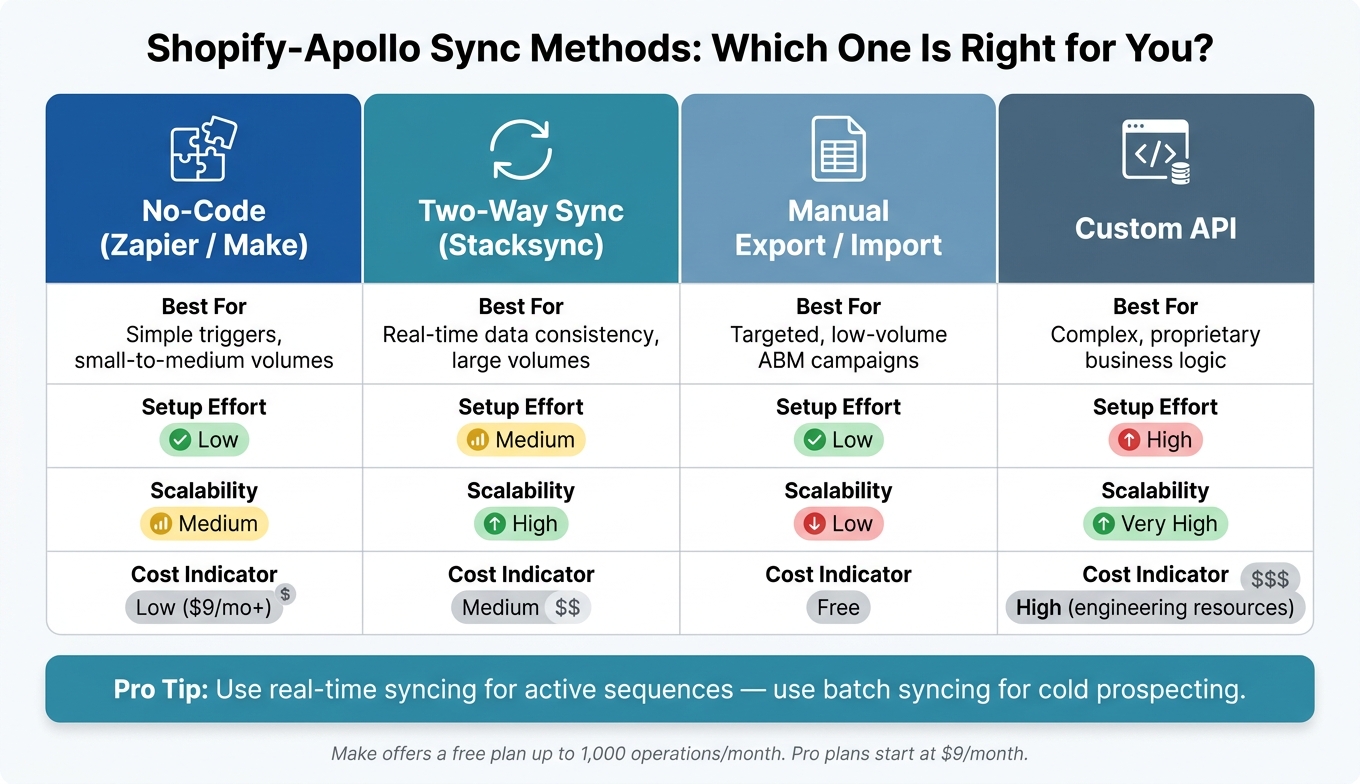
Shopify-Apollo Sync Methods: Which One Is Right for You?
Now that you've completed the prep work, it's time to set up a Shopify-Apollo sync. This process uses pre-qualified store intelligence to ensure your data flows efficiently. With Shopify data cleaned and Apollo fields ready, the next step is selecting a sync method that matches your volume and real-time needs.
Choose the Right Sync Method
Here’s a quick comparison of the most common sync methods:
| Sync Method | Best For | Setup Effort | Scalability |
|---|---|---|---|
| No-Code (Zapier/Make) | Simple triggers, small-to-medium volumes | Low | Medium |
| Two-Way Sync (Stacksync) | Real-time data consistency, large volumes | Medium | High |
| Manual Export/Import | Targeted, low-volume ABM campaigns | Low | Low |
| Custom API | Complex, proprietary business logic | High | Very High |
For most agencies and sales teams, no-code tools like Zapier or Make are a great starting point. They’re perfect for straightforward use cases like sending new Shopify customers or orders into Apollo - no developer needed. If you’re managing high-volume syncs or need instant updates between Apollo and Shopify, consider a two-way sync platform like Stacksync. As Alex Marinov, VP of Technology, explains:
"Stacksync fundamentally changed how we think about data integration. We went from treating it as a necessary evil that consumed our best engineers to having it just work - reliably, at scale, in real-time."
Custom API solutions are ideal only when you need highly specific logic that off-the-shelf tools can’t handle - and if you have the engineering resources to maintain them. Choose the method that fits your needs and build your workflow accordingly.
Build a No-Code Sync Workflow
If you’re opting for no-code, Make offers a free plan for up to 1,000 operations, with Pro plans starting at $9/month for higher volumes and faster intervals. Here’s how to set up a basic Shopify-to-Apollo workflow:
- Connect your accounts: Use OAuth to authorize both Shopify and Apollo in Make.
- Set triggers and map fields: Start with a reliable Shopify trigger like New Order. Other useful triggers include New Customer or Abandoned Cart. Then, add an Apollo action like Create/Update Contact or Create/Update Account. Make sure to carefully map Shopify fields to Apollo custom fields, paying attention to date and phone number formats to avoid errors.
- Run a test: Use Make’s test feature with a sample record. Check for issues like duplicate contacts, missing fields, or timezone mismatches in dates.
- Activate and monitor: Once live, monitor the sync dashboard. Review results after the first 24 hours. Automating this process can save over 5 hours per week on manual data entry, but catching errors early is key.
Once your no-code sync is up and running, you can take it a step further by enriching Apollo records with store intelligence before syncing Shopify data.
Add StoreCensus Data to Apollo Accounts Before Syncing
One common mistake teams make is syncing Shopify transactional data into Apollo without adding any account-level context. This leaves you with contacts and order histories but no insight into whether the store is worth pursuing.
A better strategy is to qualify accounts with store intelligence guides first and then layer Shopify data on top. Tools like StoreCensus can help you filter stores by revenue, installed apps, and growth potential before spending any enrichment credits. For example, filtering for stores generating $1M–$5M in revenue, with 50,000+ monthly visitors but no email marketing app, identifies businesses that are likely missing key opportunities - a much stronger starting point than a raw Shopify export.
From there, use Apollo’s CSV enrichment to find verified decision-makers, like founders, CEOs, or CMOs, for those specific domains. Without further enrichment, only 32.9% of Shopify stores have a verified contact. Running StoreCensus qualification first ensures you spend your credits wisely. When you finally sync Shopify transactional data, every Apollo record will include both store context and behavioral history, enabling highly targeted outreach efforts.
Build Sales Workflows from Synced Data
With Shopify data synced into Apollo, you can transform that information into workflows that target the right leads at just the right time. This process bridges the gap between syncing data and creating actionable sales strategies, using insights from both Shopify and StoreCensus.
Create Filters and Segments in Apollo
Apollo allows you to create segments that combine Shopify behavioral data with StoreCensus insights, making it easier to identify high-value leads. Start by mapping Shopify fields - like total spend and order count - into Apollo’s custom fields. Then, incorporate StoreCensus data, such as revenue tiers or app installs, to create detailed segments that highlight genuine buying potential.
This approach builds on earlier pre-qualification strategies, offering over 100 filtering options from StoreCensus. These include parameters like Shopify theme names and SEO scores, helping you create precise, targeted segments.
Once your segments are set, Apollo's AI Power-Ups can take over additional research. These tools can analyze up to 500 company websites per week, looking for signals like beta programs or public roadmaps. They even assign a priority score from 1 to 5. For example, in March 2026, consultant Jeremy Hurley used this method to help a client in the user testing industry. He identified 43 connected fitness companies, including Whoop and Zwift. Zwift earned a priority score of 5 after the AI flagged its "Future Works" feedback platform, which then triggered a tailored outreach campaign.
Set Up Event-Driven Outreach Sequences
Once your segments are ready, you can use them to drive event-based outreach campaigns. While static segments are helpful, event-driven workflows fully capitalize on your synced data. With Apollo's Workflow builder, you can trigger sequences whenever a contact’s Shopify data changes. For instance, you might set up a trigger for when a customer’s total spend surpasses $1,000 or when their order count signals high engagement.
Each trigger should include a specific condition. For example, a new high-value order could start a VIP nurture sequence, while a lapsed customer placing their first order in 90 days might activate a different workflow - such as sending an alert to a sales rep on Slack. Timing is crucial: leads contacted within 5 minutes of a triggering event are 21x more likely to convert than those reached after 30 minutes. Don’t forget to include exit logic so that sequences automatically stop if the lead replies or their status changes.
Combine StoreCensus Signals with Shopify Behavior
To make your outreach even more personalized, blend real-time StoreCensus signals with Shopify data. Shopify tells you what a customer has done, while StoreCensus helps predict what they might need.
Take, for example, a store with a high Shopify order count and significant total spend. StoreCensus might reveal that this store uses Shopify’s free Dawn theme, attracts over 200,000 monthly visitors, and lacks an email marketing app. This combination of high internal value and a visible external gap creates a strong sales opportunity. As one expert notes:
"The key differentiator is tech stack data. Knowing a store runs Dawn with no email marketing app lets you write: 'I noticed you're still on Shopify's free theme with 200K monthly visitors and no email automation. Here's what that's costing you.'"
This level of specificity can dramatically improve reply rates. Additionally, StoreCensus activity signals - like a competitor app being uninstalled - can automatically move leads into Apollo sequences, allowing you to engage them while they’re actively considering alternatives. Together, Shopify and StoreCensus data transform your synced information into a dynamic sales tool.
Maintain and Improve the Integration Over Time
Run Data Quality Checks and Handle Errors
A sync that worked perfectly last month might fail today. Why? Common issues like schema changes, expired OAuth tokens, or API rate limits can disrupt operations. For instance, Shopify's standard plans limit API requests to 2 per second. Going over this limit triggers a "429 Too Many Requests" error, which can halt your entire pipeline. For mid-volume operators, even a single unnoticed disconnection can result in $500 to $2,000 per incident due to lost revenue and recovery work.
Monitoring shouldn’t be an afterthought. Set up a lag dashboard that sends alerts - via Slack or email - whenever sync delays exceed your defined threshold. Tailor these thresholds based on urgency (e.g., delays under 10 minutes for lead routing). After every sync, compare record counts between Shopify and Apollo to catch partial failures or missed deletions before they snowball into bigger problems.
"Data quality is the top blocker for reliable syncs; governance gates and schema drift monitoring must be built into the schedule, not bolted on later." - The Apollo Team
When errors occur, don’t just discard failed events. Route them to a dead-letter queue so you can inspect what went wrong. Once the issue is resolved, replay those events to recover lost data. This approach preserves data integrity while minimizing disruptions.
Finally, ensure your field mappings stay current with your evolving sales process to maintain data consistency.
Update Field Mappings as Your Strategy Changes
Field mappings should reflect your current sales strategy - not the one you used when you first set up the integration. It’s a fact: 70% of CRM data is outdated, incomplete, or inaccurate. One reason? Field configurations are often neglected after the initial setup.
Revisit your mappings regularly, especially when your targeting changes. For instance, if you shift focus from SMB merchants to Shopify Plus accounts, you might need to add fields like "Annual Revenue" or "Employee Count", which weren’t relevant before. When incorporating new data signals - like technographic data from StoreCensus - map these fields explicitly instead of relying on notes or spreadsheets. Always test new mappings on a small record set before rolling them out across your database.
To avoid confusion, create a simple data dictionary. This shared document should list every custom field, its definition, accepted values, and ownership. It helps prevent enrichment processes from overwriting manual updates made by your sales team.
Keep StoreCensus and Shopify Data in Sync
Just as error monitoring is essential for data quality, keeping StoreCensus and Shopify data aligned ensures your integration stays relevant. This isn’t just about avoiding errors - it’s about enabling data-driven sales strategies that protect revenue.
StoreCensus data doesn’t stay static. A store’s tech stack, revenue tier, or installed apps can change frequently. Outdated firmographic data in Apollo can undermine your outreach efforts. The solution? Use a hybrid sync pattern. Run incremental updates every 5–15 minutes for Shopify behavioral data and schedule a full StoreCensus refresh weekly to account for any changes.
To prevent conflicting writes, establish a system of record for each data type. For example, let Shopify handle order status and purchase history, Apollo manage firmographic enrichment, and StoreCensus oversee tech stack and revenue signals. This clear division keeps your data accurate and actionable.
Conclusion: Key Steps to a Scalable Shopify-Apollo Workflow
Creating a dependable Shopify-Apollo sync requires thoughtful planning: pinpointing critical data, deciding sync direction, and clarifying data ownership.
The biggest takeaway here? Start with the store, not the contact. Why? Only 1.1% of Shopify stores are "ready now" for outreach - meaning they already have a verified decision-maker with LinkedIn context available. Jumping straight to enrichment credits before qualifying accounts can waste resources and dilute your pipeline. Instead, use tools like StoreCensus to filter stores by revenue tier, tech stack, and traffic before pushing data to Apollo. This one step alone saves your budget and ensures you're focusing on accounts that actually matter.
After that, the workflow comes together in a logical sequence: standardize Shopify data, configure Apollo with custom fields and deduplication rules, create a sync with accurate field mappings, layer in store intelligence, and maintain the system with ongoing monitoring. Each step supports the next - because even the cleanest sync won't work if the account data is outdated. This structured approach turns raw data into actionable insights that drive sales success.
Here’s the payoff: targeted outreach based on tech stack gaps - like identifying a high-traffic store without an email marketing app - yields a 5–8% reply rate. Compare that to the 0.5–1% reply rate for generic cold emails. The difference? It’s all about the quality of the intelligence behind your workflow, not the tool you’re using.
Agencies that excel treat this integration as a constantly evolving system. They adjust field mappings as targets change, actively monitor sync health, and keep store intelligence fresh. This ongoing commitment is what separates a workflow that scales from one that falls apart over time.
FAQs
Which Shopify fields should I sync into Apollo first?
To kick things off, sync the core contact and business identity fields - this includes the decision-maker's name, job title, verified email, and the store name. These details are critical for ensuring your outreach feels personal and reaches the right person.
Follow that up by adding contextual details such as normalized roles (like Founder or Marketing Lead) and LinkedIn URLs. These extras help you engage prospects across multiple channels effectively. Lastly, factor in segmentation data - things like traffic tier, revenue tier, and Shopify Plus status. This information helps you prioritize prospects based on their budget and business scale.
Should my Shopify–Apollo sync be one-way or two-way?
When integrating Shopify with Apollo, a one-way sync often works best. This approach ensures that only key data points - such as ownership details, status updates, or notifications - are transferred between your store and sales platform. By focusing on these essentials, you can maintain a store-first strategy without overcomplicating your workflow.
Using tools like StoreCensus, you can qualify accounts based on factors like revenue or growth trends before enriching them in Apollo. While a two-way sync option exists, sticking with a one-way sync helps prevent your ecommerce backend from being overloaded with unnecessary sales records. This keeps things streamlined and efficient.
How can I avoid wasting Apollo enrichment credits?
To make the most of your Apollo enrichment credits, switch to a store-first approach rather than uploading blindly. Start by qualifying prospects using Shopify signals such as monthly traffic (50,000–200,000), installed apps, and their pixel footprint. This helps you identify high-value stores before allocating credits. Tools like StoreCensus can assist in spotting decision-makers and key growth indicators, ensuring your enrichment efforts target stores with the greatest potential.