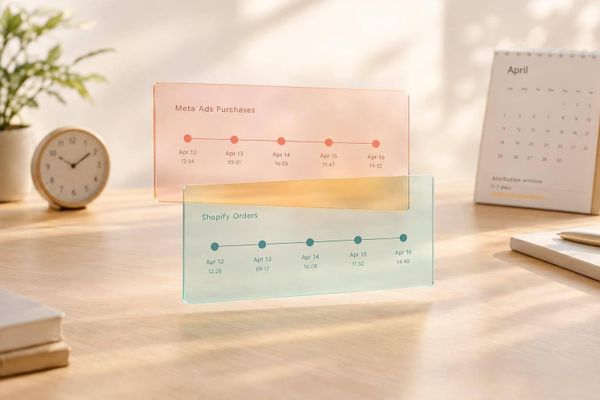
7 Shopify Signals in Meta Commerce Manager
Seven audit checkpoints to find commerce feed, eligibility, tracking, and asset issues before proposing fixes.


A connected Shopify store isn’t always ready to sell on Meta. Check these 7 signals to find publishing gaps, account blocks, and tracking errors before proposing paid work:
- Product status and feed errors: Are intended products syncing without errors?
- Catalog size and variant coverage: Are the planned products, sizes, and colors included?
- Shop status and commerce eligibility: Can the account use its intended shopping features?
- Product and policy compliance: Do listings and business practices meet Meta’s rules?
- Product availability by shopping surface: Are products available where expected?
- Repeated warnings and event-source errors: Do problems return, and do event IDs match catalog IDs?
- Business assets and account settings: Does the merchant control the right accounts and permissions?
Most checks require merchant permission. Mark each signal healthy, watch, or blocked, and record affected products, dates, and account notices. For availability checks, start with 10–20 products rather than assuming one failed item means the whole catalog is broken.
These checks show what needs fixing - not revenue, budget, or willingness to hire. External store data can help select stores to contact, but only an approved account review can confirm private issues. For more on prospecting, see our guide on how to find and target Shopify stores. Scope the smallest verified fix, then measure the result.
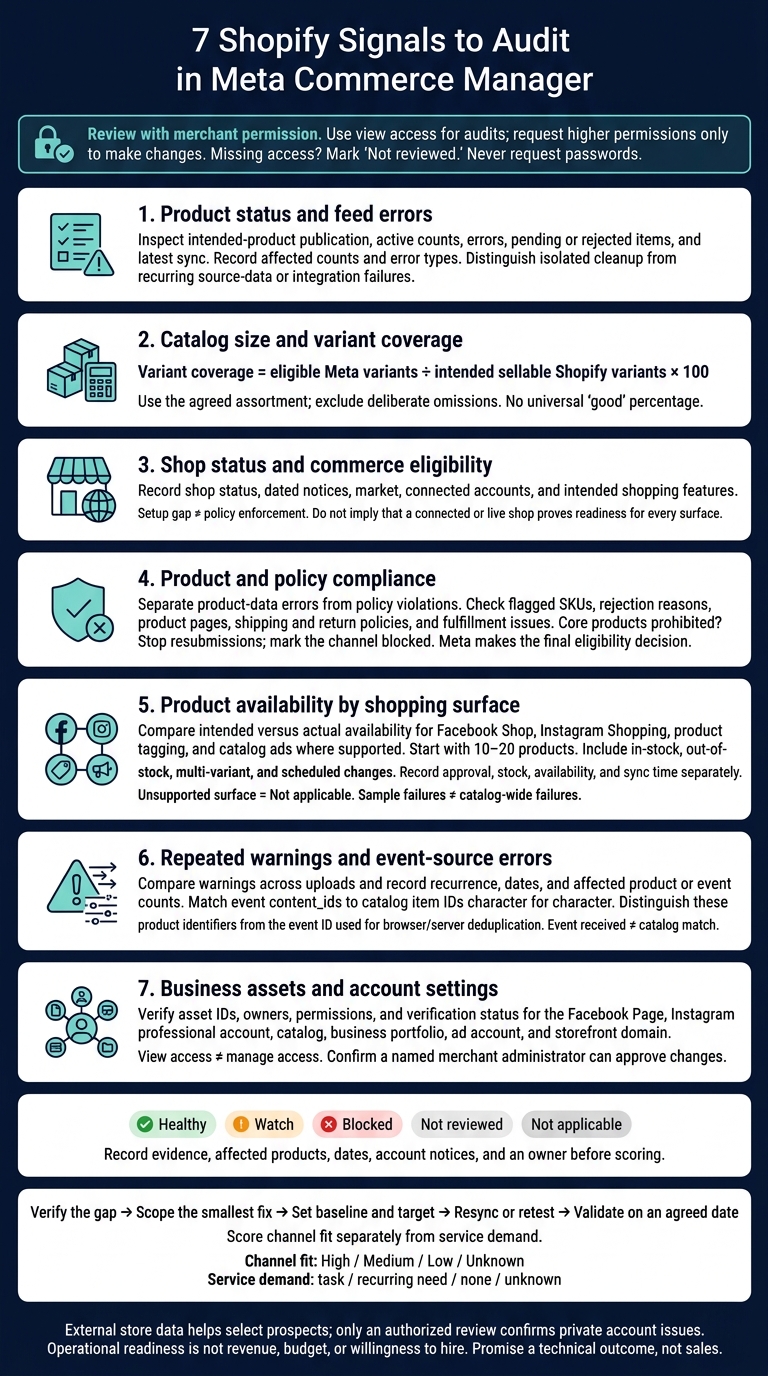
7 Shopify Signals to Audit in Meta Commerce Manager
Which Checks Require Merchant Permission?
Checking feed errors, disapprovals, eligibility decisions, asset connections, and event-source warnings requires authorized access to Meta assets.[10]
Request partner access to the catalog, commerce account, business portfolio, and Pixel or dataset. Use view access for audits. Request higher permissions only when you need to make changes.[7][8]
After access is confirmed, compare Shopify titles, images, prices, variants, and inventory with Meta’s records. Also check whether the affected products are published to Facebook and Instagram.[5][9]
If direct access isn’t appropriate, ask for dated exports or screenshots from Diagnostics and Business assets. Record the Shopify product ID or SKU, Meta item ID, market, and last sync time.
Access paths and eligibility vary by account. Treat interface paths as guides, not fixed instructions. Verify current U.S. eligibility and available shopping surfaces inside the merchant’s account.[6]
With access confirmed, score the seven signals one by one.
sbb-itb-61169e3
1. Product Status and Feed Errors
Evidence to Inspect
Open Catalog > Products, Issues or Diagnostics, and the latest data source upload. Record total and active product counts, plus errors, pending items, rejected items, archived items, and items hidden from Shops. Note the latest sync date and affected product count, and save a sample export or screenshot for comparison.[11][12][14] If products are missing, check Shopify’s Active status and channel publication settings before editing feed fields.[5][11][13]
Merchant Readiness
Use the error pattern to decide whether the catalog needs cleanup or an integration fix. A few incomplete products point to cleanup. Failures across much of the catalog suggest a source-data or integration problem. Group issues by field and percentage of products affected, then check whether they return after the next sync.[12][14]
Meta Channel Fit
Measure active coverage against the products the merchant plans to publish on Meta, not the entire Shopify catalog. Address errors on best-selling or high-margin items first, and keep policy rejections separate from technical failures.[3][14][15]
Possible Agency Work
Treat isolated issues as one-time cleanup. Propose mapping, image fixes, availability reconciliation, or monitoring only when failures recur. Document affected counts, recurring error types, priority products, and where the fix likely belongs.[12][14] Set one measurable outcome, resync, and confirm that the issue count drops in Commerce Manager.[12][14][16][17]
For example, aim to restore priority-product availability.[12][14]
If product errors are minor but coverage is thin, the next signal is catalog size and variant coverage.
2. Catalog Size and Variant Coverage
Catalog depth shows whether the merchant’s Meta assortment matches the Shopify products and variants they plan to sell.
Evidence to Inspect
Compare the intended Shopify parent products and variants with the items Meta has received, marked eligible, and published. In Products, check product and variant counts, group structure, item_group_id alignment, distinct item IDs, and coverage by category.[18][20][21]
Merchant Readiness
Measure assortment readiness with variant coverage = eligible Meta variants ÷ intended sellable Shopify variants × 100.[18]
Exclude products the merchant deliberately leaves off Meta, and document those exclusions. Assess coverage against the agreed assortment, not total catalog size. There’s no universal “good” coverage percentage.[5][18]
Meta Channel Fit
Check that the assortment supports the planned ad or shopping surface. For apparel and footwear, verify size attributes. For color variants, check that the images match each variant.[18]
Possible Agency Work
Base the scope on verified gaps: variant-group cleanup, category mapping, image assignment, or Shopify-to-Meta reconciliation. Reserve routine monitoring for recurring incomplete groups or gaps that appear when the assortment changes.[5][18][20]
If coverage is strong but visibility is limited, check shop status and commerce eligibility next.
3. Shop Status and Commerce Eligibility
Evidence to Inspect
Record the Commerce Manager status, affected shop, connected Facebook Page or Instagram professional account, date, and any reason shown. Use the status label and reason to distinguish live shops from review holds, restrictions, and setup or market blockers.[2][22] This helps separate launch blockers from routine account-management work.
Merchant Readiness
Check business identity, domain connection, Facebook Page or Instagram access, asset permissions, and a working checkout path. Look beyond whether the shop is live: can the merchant sell repeatedly on the intended surface?
A missing connection is a setup task; a policy notice is enforcement. Don’t label something a policy issue without a notice.[2][3] If setup is complete, move to the policy and product checks below.
Meta Channel Fit
Match the merchant’s goal - Instagram product tagging, Facebook Shop visibility, or website-directed shopping - to the product and account requirements for that market. Record the business location, target market, fulfillment reach, and intended surface before blaming Shopify.[22][25] With the surface confirmed, check whether the products meet Meta’s rules.
Possible Agency Work
For clear setup gaps, scope asset connections and domain checks. For restrictions, scope policy remediation and support through the official review process. Collect dated screenshots, asset IDs, notices, Shopify sales-channel settings, and market details. You can also analyze Shopify store tech stacks to see which apps other merchants use for commerce management.
Define only the work you control and what counts as completion. Don’t guarantee Meta’s review timing, approval, or reinstatement.[3][26]
If the shop is eligible but products still fail, check product and policy compliance next.
4. Product and Policy Compliance
Evidence to Inspect
Check whether product data, policy, or fulfillment issues are blocking a product. With the merchant’s permission, open Catalog > Products, filter for issues, and inspect flagged items. Record the affected SKUs, issue type, detection date, and whether each issue prevents publication or only limits distribution.
Keep data errors separate from policy violations. Compare the Meta listing with the Shopify product page and checkout, checking the title, description, images, price, inventory, variants, shipping, and policy pages.[3][32][33] The goal is to distinguish routine cleanup from actual policy blocks.
Merchant Readiness
Make sure shipping, return, refund, privacy, and terms pages are accessible and reflect how the business works. Review account-quality or customer-feedback screens for complaints about delivery, product quality, and support.
Repeated late shipments usually point to a fulfillment problem - not a feed problem. Classify the merchant as ready, fixable, or blocked.[3][22][31]
Meta Channel Fit
Check flagged categories against Meta’s Commerce Policies, paying particular attention to weapons, alcohol, prescription products, and ingestible supplements. A product can be legal to sell on a Shopify website but still be ineligible for Meta.
If the merchant’s core products are prohibited, stop resubmissions and mark the channel as blocked.[28][29][30]
Possible Agency Work
Use the evidence to define the work: catalog corrections, policy-page updates, or fulfillment and support fixes. Collect a dated rejection count, affected variants, item-level rejection reasons, product URLs, policy gaps, and complaint counts.
Assign an owner and completion criteria for each task. Request a review only when the evidence supports it; Meta makes the final eligibility decision.[3][28][33]
If compliance checks out, the next question is where the product actually appears.
5. Product Availability by Shopping Surface
Evidence to Inspect
A product in the catalog isn’t proof that it’s available on a shopping surface. With permission, compare Shopify’s Facebook and Instagram by Meta sales channel settings with the item’s status, destination, and latest sync timestamp in Commerce Manager. Record approval, stock, and availability separately for each intended surface: Facebook Shop, Instagram Shopping, product tagging, and catalog ads where supported.[11][5][37] Check access to each surface - not just whether the channel is connected.
Merchant Readiness
Test 10–20 products covering in-stock, out-of-stock, multi-variant, and scheduled changes. Compare Shopify’s location inventory with Meta’s records. For scheduled changes, note the expected price and availability for a specific date and time, then check the sync result. A connected channel doesn’t prove that updates reached Meta.[11][36][38] If the surface looks correct but warnings persist, check repeated warnings and event-source errors next.
Meta Channel Fit
Mark unsupported surfaces not applicable. Access depends on the merchant’s country, account setup, and enabled features.[35] Rules differ by surface, too. Meta says out-of-stock items are excluded from ads but can stay visible in Facebook and Instagram Shops for up to 56 days, labeled sold out.[20] That difference alone doesn’t mean the sync failed.
Possible Agency Work
Scope surface verification and sync validation only after documenting a gap, such as surface-specific mapping, inventory-sync repairs, or scheduled-price validation. Before proposing paid work, record the affected SKUs, catalog, data source, sync timestamps, intended versus actual surface status, and dated screenshots or exports. Report the sample failure rate separately from confirmed catalog-wide counts. A small audit shouldn’t become a rebuild proposal.[11][5][36] Document the gap before treating it as a channel-wide problem.
6. Repeated Warnings and Event-Source Errors
Evidence to Inspect
When basic checks pass but problems persist, look at recurring warnings and event-source matches. Compare diagnostics across multiple uploads. Record each warning’s type, first and latest occurrence, affected product count, and whether the problem is growing, stable, or declining.
In Events Manager, inspect the Pixel and Conversions API data sources. Check recent event volume, warnings, and Test Events results. Compare content_ids with catalog IDs character for character, including prefixes, capitalization, and variant suffixes. An event can arrive successfully and still fail to match the catalog.[20][40][39][41][46]
Merchant Readiness
Confirm who will fix the issue and who will verify the result. A one-time warning affecting a few discontinued products calls for a different response than a recurring issue affecting active products or repeated Purchase events.
Compare browser and server events for the same order. Product identifiers should agree, and a consistent event ID supports deduplication.[40][44][45][46]
Meta Channel Fit
Stable identifiers and consistent ViewContent and Purchase events support catalog-based campaigns. Use the warnings to distinguish event-tracking problems from catalog problems. Missing content_ids usually indicate an instrumentation gap. IDs that aren’t in the catalog point to a mapping or catalog-selection problem.
If a catalog isn’t connected to an event source, connect it rather than rewrite the product IDs.[20][42][43]
Possible Agency Work
For an isolated fault, scope a one-time mapping or connection repair. Use continued monitoring only when errors recur after changes.
Before proposing paid work, get permission-based access and collect dated diagnostics, affected product and event counts, a small catalog-to-event ID comparison, and Test Events results. Set clear acceptance criteria: matching IDs, validated commerce events, correct deduplication, and fewer repeat errors on later uploads.[20][40][41][45]
If the event layer is clean, check business assets and account settings next.
7. Business Assets and Account Settings
Evidence to Inspect
If diagnostics show no issues, check the business assets that control publishing and access. With merchant permission, open Commerce Manager → Settings → Business assets. Record the asset IDs, owners, and access levels for the Facebook Page, Instagram professional account, catalog, business portfolio, and ad account.
Check business verification and domain-verification status. Compare the domain in Commerce Manager with the primary Shopify storefront domain, connected Page, and Instagram profile.[10][2][3]
These checks show who controls each asset, whether it matches the intended surface, and whether the merchant can manage it.
Merchant Readiness
View access does not equal manage access. Confirm that a named merchant administrator can approve changes and respond to verification requests. If an agency still owns the Page or catalog, or the merchant lacks Page-management access, that’s an access problem - not a feed problem.[27][24][25]
Meta Channel Fit
Check that the intended Facebook Page and Instagram account represent the same business and that Instagram uses a professional account. The Page, Instagram account, and storefront domain should match the verified business in Commerce Manager.[3][23][25][27]
If ownership or permissions are the issue, scope the fix at the asset level.
Possible Agency Work
A disconnected account or missing role may call for a focused setup task. Split ownership may require permissions cleanup.
Before proposing paid work, collect dated screenshots, asset IDs, owners, permission confirmations, and verification notices. Get merchant approval before changing ownership or access, and tie the scope to the affected surface and documented gap.[47][10]
Score the 7 Signals Before Proposing Work
Turn the seven checks above into an evidence-based scorecard. Use this worksheet only after you have permission to access the account. Replace each prompt with evidence, counts, dates, and affected products. Write “Not reviewed” wherever access is missing.
Complete the evidence column for each row before scoring it.
| Signal | Observed evidence | Merchant maturity | Meta channel fit | Probable service demand |
|---|---|---|---|---|
| Product status and feed errors | Affected items, percentage of assortment, error types, and latest sync. | Check data flow, publication accuracy, and monitoring. | Confirm that intended, eligible products can publish. | Feed repair or monitoring, if the evidence supports it. |
| Catalog size and variant coverage | Intended Shopify products and variants compared with Meta coverage. | Measure completeness, not total size. | Check coverage of commercially important products. | Variant mapping or catalog cleanup. |
| Shop status and commerce eligibility | Status, review notices, market, and eligibility blockers. | Separate setup from readiness. | Confirm that intended features are available. | Setup or review support for blockers that can be addressed. |
| Product and policy compliance | Rejected items, policy categories, and review outcomes. | Confirm who owns compliance checks. | Confirm that the core assortment is eligible. | Content corrections or review support. |
| Product availability by shopping surface | Intended versus actual availability on each surface. | Check publication accuracy by surface. | Rate each intended surface separately. | Publication settings or product-set fixes. |
| Repeated warnings and event-source errors | Issue type, recurrence, duration, and affected events. | Check whether recurring causes are fixed. | Identify distribution or measurement limits. | Diagnostics, repairs, or repeated monitoring. |
| Business assets and account settings | Collected evidence of assets and permissions. | Check control and accountability. | Confirm that access supports intended account activities. | Access cleanup or governance. |
Assign maturity based on the evidence. Connected means required assets are linked. Ready means eligible products publish accurately. Scalable means ownership and monitoring are dependable. A lower level doesn’t prove a higher one.
Score Meta channel fit separately from service demand. Rate fit as High, Medium, Low, or Unknown, and add an evidence note. Label demand as task, recurring need, none, or unknown.
Prioritize by assortment impact, recurrence, business impact, and merchant capacity. Give commercially important collections more weight than raw item counts. Check whether issues return after Shopify syncs, and confirm whether the merchant’s team has the capacity to fix them. Treat blocked distribution as an impact on operations - not proof of lost revenue.
Use the score to distinguish account problems from work the merchant needs help with, then decide whether outreach, an access review, or no pitch is appropriate.
Find Shopify Prospects, Then Check With Permission
After scoring the seven signals, use external data to find stores worth auditing. StoreCensus lets you find Shopify brand prospect lists by category, estimated revenue range, catalog size, tech stack, and recent growth signals.[34][49] Start with stores showing recent product-count growth or a new app install.[52]
Use decision-maker data to reach someone who can approve the audit and act on its findings. Match your proposed service to the activity you see. Catalog expansion or app changes, for example, may point to a need for feed governance, catalog mapping, or troubleshooting. Revenue and tech data are screening tools only. They don’t confirm spend, performance, or a broken feed.[48][50][51]
Screening helps you choose prospects. A review with permission confirms the account’s state. StoreCensus cannot show private Commerce Manager errors, restrictions, or eligibility decisions, so get permission before making account-level claims.[34][48][49] Request only the access needed for the review. A screen share or diagnostic export may be enough for a limited check. Never request passwords.[35]
Label screening notes as observed, reported, or inferred, and keep them separate from findings gathered with permission. External data helps qualify leads; it isn’t proof of account status.
Once the merchant grants access, move to the seven-signal audit. Attach the findings to the prospect’s CRM record, including the audit date, approved assets, status or warning, affected items, evidence source, owner, and next step. Add the feed-upload date when relevant so a later sync isn’t mistaken for the state you audited.[19] Time your follow-up around the agreed correction, feed refresh, or review - not an arbitrary sales reminder.[53][54][55]
Conclusion: Document the Gap Before Pitching
After the scorecard, separate operational problems from sales assumptions. The seven signals show operational readiness, channel fit, and service demand - not budget or purchase intent. Use the scorecard to diagnose problems, not forecast sales.[19][56]
If the score points to a gap, get permission to verify it before pitching a fix. Score all seven signals for one Shopify account and its connected Meta assets. Then document the issue with the clearest business impact and lowest repair cost. A blocked shop or broad publication failure takes priority over a minor title warning.[4][3]
Define the smallest repair that closes the documented gap. Assign one owner and set a clear scope, baseline, account-specific target, and validation date. Measure the same metric before and after the fix. Promise a technical outcome, not sales.
FAQs
How often should I audit my Meta catalog?
Update your catalog inputs at least weekly to keep pace with current growth signals. Run a full audit each month to spot stores that have changed direction, closed, or fixed the issues you planned to address.
Before each outreach batch, double-check the catalog or feed gaps you’re targeting so your details are still current and relevant. [1][2]
How do I trace sync errors to their source?
To trace Shopify sync errors, use StoreCensus Activity Signals (requires Apply). Filter for app installs/uninstalls, theme changes, product/variant count changes, category changes, or description changes over the last 7 or 30 days.
Treat detected stack details as clues - not proof. Record the affected step and timestamp. Then request least-privilege backend diagnostic access to check server-side logs and confirm which integration or workflow is failing.
When should I recheck products after a fix?
Recheck products as soon as you detect a fix-related change to a feed, catalog, app, theme, or store. Scores and signals can go stale fast. Review store-change evidence for paid-media activity again within 7–14 days, and update scores weekly - or in near real time for high-priority accounts.
For onboarding or outreach readiness, recheck the specific tech or product gap before each outreach batch. Run a full audit monthly. [1][2][3]