
Meta Ads Purchases Not Matching Shopify Orders
Attribution windows, time zones and tracking gaps — not broken integrations — usually explain why ad-reported purchases don’t match your orders.

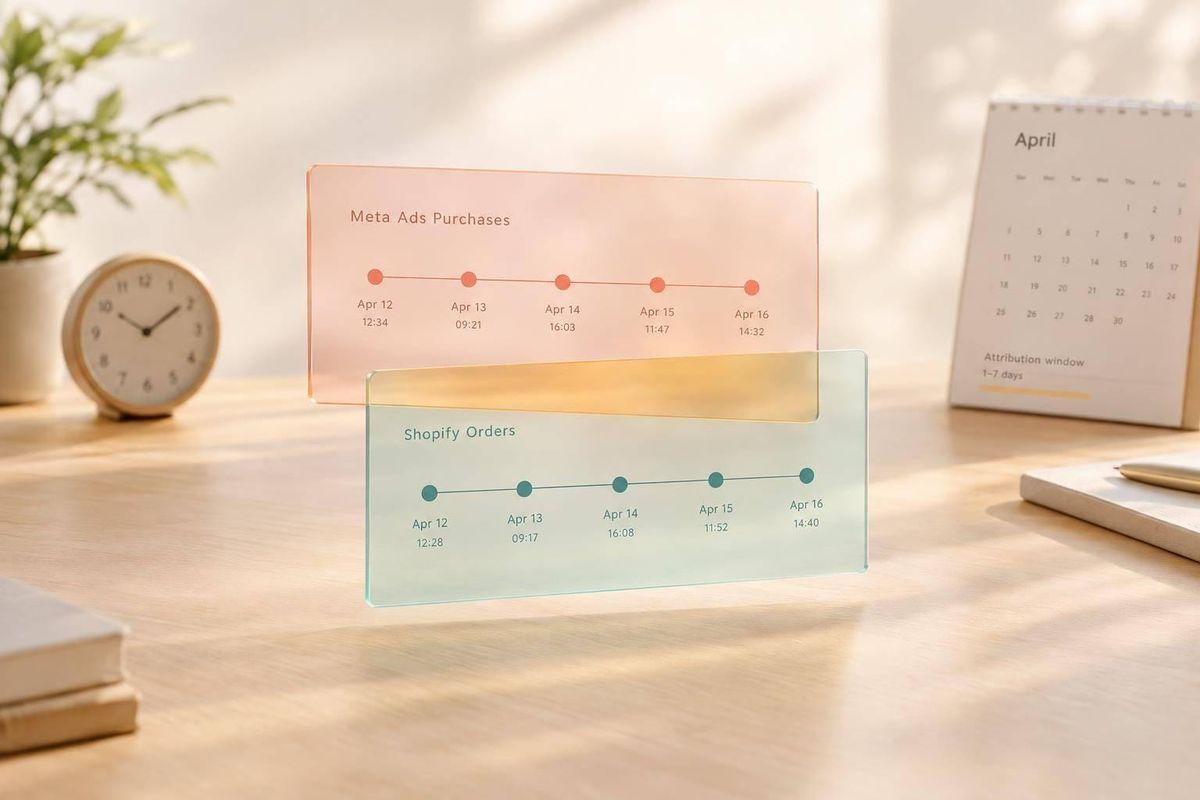
Meta Ads purchases and Shopify orders don’t need to match 1:1. Shopify records orders; Meta reports purchases credited to ads. Start by matching date ranges and time zones, checking the attribution window, and allowing 24–72 hours for reporting to settle.
Then separate reporting differences from tracking errors:
- Attribution and refunds: Ad credit, order dates, and refunded amounts can explain different totals.
- Missing or duplicate events: Check Purchase events, browser/server deduplication, values, and currencies.
- Checkout and consent: Test standard checkout and Shop Pay separately, including consent choices that block marketing tracking.
Use Shopify to reconcile orders and revenue and Meta to assess ad-attributed results. Fix confirmed event errors - not every gap between the dashboards.
Meta Shows 2x Purchases? Here's Why 😳 #shopify #metaads
sbb-itb-61169e3
Why Meta and Shopify Purchase Totals Differ
A received Purchase event isn't the same as an attributed purchase. Meta records the Purchase events it receives, but Ads Manager reports only purchases credited to eligible ad interactions.
| Comparison | Shopify orders | Meta Ads Manager attributed purchases |
|---|---|---|
| Data source | Shopify orders | Pixel/CAPI signals plus attribution rules |
| Event counted | Recorded orders | Attributed purchases |
| Reporting date | Order date | Ad-interaction date |
| Attribution method | No marketing attribution needed | Click-through or view-through credit within the selected window |
| Modeling | None | May include modeled conversions |
| Browser loss | Orders still record | Missed signals reduce visible or attributed purchases |
| Refund treatment | Refunds lower revenue, not the original order count | Counts and values may not reverse automatically |
Attribution Windows and Reporting Dates
Start by checking the campaign's attribution window. A common setup is 7-day click and 1-day view. Meta can credit a purchase to an earlier ad-interaction date, while Shopify records it on the date the customer places the order.
Ads Manager can backfill results for 24 to 72 hours [8]. That means a daily gap may reflect attribution lag rather than a tracking failure. Check that Shopify and Meta use the same time zone, too.
If the reporting periods match but the totals still differ, check whether Meta received the Purchase event.
Browser Tracking Loss and View-Through Attribution
With the attribution window checked, look for signal loss. Privacy restrictions, consent choices, and ad blockers can prevent browser events from reaching Meta.
CAPI can recover some signals, but it doesn't bypass consent or guarantee attribution. View-through credit can also add attributed purchases without creating extra Shopify orders [8][9].
How Shop Pay Can Affect Tracking
The checkout flow can affect whether the Purchase event fires at all. Depending on the integration and consent state, Shop Pay can change the checkout session and which tracking code fires [1].
Test standard checkout and Shop Pay separately. If the Purchase event never reaches Events Manager, treat it as a setup issue. If it arrives but Ads Manager doesn't credit it, treat it as an attribution gap.
Refund Differences vs. Tracking Errors
After ruling out attribution windows and checkout behavior, check whether refunds or event errors explain the gap.
Don’t judge the gap by a fixed percentage. Match individual orders and look for a clear explanation. Check order IDs, event IDs, and report types to separate expected differences from tracking problems.
A gap usually isn’t a problem when order IDs match and refunds or report types explain the difference. Treat it as a setup issue when Meta shows zero purchases, one order appears more than once, or the gap changes sharply after an update.
| Issue | Typical symptoms | Likely causes | Validation checks |
|---|---|---|---|
| Refund mismatch | Purchase counts match, but Shopify net revenue is lower than Meta’s purchase value | Full or partial refunds, returns, or cancellations | Match order IDs, refund amounts, and refund dates; confirm the Shopify report type and compare gross and net figures separately |
| Duplicate Purchase events | One Shopify order appears as multiple purchases in Meta | Overlapping integrations, unstable or reused event IDs, or confirmation-page reloads | Inspect browser and server event payloads, event IDs, timestamps, and deduplication status |
| Missing Purchase events | Completed orders have no matching Meta Purchase events | Consent restrictions, browser blocking, failed server delivery, or mistimed triggers | Compare order records with event logs and payloads; review recent deployment changes |
Refunds, Purchase Counts, and Revenue
Use the same Shopify report type when comparing values. Also, check refund dates against order dates: an adjustment may fall in a later reporting period.
Meta usually keeps the original attributed Purchase after Shopify records a refund or cancellation. Partial refunds can lower revenue without changing the original purchase count.
Before comparing Meta revenue with Shopify net payments, confirm that you’re using the same report type. Shopify defines net payments as total paid minus total refunded.[15]
Check the relevant records for refunds, chargebacks, cancellations, and order edits. Then confirm whether both systems treat discounts, shipping, taxes, and currency conversion the same way. A value difference alone doesn’t prove an event is missing.
Duplicate and Missing Purchase Events
For browser Pixel and Conversions API deduplication, the same purchase must use the same event_name (Purchase) and event_id across both sources. Use a stable order or transaction identifier that belongs to only one purchase.[10][11][12]
Generating a new ID on every confirmation-page reload can create duplicates. Reusing one ID across orders can cause separate purchases to be incorrectly deduplicated.
Check every source: Shopify’s native channel, tag manager, pixel apps, custom theme code, and any server-side integration. Log the order ID, event ID, source, timestamp, and value. Two deliveries - one from the browser and one from the server - can correctly represent one deduplicated purchase.
Investigate when one order has multiple Purchase events, no events appear anywhere in the purchase path, or tracking breaks immediately after a deployment change. Separate duplicate delivery from failed deduplication before calling it a setup issue.
If the mismatch persists, audit order IDs, event IDs, and checkout paths step by step.
Audit the Mismatch Step by Step
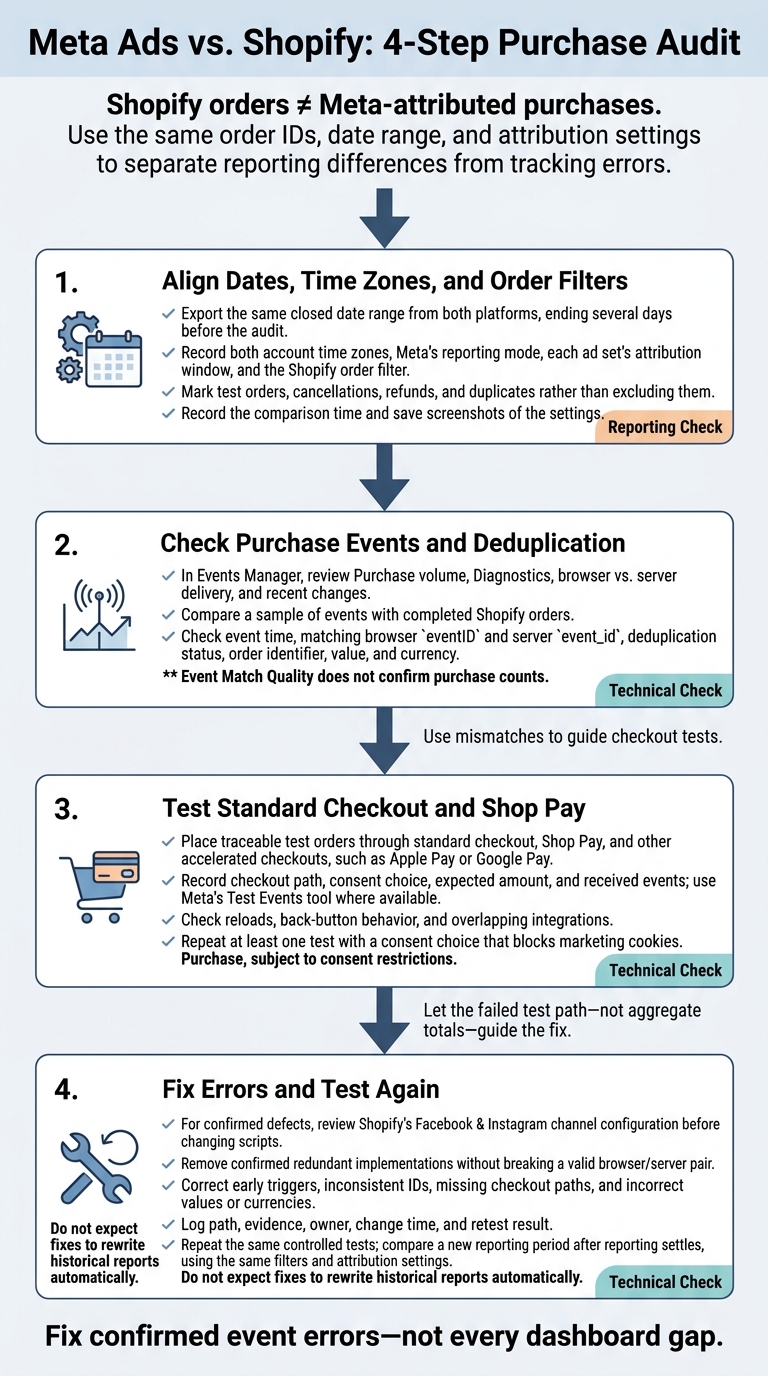
Meta Ads vs. Shopify: 4-Step Purchase Audit
Use the same order IDs, date range, and attribution settings to separate reporting differences from tracking errors.
1. Align Dates, Time Zones, and Order Filters
Export the same closed date range from both platforms, ending several days before the audit. Record both account time zones, Meta’s reporting mode, each ad set’s attribution window, and the Shopify order filter.
Mark test orders, cancellations, refunds, and duplicates rather than excluding them. Record when you made the comparison and save screenshots of the settings.[4][19][20]
2. Check Purchase Events and Deduplication
In Events Manager, review Purchase volume, Diagnostics, browser vs. server delivery, and recent changes. Event Match Quality does not confirm purchase counts.
Compare a sample of events with completed Shopify orders. Check event time, matching browser eventID and server event_id, deduplication status, order identifier, value, and currency.[2][7][16] Use any mismatches to guide the checkout tests in the next step.
3. Test Standard Checkout and Shop Pay
Place traceable test orders through standard checkout, Shop Pay, and other accelerated checkouts, such as Apple Pay or Google Pay. For each order, record the checkout path, consent choice, expected amount, and received events. Use Meta’s Test Events tool where available.
Check reloads, back-button behavior, and overlapping integrations. Repeat at least one test with a consent choice that blocks marketing cookies. Each successful order should produce one deduplicated Purchase, subject to consent restrictions.[6][7] Let the failed test path - not the aggregate totals - guide what you fix.
4. Fix Errors and Test Again
For defects confirmed through checkout tests, review Shopify’s Facebook & Instagram channel configuration before changing scripts. Remove confirmed redundant implementations without breaking a valid browser/server pair. Correct early triggers, inconsistent IDs, missing checkout paths, and incorrect values or currencies.
Log the path, evidence, owner, change time, and retest result. Repeat the same controlled tests. Then compare a new reporting period after allowing time for reporting to settle, using the same filters and attribution settings. Do not expect fixes to rewrite historical reports automatically.[5][14][17][18]
Conclusion: Fix Tracking Errors, Not Attribution Gaps
After the audit, separate broken tracking from normal attribution differences. Fix tracking errors; accept attribution variance. Correct missing or duplicate Purchase events, incorrect values or currencies, and checkout-path failures.[3][11] Once you’ve ruled out those errors, compare what each system measures - not just its totals.
Use Shopify for order and revenue reconciliation and Meta for attributed performance. Report each metric with its definition.
In client reports, keep Shopify paid orders, refunds, and net sales separate from Meta-attributed purchases and purchase value. Include the date range, time zone, attribution window, and revenue definition. Shopify net sales and Meta purchase value are not the same metric.[21][13]
FAQs
How can I match Shopify orders to Meta events?
Compare your Shopify order reports with Meta’s Ads Manager. Account for attribution windows and check for duplicate purchase events when browser-side and server-side tracking are both active.
Use Meta’s Conversions API (CAPI) to send purchase events directly from your server to Meta. This helps record purchases that browser tracking misses due to ad blockers or privacy restrictions.
How should I measure ROAS when purchase totals differ?
Don’t rely on a single source. Choose a consistent attribution window that matches your product’s buying cycle and price point. In Meta Ads Manager, use Compare Attribution Settings to see how 7-day click versus 1-day click changes your reported ROAS.
Before changing budgets, compare Meta’s figures with actual Shopify revenue, accounting for view-through attribution and overlap across channels. Check that your tracking setup, including CAPI, is configured to minimize data gaps.
How can I tell if a tracking fix worked?
Compare Shopify orders with Meta purchase events using the same time window and event type. Don’t rely on Meta purchases alone. After the fix, Meta’s purchase totals should move closer to Shopify’s, especially after you add or confirm server-side Conversions API. Track campaign-level ROAS with consistent attribution settings and UTMs.
Any remaining gap may come from refunds, duplicate events, or differences in attribution or measurement windows - not a failed fix.