Shopify Data Portability: 7 Hard Limits
Seven Shopify export limits—orders, customers, apps, themes, media, and history—and how to test restorability before pricing.


I treat a Shopify export as a starting point - not a store backup. Before you price a migration, CRO project, or retention setup, request sample exports, save linked files, and test what the destination can restore.
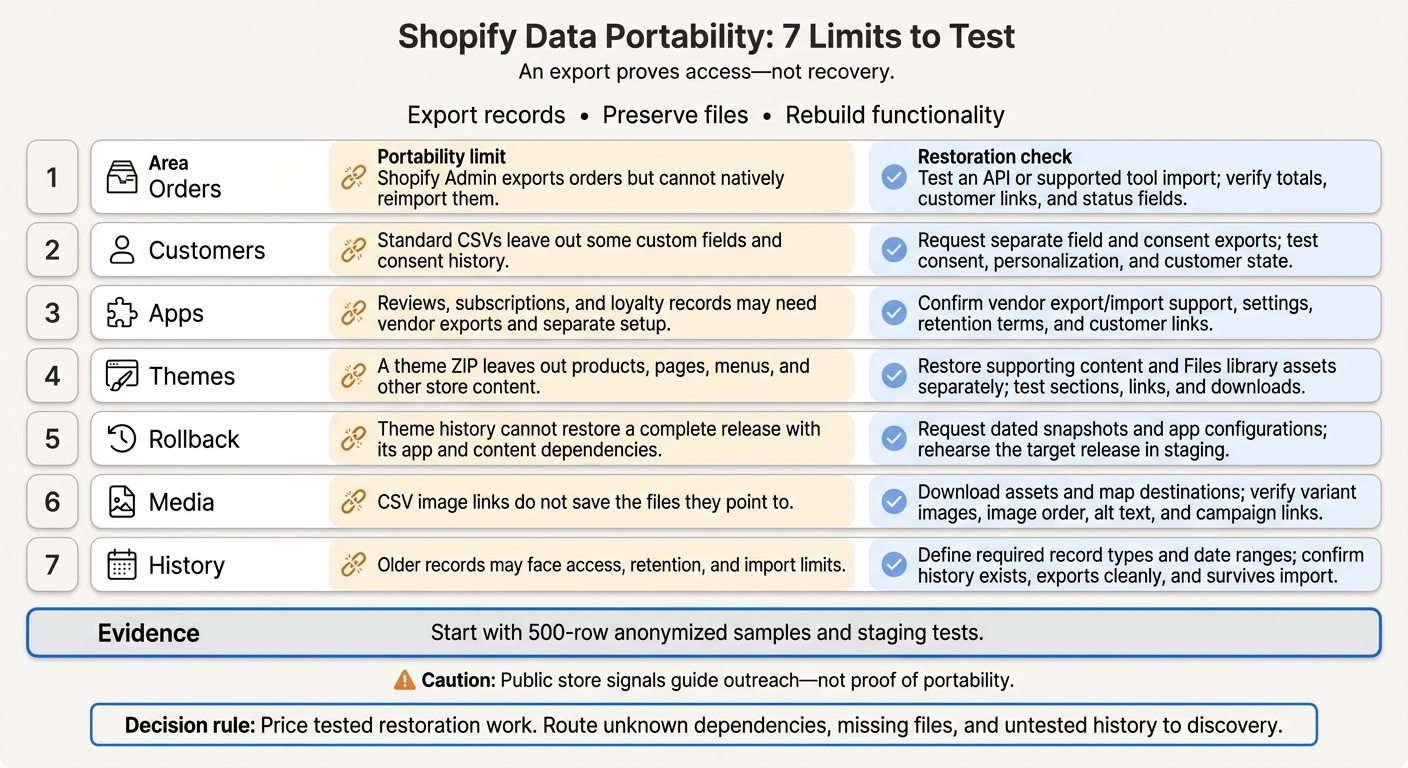
I check seven limits before setting the scope:
- Orders: Shopify Admin exports orders but cannot natively reimport them.
- Customers: Standard CSVs leave out some custom fields and consent history.
- Apps: Reviews, subscriptions, and loyalty records may need vendor exports and separate setup.
- Themes: A theme ZIP leaves out products, pages, menus, and other store content.
- Rollback: Theme history cannot restore a complete release with its app and content dependencies.
- Media: CSV image links do not save the files they point to.
- History: Older records may face access, retention, and import limits.
My starting point: 500-row samples and staging tests for the records, files, and store behavior you need. Public Shopify store guides and signals can help you choose whom to contact, but they cannot prove what will transfer.
<u>Price the tested restoration work - not just the export.</u> Keep unknown app dependencies, missing files, and untested history in discovery until you know what can survive the move.
Shopify Data Portability: 7 Limits to Test
The Complete Guide to Shopify Backups
sbb-itb-61169e3
Data Exports Are Not Store Backups
Treat portability as three jobs: export records, preserve files, and rebuild functionality. This split helps keep migration, CRO, and retention work within scope. Then check which export path covers each job.
Shopify CSV exports cover core records. API tools reach more object types, while app exports handle app-owned data.[1][2] Before estimating the work, match each data type to the destination importer. More export options don't mean you can restore everything. That gap determines whether a lead needs a simple export, a partial migration, or a rebuild.
Require source permissions, API access, and destination import support before scoping. Specify which history must remain usable and where it needs to work. Retention and CRO projects often need separate checks for subscriptions, loyalty data, themes, and app settings. Put those requirements in the scope: admin access doesn't cover every app or historical record.
Large order-history exports may hit API rate limits.[1] Missing access, import support, or enough historical data makes a lead higher risk. Use these constraints to distinguish low-risk moves from projects that need restoration testing.
Screen Leads With Public Store Signals
Public signals help rank leads, but they don’t prove portability risk. Use StoreCensus to filter Shopify merchants by estimated revenue, tech stack, theme, country, and changes in traffic and product count. Narrow the list to your agency’s market before testing export limits.[3]
For migration work, focus on WooCommerce merchants with higher estimated monthly revenue and larger product counts. Being a migration lead doesn’t mean a merchant plans to migrate. Confirm their plans before proposing an audit.[3]
For CRO work, treat theme changes as signs of a redesign. Watch 7-day and 30-day changes in traffic and product count to help time your outreach. A theme change gives you a reason to ask about redesign goals and testing needs.[3]
For retention work, watch app installs and uninstalls. Ask whether subscriptions, loyalty programs, or reviews need to carry over to the new setup. An uninstall doesn’t necessarily mean churn; it may point to consolidation or cost-cutting.[3][1]
Use decision-maker contact information to reach the person responsible for ecommerce operations, development, or retention. Record the change, date, and risk level in your lead notes. Let public signals guide outreach priorities, but confirm risks through merchant-approved sample exports.[3][1]
1. Shopify Admin Cannot Reimport Order Exports
Export and restoration gap
Shopify Admin can export orders, but it has no native import path to restore them. Shopify’s Store Migration app also leaves out order history. To restore orders, you’ll need Shopify API work or a tool such as Matrixify.[1]
Agency qualification impact
For agencies, order history becomes a separate scope item. Migration teams should assess the import scope and API rate limits. CRO teams should check reporting integrity, while retention teams should confirm that purchase history remains intact after import.[1]
Affected data and dependencies
Refund records, fulfillment states, tax lines, discount applications, and customer links all need mapping. Product, variant, and customer IDs must also match the destination store. A CSV is a flat record - not a rebuilt order history.[1]
Evidence to request
Ask for a 500-row order sample and source records covering refunds, partial fulfillment, taxes, and discounts. Also request a mapping document that identifies the destination field for each source field and lists any exclusions.
Before pricing the import, run a staging test and compare totals, customer links, and status fields.[1][3]
Order history is one restore path; customer exports have their own field gaps.
2. Customer Exports Leave Out Some Fields
Export and restoration gap
Native customer CSVs leave out customer metafields, metaobjects, and full consent history. Restoring that data requires a separate export path.[2] This gap affects lead qualification when customer data sits in apps rather than Shopify.
Affected data and dependencies
Map each field to its source: a Shopify customer record, an app field, or an app database. Check app access separately for subscription and loyalty state.[1][2]
Agency qualification impact
Migration teams should scope custom-field mapping as a separate task. CRO teams should check which missing fields would break personalization. Retention teams should confirm consent and segmentation fields before rebuilding segments or campaigns.[1][2]
Customer exports are high-risk when custom fields, consent history, or loyalty state must carry over. If those fields can't be exported cleanly, qualify the lead as a rebuild - not a simple migration.
Evidence to request
Request sample exports with Metafield: [namespace.key] columns, matching definitions, full consent records, and app exports for loyalty and subscriptions. Confirm who owns each export, then test whether consent status, personalization inputs, and loyalty or subscription state survive import.[1][2]
When customer fields depend on apps, app-owned data becomes the next export risk.
3. App Data May Need Separate Exports
For migration, CRO, and retention leads, app data can be a hidden dependency.
Export and restoration gap
After customer exports, check whether app-owned data can move with the store. These records are separate from Shopify metafields and metaobjects. Reviews stored in a vendor’s database need that vendor’s export/import process. Metafields and metaobjects need the right API permissions and bulk tools.[1][2]
Affected data and dependencies
Subscriptions, loyalty balances, and bundle rules often rely on customer links and app settings. Confirm that you can access those settings, then document which settings and integrations need to be restored separately.[1]
Agency qualification impact
For migration, price vendor coordination and configuration rebuilding separately. For CRO, check whether missing reviews or broken bundle behavior would disrupt the shopping experience. For retention, require proof that subscription states and loyalty balances keep their customer links. Leave unverified dependencies out of fixed-price scope.[1]
Evidence to request
Before quoting, request a sample vendor export, the date range it covers, access to configurations, and the vendor’s data retention terms after uninstalling the app or closing the account. Check whether exports include historical activity or only current balances.
Before uninstalling the source app, test the supported import process in a development store. Include a test order that triggers app notifications.[1]
If the app export fails, the next risk is whether the theme package still leaves store content behind.
4. Theme Downloads Leave Out Store Content
Export and restoration gap
A Shopify theme may be portable, but the store content behind it doesn’t travel with it. The theme ZIP contains Liquid code, JSON templates, theme assets, and settings such as settings_data.json. It’s not a full store copy. Products, collections, navigation, pages, and blogs live outside the theme, so uploading the ZIP won’t restore them.[1] A theme ZIP can look complete while the store still lacks the content needed to launch.
Affected data and dependencies
Theme settings may point to products, collections, or menus that need to exist separately. Without those records, sections can appear empty and links can break. PDFs, marketing images, and other uploads in Shopify’s Files library also need separate export and restoration; they aren’t included in the theme ZIP.[1][2] A content inventory is a required part of scoping the work - not an optional extra.
Agency qualification impact
For migrations, require separate exports for products, collections, pages, blogs, menus, redirects, and Files library assets. For CRO and retention work, check the metafields, metaobjects, customer records, and order data that support theme content and campaigns. Price content recovery separately from theme installation.[2][4]
Evidence to request
Request the theme ZIP, a content inventory, sample exports, and copies of linked files. Map menus during the first week, including the pages and collections they link to. Then restore the supporting content in a development store and test theme sections, menu links, and file downloads - not just whether the ZIP uploads.[1][3] A successful upload doesn’t prove the store content has been restored.
5. Theme History Does Not Restore a Complete Release
Export and restoration gap
Like theme exports, Shopify’s native theme history is not a full rollback point. It tracks changes to Liquid, JSON, and CSS files, but leaves out app and content dependencies that may have changed since the snapshot.[2][4]
Do not promise deleted-file recovery unless the file exists in a separate backup or dated snapshot.[5] Theme recovery and rollback verification need separate tests.
Affected data and dependencies
App blocks and embeds fail when the app is gone. Rolling back a theme does not restore removed apps or hosted extensions.[3]
Check app state and settings against the intended rollback date - not just the theme’s file timestamps. Then confirm that the store still has the files and app state the theme expects.
Agency qualification impact
For migration and CRO leads, missing release snapshots make rollback a recovery project rather than a fixed-price task. Use theme-change and app-change signals to decide where discovery should start, not as proof that recovery is possible.[3] Request evidence before pricing the rollback.
Evidence to request
Ask for dated theme snapshots, change logs, app configuration records, and proof that deleted files can still be restored.
Before promising rollback, rehearse the target release in staging. Verify that deleted files, app blocks, and embeds can be recovered.[1][3] Keep missing files and app dependencies out of scope until staging proves they can be restored.
6. CSV Exports Reference Media Without Saving the Files
CSV exports have the same gap as theme recovery: the reference survives, but the file doesn’t.
Export and restoration gap
An image URL is a pointer, not a backup. Shopify’s product CSV stores the link - not the image file. A restoration plan needs a copy of that file outside the CSV. If the source file is deleted or its hosting becomes unavailable, the link breaks. Before importing, check that Shopify can access every image without a login, firewall block, or CAPTCHA.[1]
Affected data and dependencies
Inventory product images, Shopify Files, blog and landing-page images, and app-hosted media separately. The CSV doesn’t list all media. Alongside the downloaded files, save product and variant associations, image order, and alt text.[1][2]
Agency qualification impact
For migration, confirm you can download the files before shutting down source hosting. For CRO, check landing pages for broken media. For retention, inspect campaign image links. Missing files or links without destination mappings need separate recovery and link-repair scope, not treatment as a low-risk file transfer.[1]
Evidence to request
Request a sample product CSV, a Files inventory, downloaded assets, and a source-to-destination file map. Match the downloads against both the inventory and the map, and review transfer logs for restoration failures.
In staging, verify variant images, image order, alt text, and campaign image links. Then run a delta import before launch to include newly added media.[1][2] If the media restores cleanly, the next question is whether Shopify still holds the historical records you need to export.
7. Historical Records Have Retention and Access Limits
Export and restoration gap
The last portability limit is history itself. Older records may still exist, but you may not be able to export or restore them reliably.
Historical order imports can be slow or rate-limited, and they may not preserve original order numbers exactly. Customers also need to reset their logins after migration.[1] How much history you move affects pricing - it’s not something to assume.
Affected data and dependencies
Treat older orders, customer activity, analytics, payouts, and app-owned history as separate datasets. Activity logs and payouts often require specialized exports rather than standard Shopify CSVs.[2] Some export tiers cap payout records per file, which can restrict access to older records.[2]
Agency qualification impact
For migration, define how much history the project needs. For CRO, check that the recovered date range supports the analysis. For retention, confirm that the history has enough detail for segmentation. If the records sit in app silos or won’t restore cleanly, narrow the scope before pricing.[1][2]
Evidence to request
Specify the record types and date range you need. Then request matching sample exports, along with any app-held fields outside core Shopify records.[1][3] Before setting the scope, check that the required history exists, exports cleanly, and survives import.[1][2]
Compare Low-Risk and High-Risk Requirements
Judge risk by evidence, not store size. An export path proves you can access the data - not that you can restore it. Use these thresholds to classify a lead as a simple export, a partial migration, or a paid discovery project.
| Limit | Low-risk evidence | High-risk evidence | Qualification prompt |
|---|---|---|---|
| Order reimports | A read-only archive is enough. | Searchable order history in Shopify Admin is required.[1][2] | Is an archive enough, or must Admin search work after launch? |
| Customer fields | Basic contact information is enough. | Required customer state cannot be restored natively in Shopify.[1][2] | Which customer state must survive launch? |
| App data | Apps hold no customer-specific state. | Apps store customer-specific state.[1] | Must that state remain active after launch? |
| Theme content | Content dependencies are mapped and tested. | Theme content depends on hard-coded pages, blogs, or menus.[1] | Must those dependencies be rebuilt? |
| Theme history | Minor styling recovery is enough. | A complete functional rollback is required. | Has the target release been verified in staging? |
| Media files | Assets are exported and verified outside the CSV. | Restoration relies on unverified source URLs.[1] | Can all required assets be verified before pricing? |
| Historical records | A current archive meets the brief. | Historical records must support audits or reporting. | What look-back period must be restored? |
Next, set the scope: document what must be restored, what can remain read-only, and what must be excluded.
Document the supported method, required datasets, and acceptance criteria before pricing. Route unknown dependencies to discovery. If a restoration request isn’t supported, revise the scope.[1]
Gather Evidence and Plan Restoration Tests
If a lead moves from low-risk to discovery, verify that the store can be restored before pricing the work. Use the checks below to guide that review.
Request Sample Exports and Store Inventories
Request 500-row anonymized samples for products, customers, orders, metafields, and metaobjects. Before full extraction, check for duplicate SKUs, inconsistent variants, missing customer fields, and broken image URLs.[1][3]
Also request an app inventory covering subscription, loyalty, and bundling dependencies, along with theme change logs and required history.
These checks show whether the job is a simple export or a rebuild - and help qualify the lead for migration, CRO, and retention work.
Map Data Owners, Date Ranges, and Destination Fields
For each dataset, record the source system, named owner, first and last available dates, required history, access permissions, and export format. Write all date ranges in U.S. format, and map source fields and relationships to destination fields.[2][3]
If the source owner or required history is unclear, treat the lead as paid discovery.
Price extraction, cleanup, restoration, and recurring tool fees separately. Check current pricing and file limits before quoting.[2]
Once ownership and field mappings are clear, define the pass/fail tests the store must meet before launch.
Define Acceptance Tests and Proposal Exclusions
Set pass conditions for order-customer links, mapped customer fields, preserved consent, and working media files. Test the target theme release and changelog, rehearse rollback, and, for migrations, manually test 20 to 30 high-traffic redirects after import.[1]
Treat consent transfer as data preservation, not marketing approval. These tests determine whether the store can launch - not just whether the export finished. Only then add exclusions and sign-off terms to the proposal.
Document unresolved dependencies and out-of-scope requests in the proposal. Exclude password-hash transfers, unapproved redesigns, and app state without a confirmed destination method. Specify the password reset flow for returning customers instead.[1]
Name the person responsible for each acceptance test and require sign-off before cutover.
Conclusion: Verify Restoration Before Pricing
The seven limits above point to three separate outcomes: usable records, saved assets, and restored store behavior. Analyze your tech stack to identify which apps require manual data migration. Check all seven before promising migration, CRO rollback, or retention continuity. An export file proves access - not recovery.
Before cutover, test the staging store. Complete checkout on mobile, place test orders, trigger automated notifications, and check inventory against source counts.[1]
Finish the risk screen before quoting scope and pricing. Include confirmed restoration requirements and exclusions in the proposal. Price what you can prove works, not what the export appears to contain.
FAQs
Which Shopify portability risks require paid discovery?
Paid discovery is required for complex integrations and proprietary app data that lacks native migration paths. Subscription, loyalty, and bundling apps store critical customer state. Moving that data cleanly often requires custom API work or middleware [1][2].
Complex ERP, WMS, PIM, or POS connections also need discovery to map what could go wrong and protect data integrity. Audit inconsistent variant names and duplicate SKUs before migration to avoid delays midway through the move [2].
How do I prioritize data restoration on a tight budget?
Set your Recovery Point Objective and Recovery Time Objective based on the impact on your business - not what your systems can handle [1]. Give order history and customer records priority over less important content, such as blog drafts [1].
Check source data before importing it to avoid costly cleanup later. Automate bulk imports to cut errors and labor costs [2]. Archive older records in external spreadsheets or accounting systems instead of running full imports that are slow and subject to rate limits [2].
How can I prevent data gaps during cutover?
Freeze all content changes on the old store 12 to 24 hours before go-live. During that window, run a final delta import to bring over any orders or customers created since the initial migration.
Log every event with its own ID and timestamp. Schedule reconciliation jobs to compare record counts between the source and destination. Send failed sync data to a dead letter queue for manual review and replay.