Authentication and Authorization in Shopify APIs
Separate identity, scopes, and token types in Shopify; use offline tokens for background jobs and online/session for user actions.


If you mix up authentication and authorization in Shopify, you get broken syncs, 401 errors, 403 errors, and jobs that stop after logout. The fix is simple: treat identity, scopes, and token type as three separate decisions.
Here’s the short version:
- Authentication answers: Who is making the request?
- Authorization answers: What is that caller allowed to do?
- Scopes control access like
read_ordersorwrite_products - Offline tokens are for background work across stores
- Online tokens are for user-based actions and expire in 24 hours or on logout
- Session tokens in embedded apps last about 1 minute and verify the current shop and user
- Uninstalls and scope changes should stop jobs right away
A few points I’d keep top of mind:
- A valid token can still fail if the scope is missing
401usually means the token is bad or expired403usually means the app lacks permissionwrite_scopes also include the matchingread_access- Multi-store agency systems usually need one offline token per shop
- Webhooks and scheduled syncs should not depend on a logged-in staff user
Quick comparison
| Item | What it does | Best use |
|---|---|---|
| Authentication | Confirms identity | Admin API calls, embedded app requests |
| Authorization | Sets permissions | Limiting access with scopes |
| Online token | User-based API access | Staff actions tied to a person |
| Offline token | Store-based API access | Reporting, ETL, webhooks, nightly syncs |
| Session token | Short-lived embedded app proof | Frontend-to-backend app requests |
If I were building a Shopify agency tool, I’d keep it this simple: use offline tokens for store-level background work, use online tokens only when a staff user’s role matters, and keep scope requests as small as possible at install.
sbb-itb-61169e3
Authentication vs authorization in Shopify APIs
Authentication and authorization break for different reasons. A token might be valid but still miss the scope you need. Or the scope might be fine, but the token itself is bad. If you separate those two ideas early, debugging gets a lot less painful.
The table below shows how that split maps to the Shopify pieces agencies use most.
| Concept | What it answers | Shopify primitives involved | Typical agency use case |
|---|---|---|---|
| Authentication | Who is making this request? | Admin API access tokens, session tokens, ID tokens | Backend syncing client stores with offline tokens |
| Authorization | What is this caller allowed to do? | OAuth scopes | Read-only reporting; adding write access only for campaign tools |
Authentication: proving who is calling Shopify
Shopify uses three main token types for authentication, and each one fits a different job.
Admin API access tokens are the workhorse for server-to-server calls. Your backend sends them in the X-Shopify-Access-Token header on Admin API requests. That tells Shopify the caller is an installed app the merchant has trusted. For agencies, this is usually the core setup behind ETL pipelines and reporting dashboards.
Session tokens are short-lived JWTs used inside embedded apps. The frontend uses them for authentication, then the app exchanges them on the server for an access token before making Admin API calls. New embedded apps use session tokens instead of cookies.[11]
ID tokens tell you which Shopify user is logged in. They help with per-user features like audit logs or custom dashboards. But there’s a catch: ID tokens identify the user and do not grant API permissions.[10]
So, tokens answer the identity part. Scopes answer the permissions part.
Authorization: defining what the app can read or write
In Shopify, authorization is scope-based. read_ and write_ scopes control which resources an app can access. Apps ask for scopes during the OAuth install flow, merchants approve them, and Shopify checks them on every API call.
One detail trips people up all the time: write scopes include the matching read access.[4][7] If you request write_products, you also get read_products. That matters when you're reviewing what a token can actually do.
A valid token can still hit a wall with 403 if the needed scope isn’t there. Shopify uses 401 for authentication failures and 403 for authorization failures.[6][7][3] That should be one of your first checks when something stops working.
Why agencies need to keep the two separate
Here’s a common agency scenario. An internal reporting app connects to a merchant store without any issue. The access token works. But the app was installed with only read_products and read_customers. Later, the agency adds revenue reporting, and calls to the orders endpoint start failing. The app is authenticated, but it is not authorized for read_orders.
The fix is not to swap in a new token. The fix is to change scopes and run a re-authorization flow.
The same split shows up in embedded tools too. Shopify scopes might permit broad product access, but agencies still need their own role-based controls so not everyone can trigger sensitive actions.[5][8]
Keep these layers separate in your architecture and in your debugging process. Next comes the scope and consent model that turns these ideas into usable access.
How Shopify scopes and merchant approval work
Scopes can slow down an agency app rollout fast, especially when the app asks for more access than the first workflow actually needs. That early scope choice shapes the whole merchant approval experience.
Scope design: read_, write_, and least-privilege access
Your first use case should drive the permission request. In plain English: ask for only what version one needs, then add more later if the product grows.
The safest path is least privilege. If the app can do its job without customer data on day one, skip that request. Merchants tend to approve theme and product access more easily than order or customer access, so this choice has a direct effect on install friction.
A simple way to choose scopes is to tie them to the first workflow the app must handle.
| Agency tool type | Access needed | Install friction |
|---|---|---|
| Theme redesign / Online Store 2.0 migration | Theme and asset access | Low |
| CRO / review implementation | Product and theme access | Low |
| Attribution / analytics | Script or pixel access | Moderate |
| Central reporting dashboard | Orders, products, and customer data | High |
That table tells the story pretty well. A theme migration tool asking for theme access makes sense. A reporting dashboard asking for orders, products, and customer data is a bigger ask, so merchants will look at it more carefully.
The OAuth install flow and merchant consent
During install, Shopify shows the requested permissions and asks the merchant to approve them. If you add new permissions later, the merchant has to reauthorize the app.
That means scope planning isn't just an engineering detail. It's a product call too. The request should match the first job the app needs to do. Nothing more. If a later feature needs more access, then ask for it at that point.
What revocation and uninstall mean for your system
When a merchant revokes access or uninstalls the app, your system needs to react right away. Stop all store-specific jobs and mark the store as disconnected.
Shopify sends an app/uninstalled webhook when the app is removed. If you catch that event, you can shut things down cleanly instead of discovering the problem later when a scheduled job starts failing.
Build uninstall handling into your system from day one, then choose the token type that matches the workflow.
Online tokens, offline tokens, and session-based access
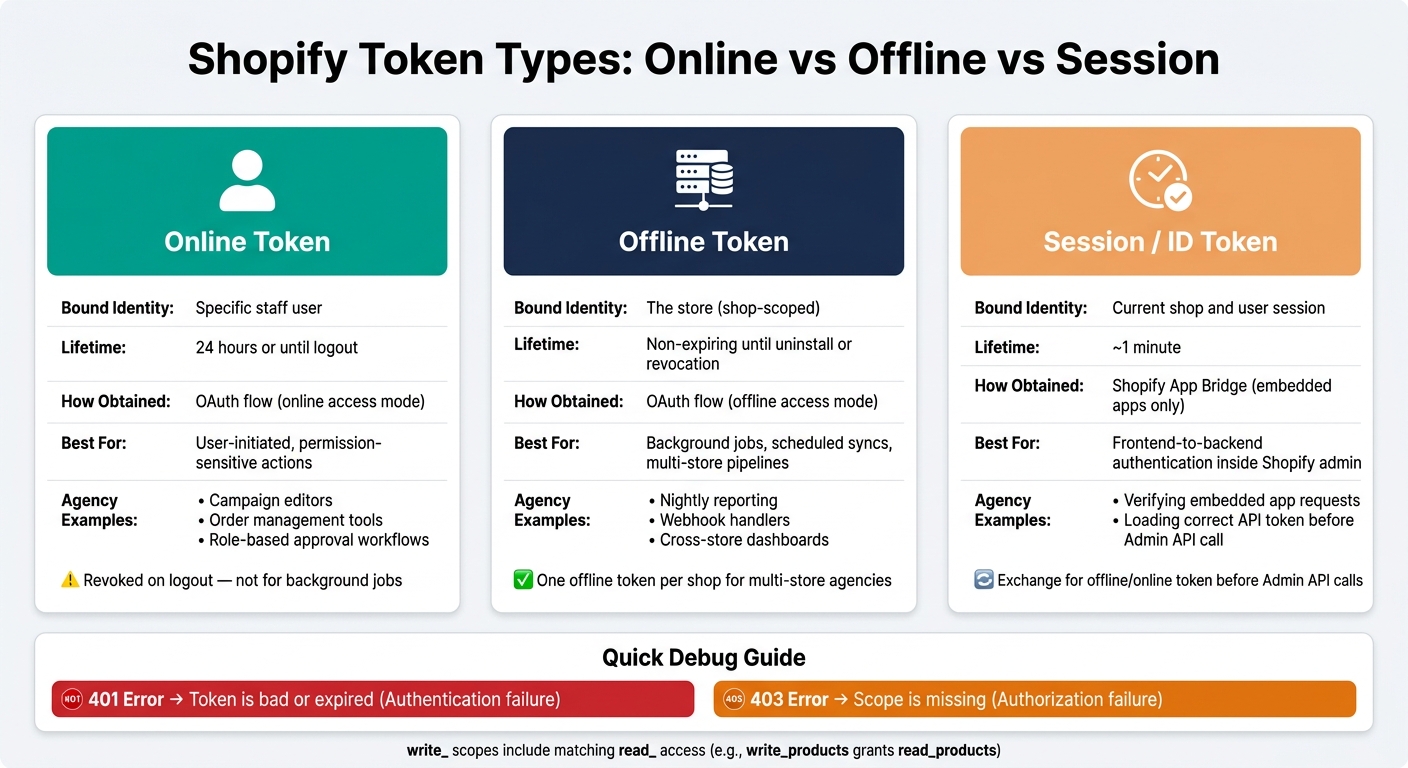
Shopify Token Types Compared: Online vs Offline vs Session
Token choice decides whether an agency system can keep working on its own or only while a user is active. For reporting, automations, and embedded tools, that split matters a lot. It decides whether the system keeps running after someone logs out.
Online tokens for user-specific actions
Online tokens are tied to the Shopify staff member who opened the app. They include user-scoped claims, so they match that staff member's role. They're short-lived and expire after 24 hours or when the user logs out of Shopify admin, whichever happens first. [12]
That makes them a good fit for tools where accountability matters. Think of a campaign editor where only senior staff can publish changes, or an order management tool where refunds need to be linked to a specific person. If a staff member loses a role, their effective permissions change with that user's role.
They are not a fit for background jobs, scheduled syncs, or webhooks. When the staff member logs out, all online tokens issued during that session are revoked. [12] So online tokens work for user-driven actions, not jobs that need to run on their own.
Offline tokens for long-running agency systems
Once a merchant approves the app, most agency work happens in the background. Offline tokens are store-scoped, not user-scoped, and stay valid until the app is uninstalled or the client secret is revoked. [12][13]
Nightly revenue aggregation, inventory drift detection, webhook handlers, and cross-store reporting dashboards all depend on offline tokens. The system runs on its own schedule, no matter who is or isn't logged into the merchant's admin. For agencies managing many client stores, each token should be stored in an encrypted secrets vault with strict access controls. This security layer is essential when following Shopify store guides for large-scale client management. [12][13]
Shopify's docs recommend offline tokens for webhook handlers. When a webhook fires, the app pulls the stored offline token and uses it for the Admin API call. [2][1] That's what keeps agency pipelines, webhooks, and reporting running after users log out.
Session tokens in embedded apps
Session tokens, called ID tokens in Shopify's current docs, are short-lived JWTs issued by Shopify App Bridge. [15] They last about 1 minute and prove which shop and user are present in the current admin session. [14][15]
On the backend, verify the session token first. Then use the matching offline or online access token for the Admin API call. [14][9]
The table below shows how these three token types compare in the areas that matter most for agency systems.
| Token type | Bound identity | Lifetime | How obtained | Best suited for | Common agency scenarios |
|---|---|---|---|---|---|
| Online | Specific staff user | 24 hours or until logout [12] | OAuth flow with online access mode | User-initiated, permission-sensitive actions | Campaign editors, order management tools, role-based approval workflows |
| Offline | The store (shop-scoped) | Non-expiring until uninstall or revocation [12][13] | OAuth flow with offline access mode | Background jobs, scheduled syncs, multi-store pipelines | Nightly reporting, webhook handlers, cross-store dashboards |
| Session / ID | Current shop and user session | About 1 minute [14][15] | Shopify App Bridge (embedded apps only) | Frontend-to-backend authentication inside Shopify admin | Verifying embedded app requests before loading the correct API token |
Choose the token based on the workflow first. After that, the API pattern tends to fall into place.
Auth patterns for agency dashboards, client tools, and outbound systems
Now that the token model is clear, the next step is matching it to the job. Agency reporting, embedded tools, and outbound prospecting may all touch Shopify stores, but they should not use the same access setup.
Central reporting and multi-store data pipelines
For central reporting, use one public app across client stores. After a merchant installs it, store one offline token per shop. Then let your background workers run on their own schedule without needing a staff user present.
In this setup, authentication keeps the pipeline alive. Authorization limits what that pipeline is allowed to touch.
This is where scope control matters most. A reporting pipeline usually only needs read access to orders, customers, products, and inventory. In most cases, it does not need any write_ scopes. Keeping access read-only lowers risk and makes the install screen easier for merchants to say yes to. If a client later wants a feature that writes data, ask for those write scopes at that point, not on day one for every account.
Revocations also need to be handled like normal operating events, not oddball cases. If a merchant uninstalls the app or removes a scope, update that client record right away, pause all scheduled jobs for that shop, and alert the account manager. That keeps stale data out of dashboards and gives the team a clear signal that something changed.
Embedded client tools and automations
Embedded tools follow the same Shopify auth rules, but there’s one more layer in play: the current staff user.
Embedded Admin tools use session tokens for the logged-in user and offline tokens for backend tasks. The staff user affects attribution, but scopes still decide what the app can do.
Whether you need write access comes down to what the tool actually does. A dashboard that only shows product performance can run on read_products and read_orders. A tool that bulk-edits product metadata or creates discount codes needs write_products or write_discounts.
A solid rollout pattern is simple:
- Launch the core UI with read-only scopes
- Add write access only for clients who want write-based features
That keeps the standard install light and avoids giving write access on stores that don’t need it.
Using StoreCensus alongside authenticated Shopify data
Outbound prospecting starts before Shopify auth enters the picture. Use public store intelligence first. Then, after install, switch to authenticated Admin data.
That line matters. Public store signals can help you decide who to contact, but private merchant data should stay behind Shopify auth.
StoreCensus helps agencies build prospecting segments using revenue tier, tech stack, theme, country, and growth signals before any Shopify Admin access is involved. Once a merchant installs the app and completes OAuth, public intelligence and private Admin data can work side by side. StoreCensus signals help size the opportunity, while Shopify Admin data powers reporting and day-to-day optimization.
That split is intentional: prospecting data and private Admin data belong in different systems with different access rules.
Key takeaways
Match each workflow to the right auth pattern:
| System type | Token type | Scope strategy | Data sources |
|---|---|---|---|
| Central reporting / multi-store pipeline | Offline per shop | Read-only least-privilege | Shopify Admin API after install |
| Embedded client tool | Session token + offline token | Read scopes baseline; write scopes opt-in | Shopify Admin API + session context |
| Outbound prospecting | None until install | N/A pre-install; baseline read scopes post-install | StoreCensus pre-install; Admin API post-install |
Uninstalls and scope changes should be treated as normal events. Shut down related jobs cleanly and log the change.
FAQs
When should I reauthorize the app?
Reauthorize your app when the scopes saved in your system no longer match the app’s current requirements. This often happens after you add a feature that needs extra permissions.
If existing access tokens don’t support that updated functionality, merchants need to go through the approval flow again. A simple habit helps here: compare your stored scopes with your app’s current scope requirements on a regular basis. That helps keep access secure and avoids broken features.
How should I securely store offline tokens?
Never store offline tokens as plain text. Encrypt them with AES-256-GCM in your database, or keep them in a dedicated secret manager. Use a persistent database or Redis so tokens remain available across server nodes.
To avoid race conditions during token refresh, use row-level locking or a per-store mutex. Then update the token inside a transaction. It also helps to keep auth logic in one place so you can validate tokens before API calls and handle 401 errors gracefully.
What happens if a merchant removes a scope?
If a merchant removes a scope, your app loses permission to do the actions tied to that scope. Any API request that depends on it will fail.
To get access back, send the merchant through the OAuth flow again so they can approve the needed permissions. It also helps to check your stored scopes from time to time and make sure they still match what your app needs now.