
Opportunity Stage Automation: 9 Checks
Nine essential pre-launch checks to validate CRM stage automation: triggers, data, ownership, tasks, reporting, and rollback.


I wouldn’t launch opportunity stage automation until all 9 checks pass. Test in a sandbox, save the results, and keep failed workflows paused. Automate admin work - not the seller’s decision about whether a buyer is ready.
Here’s what I’d check before launch:
- Stage rules: Require buyer-confirmed details before a deal advances.
- Triggers and exceptions: Test each condition and keep data syncs from moving stages.
- Duplicate workflows: Allow one execution per approved transition.
- Required fields and merchant data: Check values, matching, and data sources without treating enrichment as buying intent.
- Ownership and handoffs: Give every deal an owner, a fallback route, and an accepted delivery handoff.
- Lost reasons and history: Require a reason, stop deal-specific outreach, and retain past closures.
- Stale deals: Track buyer activity separately from stage age; flag delays without closing deals automatically.
- Tasks, alerts, and integrations: Test recipients, deadlines, retries, and outreach suppression.
- Reports and rollback: Match counts and dollar totals, then test how to stop and restore automation.
My launch bar: 100% of test records assigned, zero unexplained reporting differences, and a named person monitoring the first 48–72 hours. <u>A deadline is not a pass.</u> Keep a manual fallback until live checks pass.
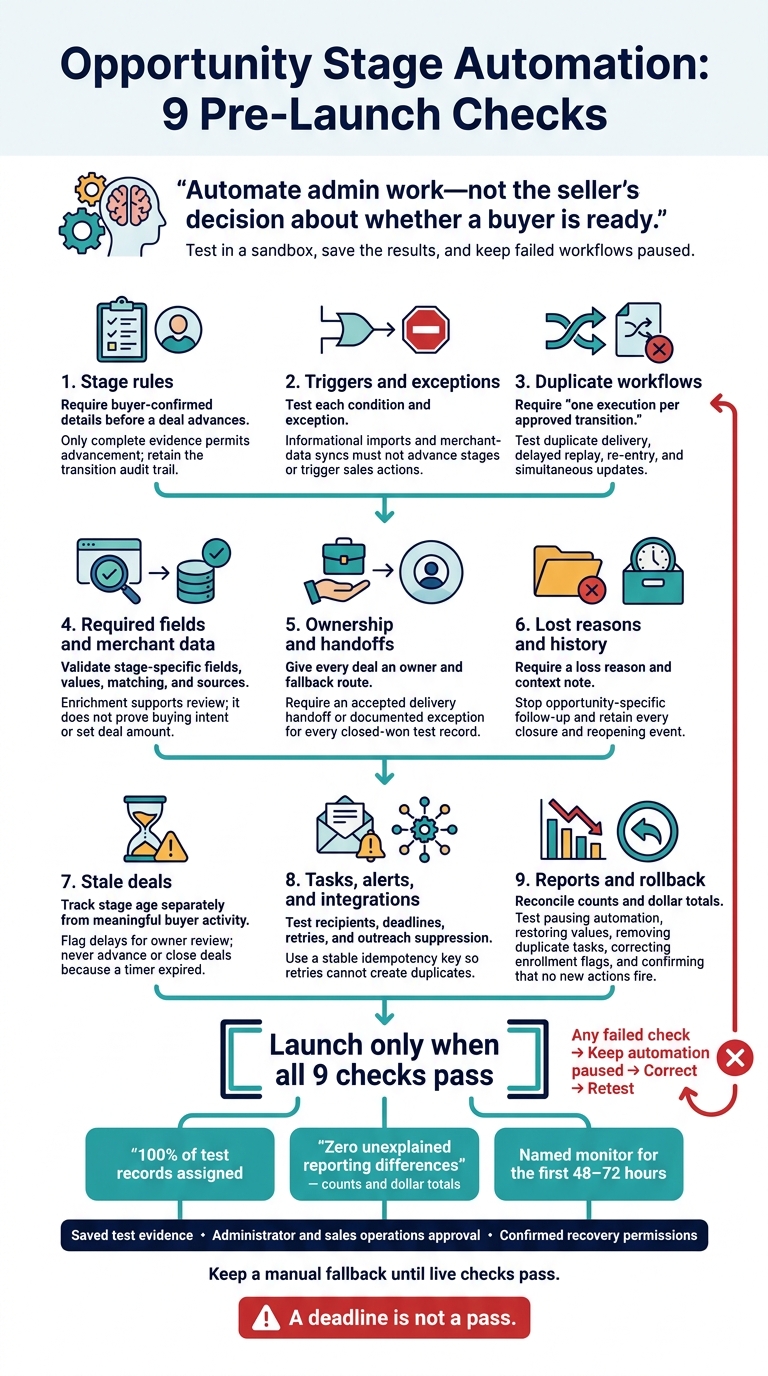
Opportunity Stage Automation: 9 Pre-Launch Checks
Automate Tasks Creation with Salesforce Flow Based on Opportunity Stage.
sbb-itb-61169e3
1. Define Stage Entry and Exit Rules
Start by defining when a deal can move between stages. Build a stage matrix that covers entry, exit, blockers, exceptions, rollback, and owner handoff. Turn objective requirements into CRM fields that validation rules can check.
Outreach alone must not move an opportunity to Proposal. Require documented requirements and scope, a confirmed decision process, and decision-maker involvement. Emails sent and sequences completed can trigger follow-up tasks, but they don’t prove the buyer is ready for pricing. State who can approve exceptions and where that approval must be recorded. Block controlled transitions until approval is granted, and require another review if the price, scope, or timeline changes.
Test every transition with complete, partial, and missing evidence. Only complete evidence should allow a deal to advance. Partial evidence should identify the unmet requirement; missing evidence should leave the stage unchanged. Test manual edits, workflow updates, imports, and API changes. Destination-stage prompts may not enforce requirements from skipped stages.
Define when an opportunity must move backward, who can authorize the move, and which reason the audit trail must record. Keep earlier stage visits so requalification doesn’t erase the deal’s history. A permitted move should pass testing only if it logs the prior stage, new stage, timestamp, actor, reason, and evidence.
2. Test Trigger Logic and Exceptions
Once stage rules are defined, check the exact triggers that can move a deal.
Build a compact matrix with one row per workflow: name and purpose | trigger | required values and their sources | AND/OR logic | exceptions | action | accountable owner | timing | expected result. Document exact conditions rather than labels like “qualified.” Define what happens to excluded records - closed deals, test records, migration imports, and records with inactive owners. For example, block advancement or route the record to sales operations.
For AND logic, test each required condition by making it fail on its own. For OR logic, test each branch separately. Confirm that exclusions apply to every branch.
| Test category | What to test | Required outcome |
|---|---|---|
| Positive | Seller supplies all required sales evidence | Workflow runs once and performs only the documented actions |
| Negative | One required value is blank, invalid, or contradictory | Advancement is blocked; downstream actions do not run |
| Integration update | Import or merchant-data sync changes informational fields only | Stage remains unchanged |
| Stage re-entry | Deal moves backward, then returns | Actions repeat only when re-enrollment is allowed; otherwise, they stay suppressed |
Keep informational updates separate from sales evidence. Synced merchant fields must never advance a stage or trigger sales actions. Test this by updating every synced merchant field while leaving sales-evidence fields unchanged. Confirm that neither the import nor the integration user can advance the opportunity.
Test the order of field updates, too. Change the stage first, then supply the required value in a separate update. Compare the result with an update that changes both at once. Retain record IDs, timestamps, acting identities, and run histories. Check actual enrollment and completed actions - not just the rule preview, which may miss records blocked by re-enrollment settings.[3][4]
3. Remove Duplicate Workflows and Re-Enrollment Conflicts
Assign one workflow to each stage transition. Check that one trigger set produces one outcome. Review stage-related automations for overlapping updates, owner assignments, tasks, and alerts. Disable or narrow competing workflows, including older clones. If two workflows can update the same stage, the rest of the audit is at risk.
Record the owner, admin, version, review date, and rollback plan. Keep a version history that includes the approver, reason, test result, and effective date.
Once only the primary workflow controls the transition, set re-enrollment deliberately. Allow it only when a new stage-entry ID or cycle ID exists, and track completion against that ID. Exclude one-time actions. Specify whether returning to a stage continues the existing cycle or starts a new one.
Stop actions when a deal closes, leaves the stage, or moves to another process. Blocking enrollment may not stop queued alerts or delayed updates, so check that they’re canceled or suppressed. For API-driven actions, store and check an event ID before creating tasks or follow-on records.
Test these controls with duplicate delivery, delayed replay, stage exit and re-entry, and simultaneous updates. Require one execution per approved transition. Flag every duplicate task, alert, owner change, or integration writeback, and block launch until all tests pass.
4. Validate Required Fields and Merchant Data
Require fields at the right stage - not all at creation. Document a stage-entry matrix that sets these requirements:
- At qualification: owner and linked company.
- Before the sales-qualified stage: valid primary contact, qualification status, service, and source attribution.
- Before proposal or negotiation: deal amount, close date, next step, and follow-up date.
Use controlled picklists for qualification, service, and source so spelling differences don’t change how automation runs.
Check values, not just whether fields are filled. Require a numeric, nonnegative amount with a set currency. Allow $0 only when the model permits it. Reject “TBD,” impossible dates, and close dates before creation unless an approved backfill applies. Open deals need a concrete next step and a future follow-up date. Placeholder contacts don’t pass. When a check fails, return a correction message that names the blocking field.
Use enrichment to support review, not move deals between stages. Map StoreCensus platform, technology, revenue, and contact signals for Shopify and WooCommerce stores into enrichment fields. Preserve the source record ID, import date, last-verified date, and original snapshot. Keep source attribution separate from campaign or touchpoint attribution.[7][8] Enrichment can prompt a review, but it cannot prove buyer intent or set the deal amount.
Normalize store domains before matching: convert them to lowercase and remove protocols, www, paths, parameters, and trailing slashes. Use normalized domains to flag possible duplicates - not block legitimate opportunities. Review matches alongside service, region, contract period, and opportunity status so separate engagements can proceed. Keep the original domain for audit checks.
Test validation through manual edits, imports, and API updates. Submit records with missing contacts and companies, negative amounts, invalid dates, and unsupported picklist values. Try the same domain in different formats, along with legitimate second opportunities, including multi-service deals. Update enrichment on a qualified record and confirm that its stage evidence and deal amount stay unchanged. Record pass/fail results.
If field validation passes, test owner assignment and handoffs next.
5. Test Owner Assignment and Handoffs
After field validation, test how ownership moves. Route to the existing owner first, then use account, segment, territory, service line, and capacity. Use round-robin only among eligible owners. Keep human ownership in place unless a documented exception applies: departure, leave, territory change, or service change.[9][10][12]
Assign when the opportunity is routing-ready - not when a contact is created. Record the assignment time and create one first-action task. Require review within 15 minutes during business hours and completion of the first action within one business day. Define business hours and the time zone in the workflow, track the first-action timestamp, and escalate missed deadlines to the manager.[11]
Give every failure path a fallback owner. Send records with missing data to monitored triage, route unavailable owners’ records to designated backups, and send work from full teams to overflow owners. Each fallback needs an alert and a review deadline. Exclude inactive or unavailable users from rotation.[11]
Once ownership is stable, test the sales-to-delivery handoff. This is a handoff, not just a stage change. Before transfer, require scope, exclusions, timeline, stakeholders, and open items. Name the receiving owner and effective transfer date. Track the status as Pending acceptance, Accepted, Accepted with open items, or Returned for correction so sales can resolve gaps before delivery proceeds.[13] Closed-won deals should never reach delivery without an owner or a defined scope.
Test every platform, service, segment, and regional route. Include cases with existing owners, missing data, unavailable users, and full-capacity teams. Verify the owner, timestamp, task, alert, deadline, fallback, and audit trail. Move an actively owned opportunity through later stages to confirm its owner stays in place, then run one complete sales-to-delivery handoff. Launch only when 100% of test records have one owner, zero records are unmatched, and every closed-won test record has an accepted handoff or documented exception.[11]
6. Require Lost Reasons and Keep Loss History
After handoff checks, audit how automation records a closed-lost deal. Make loss reason a required single-select field.
Use a short, mutually exclusive list (Budget/price, Bad timing, No decision/status quo, Poor fit/disqualified, Unable to contact, Product or capability gap).
Keep closed-lost status separate from the reason. Automation records why the deal closed; it doesn't make the sales judgment. Require a short context note. For timing losses, also record the review date and what would need to change.[14][15]
Block invalid closures on every update path. Test for missing reasons and required notes in manual, bulk, automation, and integration updates. Invalid attempts must leave the opportunity open and either return an error or route to an exception queue.[16]
A valid Closed Lost update should stop opportunity-specific follow-up. Cancel pending sales tasks, unenroll opportunity-specific sequences, and suppress queued outreach, reminders, and risk alerts. Check that connected tools also suppress these messages. Keep required service or compliance messages active, and leave unrelated opportunities unchanged.[16]
Next, check that reopening adds history rather than rewriting it. Keep every loss event. Automatically save the closure timestamp, owner, last open stage, primary reason, and notes. When a deal reopens, record the reopen date, trigger, and reopen count without overwriting earlier loss events. For a new project, create a linked opportunity instead of rewriting the old deal.[14]
Close a valid test record, check suppression, then reopen and close it again. Confirm that history survives both cycles and that the new active stage and expected close date are valid. Only approved follow-up should restart. Check for duplicate tasks and sequence enrollments, and require sales operations and a frontline seller to sign off on the test record. Save the test record details so stale-deal rules and reporting can reuse the same audit trail.
7. Set Stale Deal Rules for Each Stage
Measure stage age separately from inactivity. Check that automation tracks time without meaningful activity - not just time in a stage. Meaningful activity includes a completed meeting, buyer reply, decision-maker interaction, approved review, completed revision, or dated next step. Internal notes, automated emails, unanswered calls, and close-date changes do not reset inactivity. Store the dates needed to track both measures.[1] These rules help catch stalled deals before they skew tasks, alerts, and forecasts.
Base each threshold on the median days in stage for comparable won and open deals, not a universal SLA. The thresholds below are operating examples only. Count business days, and standardize how holidays and customer time zones are handled.[1][19] Set one threshold per stage so owners know exactly when a deal becomes stale.
Stage Expected duration Warning threshold Escalation action Outcome Discovery 7–14 business days 5 business days without meaningful buyer activity Remind owner; require a dated next step; route unresolved warnings to manager Re-engage, move back to qualification, or close as no decision Solution validation 14–30 business days 10 business days without a completed milestone Manager and technical owner review blockers Schedule validation, move backward, place on approved hold, or close Proposal 10–14 business days 3–5 business days without a buyer response or scheduled review Owner follow-up; manager review after the final reminder Re-engage, revise scope, place on approved hold, or close Negotiation/procurement 21–45 business days 10 business days without documented progress Manager review of procurement milestones and blockers Continue with a dated milestone, move backward, place on approved hold, or close
Warnings must trigger action, not just alerts. Create an owner task and send a second reminder if it remains unresolved. Apply the table’s escalation actions at a defined threshold. Every reviewed disposition needs an owner, a rationale, and a next date. Automation flags risk; the owner decides what happens next. Never close or advance an opportunity just because a timer expired. Missing owners, past-due close dates, and missing next steps also need priority review - even for recently opened deals.[1][18][19]
A deal qualifies for approved hold only when it has a reason, approver, start date, and review or expiration date. Allow future-dated next steps only within the accepted window and with a documented reason. A future close date alone does not qualify. When an exception expires, resume tracking from the saved activity dates. Hold expiration does not count as buyer progress.[1]
Before launch, test two overdue proposal deals with the same owner. Leave one without a hold and confirm that stale rules run. Give the other a valid approved hold: verify that stale alerts stay off until the review date, then resume. Also confirm that a free-text on hold note does not suppress the workflow. Save the results with the audit records so the launch decision has a clear pass/fail trail.[1]
Test these thresholds against tasks, alerts, and reporting before launch.
8. Test Tasks, Alerts, and Integrations
After testing stale-deal rules, check the tasks and integrations they trigger. Use a controlled test opportunity and a sandbox or test endpoint. Test tasks, alerts, emails, calendar events, billing, and delivery handoffs separately. Confirm that each runs once, uses the correct opportunity and account fields, and reaches the right recipient. Change the owner mid-run. If the owner is missing or inactive, route pending actions to the documented fallback queue. Keep internal deal details out of customer-facing messages.
Check task priority, record association, deadlines, escalation, and business-hour settings. Test near the end of the day, across weekends and holidays, and during daylight saving time changes. Document whether the owner’s, account’s, or CRM’s time zone governs deadlines.
Test suppression on reply, meeting booked, opt-out, and closed-lost: applicable outreach must stop across related workflows, while allowed internal tasks stay active. Retest after re-entry. Suppression must still block queued outreach, and permanent do-not-contact records must stay blocked.[5][20] Save the suppression result with the workflow test results.
Disable the integration, then restore it. Test missing required fields, invalid credentials, rate limits, and a timeout after the destination accepts the request. Record each state as pending, retrying, succeeded, or failed. Include a destination ID on success and a named owner on failure. Retry transient errors using defined delays and limits; route data or credential errors for correction. Reuse a stable idempotency key - an identifier for a single action - so retries cannot create duplicate messages, meetings, billing records, or delivery handoffs.[21]
Replay the stage trigger and send two identical events in quick succession. Check each destination - not just the CRM log - to confirm the expected action count. Save the opportunity ID, action count, expected and actual timestamps, status, retry count, and suppression results. Save action IDs and outcomes for the reporting audit. Block launch if any timeout, duplicate customer message, or ownerless failure occurs.[21]
9. Verify Reports and Test Rollback
Use the same labeled test opportunities from the earlier checks. Build an expected-results matrix for forward, backward, skipped-stage, closed, and reopened paths. Include one unchanged record as a control. Save starting values and stage history, then compare reports with the baseline export.[22][24]
Reconcile conversion denominators, time in stage, and sales-cycle length against the matrix.[17] Define conversion as ever reached, currently in, or progressed directly to a stage. Check whether backward movement resets stage time or adds to it, and whether reopening keeps the original close or starts a new reporting cycle.[24][25]
Check counts and dollar totals by owner, Shopify versus WooCommerce, close month, and won/lost status. Verify required loss reasons, retained loss history, stage-based forecast probabilities, manual probability overrides, and source attribution totals. Each opportunity should appear exactly once in its intended segment. Resolve every unexplained difference before launch.
Name a primary administrator, backup administrator, and operations owner who can stop and recover automation. If reconciliation fails, test rollback on the same records. Pause the workflow, isolate affected records, restore values, remove duplicate tasks, correct enrollment flags, and confirm that no new actions fire. Record recovery time and check that reports return to the expected totals.
Keep the audit history. Contain sent emails rather than trying to reverse them.[26][23] Save workflow versions, baseline exports, report reconciliation, and recovery results. Before launch, require administrator and sales operations approval, zero unexplained count or dollar differences, confirmed recovery permissions, and a named person to monitor the first 48–72 hours after launch.[6]
Conclusion: Launch Only When All 9 Checks Pass
After the audit, make launch an approval gate, not a deadline. Require proof that all nine checks passed before moving approved workflows to live enrollment.[3][27][28]
Attach evidence to the released version and name its owner and reviewer. Log the version, timestamp, reason for the change, test evidence, approval, and rollback target.[27][29]
Keep failed automation paused until corrections pass retesting. Treat the first live run as the final verification point, check changes against source records, and keep a manual fallback active until live checks pass.[2][3][27][28]
FAQs
How can I audit automation without a sandbox?
Use production audits that don’t change data to trace stage changes back to workflows. Compare pipeline and closed-won revenue with pre-automation baselines. Review logs weekly or monthly for drop-offs by trigger, segment, and message, plus stage backlogs.
Check deduplication, owner handoffs, lost-reason capture, stale-deal rules, and explicit reject/review fallbacks. Break down SLA, response-time, and assignment-to-first-activity metrics by platform and revenue band. Log rule versions and exception queues before changing rules.
How often should I re-audit stage automation?
Re-audit opportunity stage automation monthly after launch. Review workflows, stage movement, and drop-offs to find and fix weak triggers and segments. Audit the underlying data fields every 90 days to keep scoring accurate.
Run another review after major CRM or setup changes, or when store-signal inputs, service lines, or territories change. For routing based on how recent signals are, monitor exceptions daily or weekly - but keep the core stage-automation re-audit monthly.
How can I spot automation errors after launch?
Review workflow logs for drop-offs and stage backlogs by platform, revenue band, and country. Track response times, auto-assignment rates, and SLA breaches. Use median and 95th-percentile values to spot issues that averages can hide.
Log failures and follow a regular review schedule: check unrouted records and fallback volume daily, response-time distributions weekly, and workflow performance monthly. Adjust thresholds or routing based on the patterns you find. Assign field owners to review exceptions and approve rule changes.