ICP Filter Checklist for Agency Outbound
Export only fully qualified outbound leads: verify platform fit, exclusions, recent service signals, correct buyer, and work email.


I export a lead only when 100% of required checks pass - not just because the email works. My checklist covers store fit, exclusions, location, technology, a recent service-related signal, the right buyer, and a verified work email.
Before a lead reaches your send list, I check:
- Account fit: Supported platform, industry, size, market, and plausible project scope.
- Outreach eligibility: No account exclusions, opt-outs, contact restrictions, or duplicate outreach.
- Reason to reach out: A dated store change or issue tied to the service, plus a current contact who owns that problem.
- CRM readiness: Complete fields, dated sources, correct account links, and no changes that erase existing history.
I then test 10–25 rows before releasing the batch. My rule: <u>Export only when every required check passes</u>, use Review for missing or stale information, and Reject confirmed account disqualifiers. Contact opt-outs stay suppressed in future batches.
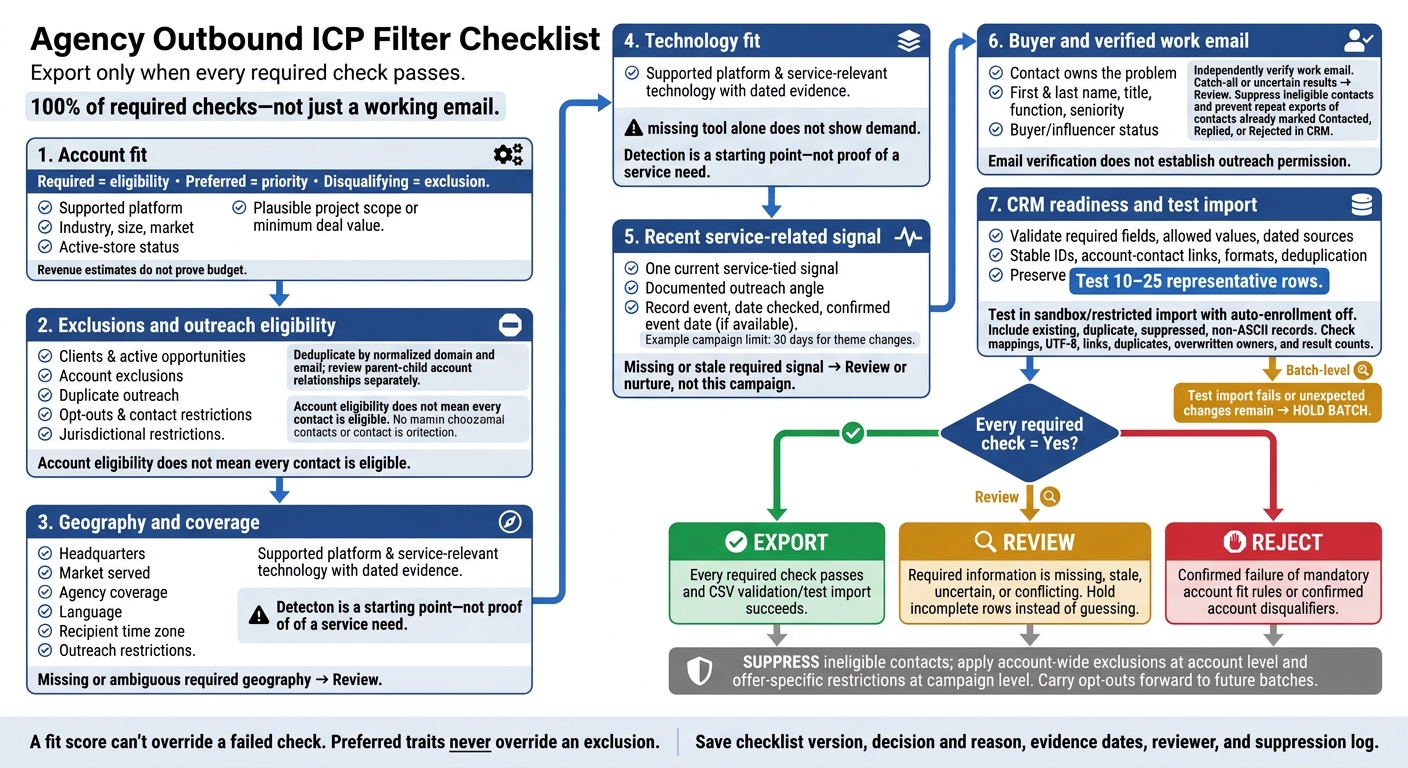
Agency Outbound ICP Filter Checklist
1. Set Account Fit and Exclusion Rules
Turn your account rules into pass/fail filters before exporting.
Separate Required, Preferred, and Disqualifying Criteria
Define your service limits before you search. In StoreCensus, filter stores by country, estimated revenue, technology, theme, and growth signals. Use these Shopify store guides to refine your prospecting strategy. Manually check details that determine eligibility. Revenue estimates help prioritize research - they don’t prove budget. [3][5]
Only required criteria can block export. Preferred criteria affect priority, not eligibility.
| Check | Required | Preferred | Disqualifying |
|---|---|---|---|
| ☐ Platform | Shopify or WooCommerce that your team supports | Your team’s standard stack | Unsupported platform |
| ☐ Vertical | Category your agency serves | Proven category experience | Prohibited or unsupported industry |
| ☐ Estimated annual revenue | Meets your written size rule, if mandatory | Above your preferred threshold | Below your documented minimum |
| ☐ Traffic or catalog scale | Enough activity or complexity for your offer | Recent catalog or traffic growth | Insufficient scale |
| ☐ Maturity | Active store | Established operations | Inactive store |
| ☐ Documented service need | Observable issue or change tied to your offer | Relevant change within 30–90 days | No plausible documented service need |
| ☐ Minimum deal value | Plausible scope at your minimum | Confirmed budget alignment | Confirmed budget below your minimum |
Hypothetical thresholds: $500,000+ in estimated annual revenue; $5,000/month minimum deal value.
A documented service need requires a dated observation tied to your offer. An installed app or theme name alone isn’t enough. Send accounts with missing mandatory evidence to Review and confirmed disqualifiers to Reject. Preferred traits never override an exclusion. [5][8][9]
Exclude Unfit Accounts and Suppress Ineligible Contacts
Screen these four groups:
- Account: Exclude clients, active opportunities, unresolved former-client accounts, agencies, vendors, competitors, unsupported industries, and inactive or undersized stores.
- Commercial: Exclude incompatible scope and accounts without a plausible documented service need.
- Contact: Suppress former employees, invalid addresses, hard bounces, role-based emails, and unverified emails.
- Compliance: Suppress opt-outs, account-wide do-not-contact requests, and outreach barred by jurisdictional restrictions.
Account eligibility does not mean every contact is eligible. [4][9]
Deduplicate by normalized domain and email. Review parent-child relationships separately so you don’t mistake a subsidiary for a duplicate. Log each exclusion’s reason, date, source, reviewer, and recheck trigger. Use a 90-day review only for reversible fit issues - not to expire opt-outs. Add a second stakeholder only when account and compliance rules permit outreach.
For U.S. commercial email, CAN-SPAM requires accurate sender information, a valid physical postal address, and a clear opt-out. Honor opt-out requests within 10 business days, and keep the opt-out mechanism working for at least 30 days after sending. [4]
After checking fit and exclusions, verify where the store sells and when the contact works.
Confirm Headquarters, Market Served, and Recipient Time Zone
| Field | Purpose | Evidence to check |
|---|---|---|
| Headquarters | Assign territory and confirm service eligibility | Company contact page, business registry, verified office location |
| Market served | Confirm where the store sells and which services apply | Shipping destinations, country selectors, storefront language, market data |
| Recipient time zone | Set the local send window | Verified contact location, office location, business hours |
Confirm country and state, agency coverage, market served, language, recipient time zone, and outreach restrictions. Currency and a .com domain don’t prove headquarters location. Don’t treat “North America” as one market: distinguish the United States, Canada, and Mexico.
Keep the recipient’s time zone separate from headquarters. Retain local currency and time-zone data, but use U.S. formats for reader-facing content:
$10,000; October 30, 2026; 3:00 PM ET.
Ambiguous geography stays in Review. [3][6][7]
sbb-itb-61169e3
2. Check Technology, Recent Signals, and Contacts
Match the Store’s Technology to Your Services
Use StoreCensus’s Apps, Technologies, and Marketing Signals filters to check whether the store’s stack fits your services. Tie your offer to a problem you can observe. Confirm Shopify or WooCommerce, relevant plan or checkout details, the theme or frontend framework, and tools related to your service. Treat detection as a starting point - not proof of full coverage. [3]
| Detected technology | Agency capability | Outreach angle | Conflict or exclusion to check | Verification date |
|---|---|---|---|---|
| Klaviyo | Email automation | Audit flows and integrations | The current setup may already meet the need | Checked on [date] |
| Free theme such as Dawn or Debut | UX/CRO | Check for setup limits | Theme choice alone does not prove a redesign is needed | Checked on [date] |
| Meta Pixel and Facebook Conversions API | Tracking and paid media | Audit tracking before optimization | Detection alone does not prove bad tracking or an ad budget | Checked on [date] |
Pair any missing-tool filter with a revenue floor. A missing tool alone does not show demand. [1]
Once the stack fits, look for a recent change that gives you a reason to reach out now.
Record a Recent Signal and Outreach Angle
Require one current signal tied to your service before adding an account to this campaign. Check StoreCensus activity tracking and public evidence for installs or uninstalls, technology changes, revenue shifts, theme changes, or catalog updates. Save the event, the date you checked it, the confirmed event date if available, and the campaign angle. Keep the first-detected date separate from the event date. If you can’t confirm when the event happened, leave that date unknown. [3][10]
Set an age limit for each campaign signal.
Example: 30 days for theme changes.
Recheck the context before sending. A signal does not prove buying intent. Accounts that otherwise qualify but lack a current, relevant signal belong in Review or nurture - not this campaign. [10]
With a current trigger confirmed, check who owns the problem.
Verify the Contact’s Role and Work Email
Use the signal to identify the right role, then export only contacts who can act on it.
Start with StoreCensus decision-maker profiles, but confirm that the recipient owns the problem your offer addresses. [2][11]
Role matches: performance marketing for tracking work, ecommerce leadership for CRO, or operations for subscription implementation.
Require the contact’s first and last name, current title, function, seniority, buyer/influencer status, verified work email, verification date, and a signal-based personalization angle. [2][11]
Independently verify the work email before sending. Send catch-all or uncertain results to Review. Suppress contacts already marked Contacted, Replied, or Rejected in CRM to prevent duplicate exports. Contact data and email verification do not establish outreach permission. [3][11]
3. Prepare CRM Data and Check the CSV
After checking fit, signals, and contacts, map only rows marked Export so the CRM can import them without overwriting history.
Set Required Fields and Allowed Values
Define the schema before downloading records. For each column, record the target object and field, whether it’s required, its allowed values, and the import action: create, update, or preserve. Group fields as follows:
- Account: Account name, normalized domain, store URL, platform, country, state or region, customer market, time zone, vertical, revenue band and source, technology stack and evidence date, source URL, source record ID, CRM account ID, and creation or update date.
- Contact: First name, last name, job title, seniority, verified work email, verification status and date, contact source ID, and CRM contact ID.
- Qualification: ICP segment, fit score and version, fit criteria met, recent signal and date, exclusion status and reason, suppression status, and qualification notes.
- Campaign: Campaign name and ID, owner, lifecycle stage, last touch, next step, objection, source, and created and updated dates.
Keep audit fields, including source IDs, CRM IDs, notes, objections, and exclusion reasons, wherever they apply.
Set controlled values for platform, ICP segment, suppression, and lifecycle stage:
| Field | Allowed values |
|---|---|
| Platform | Shopify, WooCommerce, Other, Unknown |
| ICP segment | A, B, C, Disqualified |
| Suppression | Clear, Suppressed, Do not contact, Pending review |
| Lifecycle stage | Prospect, Lead, Qualified, Opportunity, Customer, Disqualified |
Document the fit-score formula and its 0–100 range. Keep qualification evidence, source, and observation date beside the score. Specify whether revenue is monthly or annual and whether it’s estimated.
Use Unknown for missing values and Not applicable when a field doesn’t apply. If numeric or date fields can’t accept those labels, record that information in a separate status field.
Validate Formats, Duplicates, and Field Mapping
Validate before import - not after. Follow the destination system’s rules rather than a generic CSV template. Use YYYY-MM-DD for machine-facing dates where supported, and display dates to U.S. readers as MM/DD/YYYY.
| Field | Format | Validation rule | Missing-data action |
|---|---|---|---|
| Account name | Trimmed text | Use a consistent legal or public-facing name | Hold if required |
| First and last name | Trimmed text | Separate names from titles; preserve proper names | Hold contact |
| Normalized domain | Lowercase hostname | Remove scheme, paths, queries, and trailing slash; document www and subdomain handling |
Hold account |
| Store URL and social profile | Full URL | Validate scheme, hostname, and account or person | Review store URL; leave optional profile blank |
| Work email | Trimmed, lowercase address | Validate syntax; retain verification status and date | Hold from outreach |
| Country and time zone | Controlled country code; IANA zone | Use consistent codes and explicit zones | Hold if targeting or scheduling depends on it |
| Revenue and technology | Approved bands or values | Retain revenue source and technology evidence date | Mark unknown; hold if required for fit |
| Fit score | Integer, 0–100 |
Require score version and documented rules | Hold qualification |
| Signal and system dates | YYYY-MM-DD or supported datetime |
Validate dates; distinguish event from detection date | Hold signal-dependent records |
| IDs and account-contact link | Separate stable identifiers | Link every contact to its intended account | Hold unmatched contacts or updates lacking IDs |
| Owner, campaign, lifecycle, suppression | Approved destination values | Require an active owner; never downgrade suppression | Hold unresolved records |
| Phone and notes | E.164 where supported; UTF-8 text | Preserve country code; quote commas, quotes, and line breaks correctly | Leave optional phone blank; preserve notes separately if needed |
Match CRM IDs first. Then use normalized domains for accounts and work emails for contacts. Treat name-plus-domain matches as review candidates only. Keep legitimate multiple contacts at the same account, and quarantine duplicates when the match is unclear.
Immediately before export, recheck customers, open opportunities, ownership, existing enrollment, and the campaign’s recent-touch window. A blank or older export value must not overwrite the existing owner, lifecycle stage, opportunity status, or last-touch history.
Before campaign import, test 10–25 representative rows in a sandbox or restricted import with auto-enrollment off. Include existing records, duplicate candidates, a suppressed contact, and non-ASCII text.
Check UTF-8, headers, quoting, field mappings, account-contact links, unmapped columns, duplicates, and overwritten owners. Compare the created, updated, skipped, and rejected counts, and resolve unexpected changes before release.
Save the mapping, source query, schema version, timestamp, reviewer, and error file. Hold incomplete export rows instead of guessing.
Conclusion: Mark Each Record Export, Review, or Reject
Once the CSV passes validation, mark each row Export, Review, or Reject. Record a yes/no answer for every check: fit, exclusions, platform, technology evidence, recent signal, correct buyer role, verified email, complete fields, deduplication, next step, and test import.
Export only when every required answer is Yes. A fit score can't override a failed check. Mark records with missing, stale, or conflicting evidence Review. If the test import fails, hold the batch.
Reject accounts that fail mandatory fit rules. Suppress ineligible contacts at the email or contact level so other qualified buyers at the same account remain eligible. Apply account-wide exclusions at the account level and offer-specific restrictions at the campaign level. Carry opt-outs forward to future batches.
For the next StoreCensus batch, save the checklist version, decisions and reasons, evidence dates, and suppression log. Each suppression entry should include its scope, reason, date, source, and suppression system. Use that log to review only records that gain new evidence. Judge the batch by fit and clean, actionable data - not list size.
FAQs
How do I set ICP thresholds for a new service?
Set your minimum monthly revenue, such as $20,000, and identify the tech stack dependencies you need. In StoreCensus, combine platform, revenue band, and app exclusion filters to find stores that meet those requirements.
When you find a filter combination that converts well, save it as a named search to monitor and automate your pipeline. Then refine your criteria with growth signals, such as recent theme changes or increased revenue.
How often should I reverify leads before outreach?
Update tech stack data weekly to track app installations, theme updates, and other store changes. Reverify lead emails every three to six months to maintain deliverability and protect your sender reputation.
Review prospect lists monthly and remove stores that have changed direction or closed. Before sending each new outreach batch, recheck every prospect’s specific tech gap so your pitch stays timely and relevant.
What should I do when lead data sources conflict?
Put primary, live-detected data first, ahead of static or third-party datasets. Treat your prospect database as a work in progress: update saved filters weekly to spot new growth signals, and audit lists monthly to remove stores that have changed direction, closed, or fixed the pain points you target.
Before each outreach batch, recheck the target tech gap so your pitch still fits. Give priority to verified decision-maker contacts tagged by role.