
12 Mobile Filter UX Benchmarks for Shopify Stores
Mobile filters often block purchases; use 12 diagnostic checks to find and fix UX issues on Shopify.

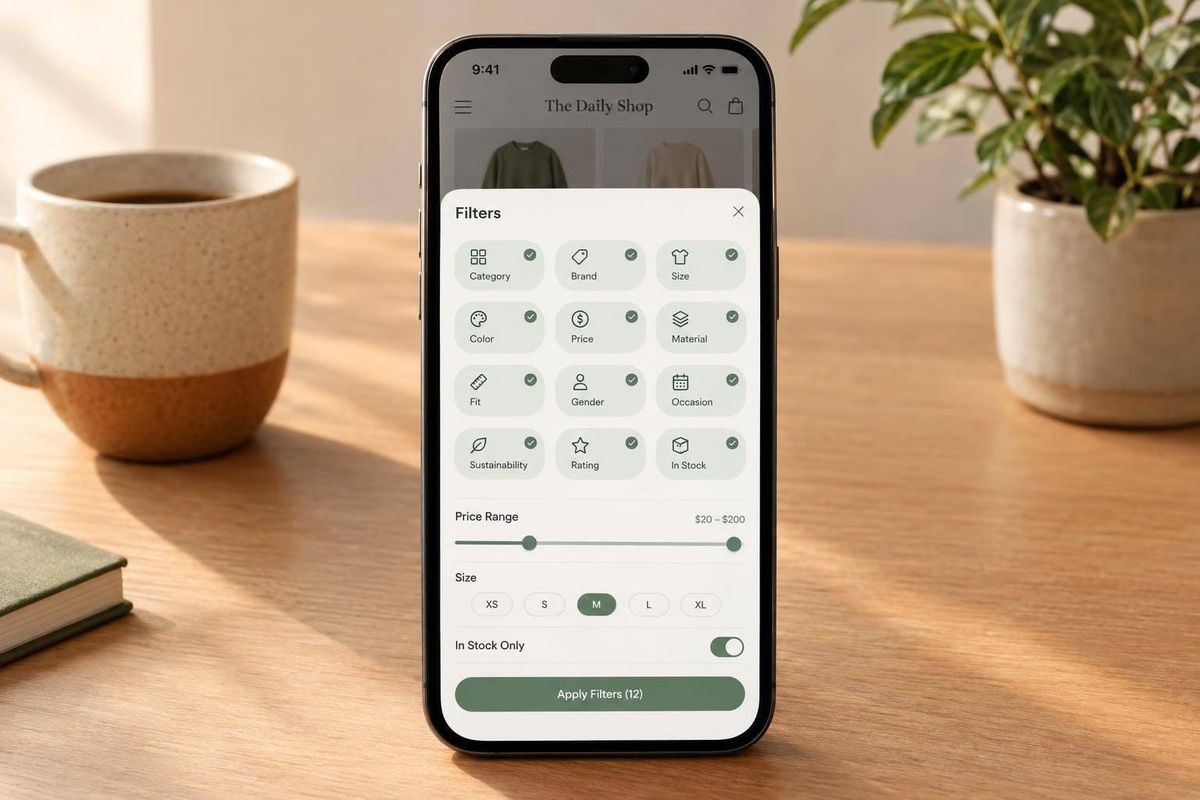
I use these 12 checks to find where mobile shoppers get stuck - and decide what needs fixing. Start by testing four tasks on collection and search pages: open a filter, combine selections, edit a selection, and filter search results.
Here’s what I check:
- Reachable controls: Can shoppers reopen filters after scrolling?
- Usable panels: Can they reach every option and close the drawer?
- Visible selections: Can they review and remove active filters outside the drawer?
- Saved state: Do filters and sorting survive a trip to a product page?
- Multiple selections: Do values combine as expected?
- Clear Apply button: Can shoppers apply changes without hunting?
- Preview counts: Do counts reflect selections before Apply?
- Zero-result recovery: Is there an easy path back to products?
- Clear all: Does one control reset every filter?
- Accurate totals: Do counts match results across pages?
- Category-fit filters: Can shoppers narrow products by the attributes they need?
- Plain labels: Do shoppers understand each group and value?
These are diagnostic checks, not industry averages. I record the device, steps, screenshots, and expected versus actual behavior, then check whether the cause sits in Shopify settings, product data, the theme, or an app.
<u>A failed check does not prove lost sales.</u> I use each confirmed issue to scope a fix, set acceptance checks, and measure results - with usability testing or a controlled test where feasible.
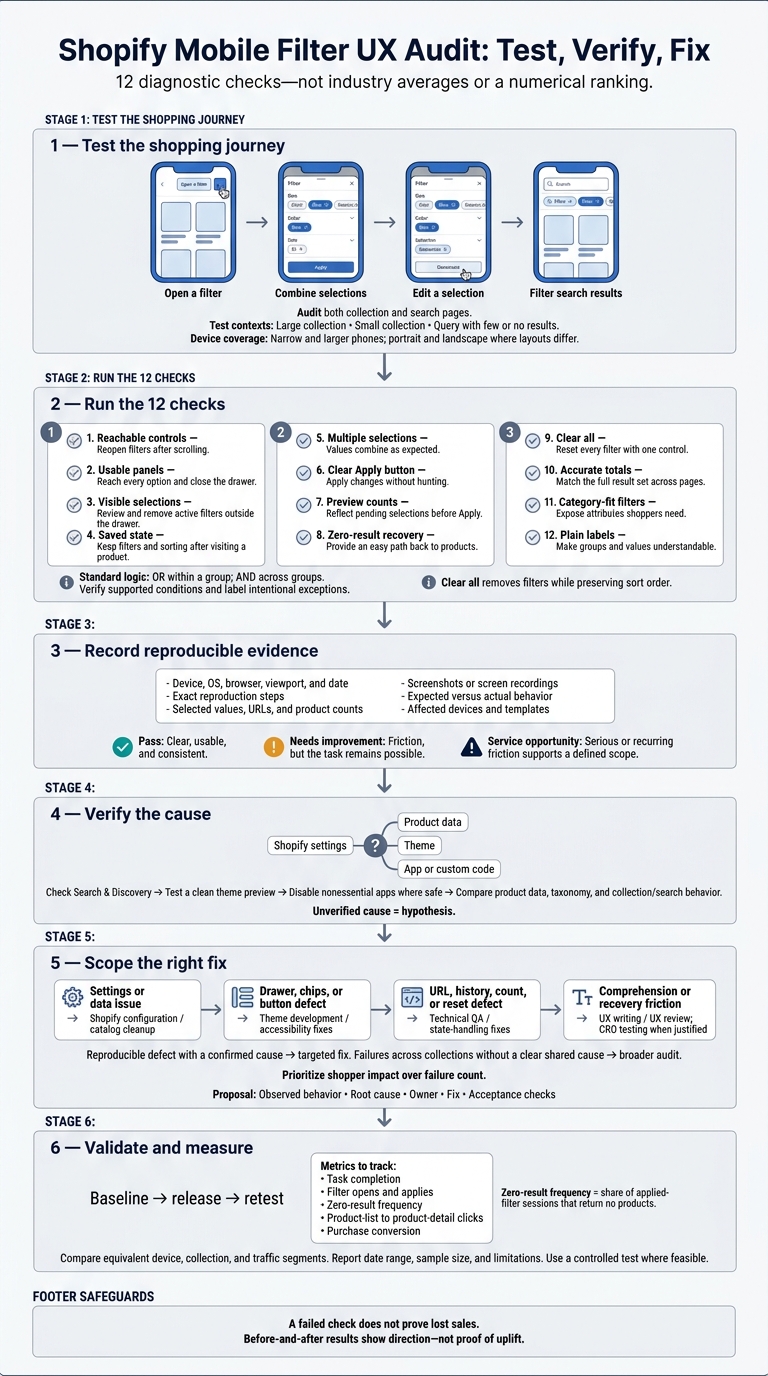
Shopify Mobile Filter UX Audit: Test, Verify, Fix
Document the Mobile Shopping Journey
Start with the shopper’s journey, not the filter drawer. Test four paths: open one filter, combine filters, edit an active filter, and filter search results. Run each path on a large collection, a small collection, and a query with few or no results. Shopify’s Search & Discovery lets you configure filters for collection pages and search results, so audit both, not just the main collection template. Only filters that apply to the displayed products should appear.[3]
Test on a narrow phone and a larger phone, checking portrait and landscape layouts wherever they differ. Record the device model, OS, browser, viewport, zoom, connection, date, and whether the shopper is a guest or signed in. Keep the catalog, inventory, location, currency, and personalization state consistent across tests.
For each path, track taps, steps, URLs, selected values, product counts, state changes, and elapsed time. Note whether results update immediately or only after tapping Apply. Take screenshots or screen recordings of the initial page, open drawer, applied selections, results, zero-results state, and cleared state. Include exact steps to reproduce the behavior. Also check whether returning from a product page keeps the filters and scroll position.
Give each finding one of these labels:
- Pass: The journey is clear, usable, and consistent.
- Needs improvement: The shopper encounters friction but can still complete the task.
- Service opportunity: The friction is serious enough or happens often enough to support a defined project scope.
Record expected versus actual behavior and which devices or templates are affected. A visual preference alone does not justify a service need.
Before recommending work, verify the cause. Check Search & Discovery first,[3] then test a clean theme preview, disable nonessential apps where safe, and compare product data, taxonomy, and theme behavior across collection pages and search results.[6] Separate confirmed Shopify constraints from issues tied to the theme, app settings, catalog data, or custom code. Mark any unverified cause as a hypothesis, and use this baseline to score the checklist below.
sbb-itb-61169e3
Mobile Filter Audit Checklist
These are diagnostic checks - not industry averages or a numerical ranking. Each agency signal suggests a possible fix. It does not prove that a redesign will increase sales.
Use the checklist to tell UX defects apart from configuration, frontend, and merchandising issues.
| Benchmark | What to test | Pass condition | Agency signal |
|---|---|---|---|
| 1. Keep Filter Controls Visible While Scrolling | Scroll deep into the product grid, then reopen filters. | A labeled control stays within reach without scrolling back to the top or getting hidden behind fixed bars. | Theme development: Add or repair a sticky filter toolbar and padding around fixed bars. |
| 2. Make Filter Panels Easy to Use and Close | Open a long drawer. Test close controls, keyboard focus, and Escape. | All options remain reachable. The panel closes in predictable ways, then restores focus and product context. | Frontend/accessibility: Fix the drawer layout, keyboard focus, and close behavior. |
| 3. Show Active Filters Outside the Drawer | Apply several values, then check the product list. | Readable chips appear above the product grid, and shoppers can remove each one separately. | Theme development: Render applied-filter chips from the current filter state. |
| 4. Keep Filter State After Navigation | Open a product from filtered results, then go back. | Selections, URL parameters, and result context stay intact. Scroll position returns where possible. | Technical QA: Repair URL, browser-history, and AJAX state handling. |
| 5. Allow Multiple Selections Within Filter Groups | Select two values in one group, then select a value in another group. | Values stay selected. Values within a group combine as OR; different groups combine as AND. | Configuration/data: Review Search & Discovery logic and normalize attribute values. |
| 6. Make the Apply Button Clear and Reachable | Change selections, then check the drawer’s action area. | A prominent, thumb-reachable CTA, such as Show results or Apply filters, stays visible or reachable without clashing with cookie banners or bottom navigation. | Frontend/CRO: Improve action hierarchy, drawer-footer positioning, and loading feedback. |
| 7. Show Result Counts Before Applying Filters | Change staged selections before applying them. | The preview count reflects the selected filters, not the previous results. | Theme development: Connect the count display to filtered results and handle loading states. |
| 8. Provide a Way Out of Zero Results | Create a filter combination with no matches. | The message keeps selections intact and offers removal, reset, or a broader shopping path. | CRO/merchandising: Add recovery actions to the empty-state template. |
| 9. Make Clear All Easy to Find | Apply three filters, remove one, then clear the rest. | Individual removal works. Clear all resets filters, chips, counts, and filter URL parameters together. | Technical QA: Repair reset controls without resetting the page unnecessarily. |
| 10. Show Accurate Product Totals and Clear Empty States | Compare totals across pages. Test slow loads and rapid changes. | Totals match the full result set - not just loaded items. Empty states distinguish no matches from loading. | Technical QA: Debug theme requests, pagination, inventory data, and count synchronization. |
| 11. Offer Filters That Match the Product Category | Check whether filters answer the category’s buying questions. | Relevant attributes appear first, irrelevant options are absent, and units are consistent. | Configuration/data: Configure filter sources, taxonomy, and product metafields in Shopify. |
| 12. Use Clear Filter Labels and Categories | Check group names, values, capitalization, and ambiguous terms for plain US English. | Labels use plain US English and explain what each selection changes. | UX writing/data: Rename filter labels in Search & Discovery and standardize source values. |
Separate configuration from presentation: The theme controls the drawer, chips, and buttons. Search & Discovery controls filter sources on collection and search pages.[3][4] Missing chips alone do not prove a catalog-data problem.
For unusually large collections, check platform limits before scoping custom work. Shopify says collections with more than 5,000 products do not display filters.[3] That may call for restructuring collections rather than redesigning the drawer.
1. Keep Filter Controls Visible While Scrolling
Shopper task and tap sequence
Use this benchmark when shoppers struggle to reach filters after scrolling. Open a collection page, scroll two screen heights, and reopen filters one-handed. Select one refinement and apply it only if needed. On a second pass, close the drawer without making changes and check that the page keeps its scroll position.
Observable pass condition
Test iOS Safari and Android Chrome with browser bars both shown and hidden. The filter trigger must stay within reach without covering prices, quick-add buttons, or the last product row. Check portrait and landscape layouts, including cookie notices and chat widgets. Use Apple’s 44 × 44-point touch-target minimum as the sizing floor.[7]
Failure evidence and severity
Record the viewport, scroll depth, and taps in a screen recording. Rate a covered trigger or an accidental quick-add tap as high severity. Rate persistent overlap that still lets shoppers filter as medium severity. Use low severity only for spacing issues.
Note any lost scroll position and whether the defect affects one template or every collection.
Shopify remediation and agency fit
Separate reachability problems from styling issues before assigning work. Check native theme settings and app conflicts first, then send confirmed positioning, stacking, or safe-area defects to a theme developer. Use a scroll-up trigger only when a fixed bar crowds the viewport.[9]
Scope CRO work only when verified problems justify it. Validate the fix by tracking completed filter tasks and accidental taps - not filter clicks alone.
2. Make Filter Panels Easy to Use and Close
Shopper task and tap sequence
Once you’ve confirmed the filter trigger stays within reach, check that the panel opens, scrolls, and closes without trouble. Start midway down a Shopify collection or search-results page. Open Filter, expand a group, select a value, and scroll to the last option. Then close and reopen the panel.
Test both full-screen layers and bottom sheets. Try each dismissal method: the close button, system back action, backdrop tap, and swipe-down gesture.
Observable pass condition
Test at 320, 360, and 390 CSS pixels, with text enlarged to 200%. Labels must remain readable, controls must not overlap, and the close button must stay within reach. Scrolling inside the panel must not move the page behind it.
Closing without changes must return shoppers to the same product-list position. Reopening must keep applied selections. If changes are staged, dismissal must clearly preserve or discard those selections - not silently lose them.
Failure evidence and severity
Record the viewport, selected value, dismissal method, and starting and ending product rows. Rate a panel that cannot be closed as critical, accidental dismissal that loses selections as high, and cramped controls that need repeated taps as medium.
Also check whether scrolling over a checkbox accidentally selects it, or whether tapping inside a bottom sheet closes it.
Shopify remediation and service fit
Have a Shopify developer check overflow, scroll locking, close-control placement, and state handling. For dialogs, also check focus management and screen-reader labels.
Use a targeted UX fix for isolated defects. Move to broader CRO testing only when repeated task failures justify it. Measure completed filter tasks and the time from opening the panel to applied results.
3. Show Active Filters Outside the Drawer
Shopper task and tap sequence
Show applied filters outside the drawer so shoppers can edit them without opening it again. Apply two values from different filter groups, then check that both appear as labeled, removable chips above the product grid. Remove one chip with the drawer closed. Confirm that the results and count update while the other filter stays active. Reopen the drawer and check that the removed value is unchecked.[11]
Observable pass condition
Every applied value should be visible and individually removable. Include the group name if the value alone could be unclear. Keep chips near the result count, and let them wrap or scroll without hiding selections. Each removal control needs an accessible name that identifies its action. After removal, chips, drawer selections, URL parameters, results, and count should stay in sync.[11][12][13]
Failure evidence and severity
Record the chip labels, selected values, URL, and product count before and after removal. Grade readable but cramped chips as medium. Missing or stale chips that stop shoppers from identifying active constraints are high. Chips that contradict the results - or removal that silently clears every filter - are critical.
Shopify remediation and service fit
Have a Shopify developer build chips from the current filter state and generate removal URLs that keep the remaining selections.[11][13] Use UX writing to clarify labels, theme development to add missing chips, and technical QA to fix sync issues. Escalate to UX/CRO only after confirming friction with chip removal. Track chip removal and collection interactions before and after the fix. Benchmark 4 checks whether that state survives navigation.
4. Keep Filter State After Navigation
Shopper task and tap sequence
Once you’ve confirmed that active filters stay in sync, check whether they survive navigation. In iOS Safari and Android Chrome, apply two filters from different groups, change the sort order, and scroll several rows down.
Open a product, then return with the browser Back button. Repeat using the store’s in-site back-to-results control. Next, reload the collection URL and open it in a new tab. Run these checks on both a standard collection and a paginated or load-more collection.[10][14][7]
Observable pass condition
Shoppers should return without rebuilding their search. Both return controls should restore filters, sort order, collection context, and roughly the same scroll position. Reloading or copying the URL should reproduce the filters and sorting, with consistent counts and result ordering.[10][11][15]
Failure evidence and severity
Save the before-and-after URLs and a screen recording. Record the device, browser, selected filters, sort order, product row, and return method. Assign severity as follows:
- Critical: Restrictive filters disappear, or results become misleading.
- High: Sorting or collection context resets.
- Medium: The correct list returns, but the shopper lands at the top.
- Low: The scroll position shifts slightly.[1][7]
Shopify remediation and service fit
Use Shopify’s filter parameters and sort_by to retain state. For AJAX grids, handle browser history and popstate, then restore the scroll position after the grid renders.[10][14][16]
Broken state calls for Shopify theme development. Unclear return controls call for a UX audit. After the fix, measure successful state restoration and filter reapplication per session before recommending broader CRO instrumentation or experimentation.
5. Allow Multiple Selections Within Filter Groups
Shopper task and tap sequence
After confirming that filter state persists, check how the store combines selections. Choose two values in one group, apply them, and record the result count. Then remove one value and add a value from another group.
Test Color → Black + Navy, then repeat with a tag-based filter.
Check matching products against catalog attributes - not titles alone. With live filtering, make sure the drawer still works after each tap. With staged filtering, check results after selecting Apply.[10][3]
Observable pass condition
Standard filters should use OR within a group and AND across groups. Adding another option within a group should increase the result count or leave it unchanged. Adding a filter from another group should reduce the count or leave it unchanged.
Every selected value must stay active, and removing one must leave the others in place. Check both the query logic in the URL and the product grid. Checked boxes alone don’t prove the query works correctly.[10]
Failure evidence and severity
Record the screen, selected values, result count, and products that don’t match the expected logic. Assign severity based on the effect on shoppers:
- High: Incorrect operators or selections that unexpectedly replace others block product discovery.
- Medium: Selection states are unclear, but results remain correct.
- Low: Minor delays in updating results don’t mislead shoppers.
Shopify remediation and service fit
In Apps → Search & Discovery → Filters, check each source and its supported condition before changing code. Product-tag, list-metafield, and metaobject reference list filters can support OR or AND. Clearly label any intentional exception to the standard logic.[3]
Send inconsistent catalog values to data cleanup. Route incorrect query logic or state handling to theme development or integration work. If the behavior is technically correct but confusing, assign it to a UX audit.
6. Make the Apply Button Clear and Reachable
Shopper task and tap sequence
Open Filter & Sort, select several values, check the result count, and apply the filters once. This test checks whether shoppers can apply their changes without hunting for the button.[7]
Observable pass condition
The button must stay visible as selections change. Use a sticky footer to keep it above the bottom UI. Prefer “Show X Results” over “Done.”[7][18] If the store uses live updates, the grid should update without closing the drawer or losing the shopper’s scroll position.[19]
Failure evidence and severity
Record the device, screen size, browser, and number of selected filters. Note whether the button stays visible, how the drawer behaves, and whether the grid jumps or reloads.
Shopify remediation and service fit
Check the theme’s filter component and Search & Discovery settings for labels, layout, and multi-select behavior.[3][17] Send implementation defects to Shopify theme development. For more strategic insights, consult our Shopify store guides. Use CRO testing to measure completion rate and time to first filtered view, and use this benchmark to distinguish button-placement defects from broader filter-state issues.
7. Show Result Counts Before Applying Filters
When shoppers stage filters, the preview count should show how many products they’ll get before they tap Apply.
Shopper task and tap sequence
Open a collection’s filter drawer and note the current product total. Select one value, add another in the same group, then select a value in another group - all without tapping Apply. Check whether the counts update after each pending change. Tap Apply once, then compare the displayed count with the actual product total.
Observable pass condition
This benchmark tests the preview state, not the final applied state. Counts must reflect pending selections, not static catalog totals. Display a count beside each option and keep the drawer’s total in sync. Recalculate the preview count after every staged change.[3] Keep values that would return zero products visible, but disable them, mute them, or label them unavailable.[5]
Failure evidence and severity
Record the URL, device, viewport, collection size, initial count, pending selections, displayed count, applied total, and response time.
Rate misleading totals or zero-result combinations without warning as high severity. Clearly disabled unavailable states are medium severity. Minor count-formatting issues are low severity unless they make the count hard to read.
Shopify remediation and service fit
Check Shopify Search & Discovery configuration, product attributes, variant availability, and collection rules before changing theme code. For custom storefronts, use Storefront API counts for each filter value.[8]
Send stale drawer counts to theme development and inconsistent attributes to catalog cleanup. Verify the fix by tracking count-update time, zero-result sessions, and filter abandonment.
8. Provide a Way Out of Zero Results
After applying filters that return zero results, test how shoppers get back to products.
Shopper task and tap sequence
Shoppers need an obvious way out when filters return no products. Test a combination of Brand, Color, Size, and Price that produces zero results. Remove one chip, then test Clear all filters. Confirm that products return without reloading the page or using Back. Repeat on both collection and search pages.[3][11][6]
Observable pass condition
Recovery takes one or two taps using visible, removable chips or a prominent reset control. Removing one value keeps the other selections in place. Clear all restores results within the current collection or search context.[20][21]
Failure evidence and severity
Record the filter combination, a screen recording, recovery time, and the number of taps needed to restore results. Mark a blank page with no working way out as critical. Rate a hidden or hard-to-reach recovery control as high, and a clear message without useful alternatives as medium.[21][22]
Shopify remediation and service fit
Update collection and search empty states with working filter-removal controls and a link to unfiltered results. If removing a restriction still returns unexpected results, check Shopify Search & Discovery, product attributes, and variant availability.
Hidden controls need UX work; broken removal actions need development. Frequent exits after zero results warrant a CRO review. Track recovery rate and post-recovery product views.[3][6][11]
9. Make Clear All Easy to Find
Shopper task and tap sequence
After testing zero-result recovery, check how easily shoppers can reset all filters. Apply filters from at least two groups, choose a nondefault sort order, then tap Clear all filters. Tap Apply only if needed. Record the number of taps and whether the reset takes effect immediately or waits for Apply.[1]
Observable pass condition
Clear all filters should be visible without scrolling whenever filters are active, usually in the drawer header or a fixed footer.[2] It must remove every active product filter, including price and availability, without changing the sort order. Selections, chips, result totals, and the product grid must update together. This benchmark tests whether shoppers can find the reset and whether it clears every filter - not whether they can recover from an empty results page.
Failure evidence and severity
Capture the URL query state, sort order, selected values, and product count before and after the reset. Rate a missing or incomplete Clear all filters action as high severity. Rate a control buried below a long list as medium.
Shopify remediation and service fit
A reset that's hard to find usually points to drawer design or state-sync issues. Check the theme's reset control and JavaScript state handling. Send placement issues to UX or theme development. Address incomplete resets through state-handling and URL-cleanup fixes: remove filter parameters and keep drawer state in sync with product-grid updates.[3][11] Test the fix on mobile browsers, and compare reset success, tap counts, and completion time before and after the fix.[3]
10. Show Accurate Product Totals and Clear Empty States
Shopper task and tap sequence
Once filters can be applied and cleared, check that totals and empty states reflect each query change. Record the starting total, select filter values, and compare the preview count with the applied total across pagination. Repeat after changing the sort order, using Back, and refreshing.
Test three empty states: an empty collection, a filter combination with no matches, and a previously valid selection that no longer works after catalog changes.
Observable pass condition
Applied totals must match the active query across pagination, not the unfiltered catalog or just the current page. While updates load asynchronously, show a loading state instead of an outdated total.
Empty states must explain whether the collection is empty or the filters are too narrow. Keep the current filters in place and offer one recovery action.
Failure evidence and severity
Record the drawer count, applied total, URL, visible products, and loading state together. Rate mismatched totals as high severity. Rate a false zero-result state, blank grid, or endless spinner as critical when shoppers can’t understand what happened or recover.
Before flagging discrepancies in large searches, check the scope: Shopify search-filter counts can use only the first 1,000 results.[3]
Shopify remediation and service fit
Send stale-total issues to Shopify theme development so the summary, grid, pagination, and loading state all use the same response. Send unclear empty-state copy to CRO/UX and inconsistent attributes to merchandising cleanup.
Verify fixes under mobile network throttling, then measure count mismatches, zero-result sessions, and product-list engagement.
11. Offer Filters That Match the Product Category
Shopper task and tap sequence
After checking how filters work, confirm that they match how shoppers choose products in the category. Start with the shopper’s main question: fit, compatibility, or another category-specific need.
Open the collection, tap Filter, and select the core attribute. Add availability and price only when relevant, then apply the filters. Check whether the results meet every requirement. Record taps, scrolling, and backtracking.
Observable pass condition
Pass when shoppers can complete the category’s core narrowing tasks without opening product pages to compare basics.
Apparel should expose size, fit, and material options; electronics may need compatibility, storage, and price.
Filter values must be complete and relevant to the collection - not a storewide mix of unrelated attributes. Products with missing metafield values may be excluded from that filter.[5]
Failure evidence and severity
Record the collection URL, selected filter values, affected products, and their source attributes.
Rate missing size or compatibility filters as high when they stop a purchase decision. Rate inconsistent material values as medium when they add comparison work.
Check product categories, variant options, and metafields before labeling the issue a missing filter.
Shopify remediation and service fit
Start with category assignments and category metafields. Assign catalog cleanup when attributes are blank or inconsistent. Use Shopify configuration when fields aren’t exposed in Search & Discovery settings. Assign theme development when configured filters don’t render on mobile.[3]
Use CRO/UX to change filter priority only when usability evidence shows shoppers can’t narrow the catalog. After the fix, measure product-list click-through and add-to-cart rate. If the filter set is complete but still confusing, the next benchmark covers label clarity and category naming.
12. Use Clear Filter Labels and Categories
Shopper task and tap sequence
Once you’ve confirmed the store has the right filters, check whether shoppers understand their labels. Test with one new shopper and one returning shopper. Ask each to open Filter, scan the group names, choose a familiar attribute, review the active-filter summary, and explain what each label means. Don’t explain the labels yourself. Record any unrelated groups they open and where they hesitate.
Observable pass condition
This benchmark tests whether filter labels use shopper language - not whether the catalog has the right attributes. Pass when shoppers find the right filter group without guessing. Terms should stay consistent across navigation, filters, product pages, and search. Decision filters, product types, variants, and promotional labels should each have distinct names.
Long lists should include search or Show more, and selections should remain in place as shoppers move between groups.
Failure evidence and severity
Record the confusing label, the selected values, and what the shopper thought the label meant. Rate the issue high when unclear or duplicate terms block discovery, lead shoppers to abandon the task, or hide suitable products behind split values. Rate capitalization differences medium when the labels are still understandable. Check search terms and support questions to confirm the language shoppers use.
Shopify remediation and service fit
Trace each issue to source data, filter configuration, or theme rendering. Assign data cleanup when source terms are inconsistent. Use Shopify configuration to rename filters or group equivalent values in Search & Discovery, but standardize the underlying product data first.[3][4]
Assign UX/CRO work only when renaming or regrouping labels won’t resolve the comprehension problem. Validate changes through task completion, filter-selection rate, and zero-result rate - not wording preference alone. Deliver a label map that includes the original term, replacement, affected products, owner, and metric.
Match Filter Problems to Agency Services
Match each verified defect to the right service scope. Don’t recommend a redesign based on the benchmark alone. The checklist above flags symptoms. Use the benchmarks to sort each issue by cause, scope, and proof.
| Failure pattern | Likely causes to verify | Service scope | Validation metric |
|---|---|---|---|
| Filters are hidden, clipped, or hard to close | Weak mobile hierarchy, nonresponsive CSS, inaccessible trigger, sticky-header conflicts | Mobile UX audit, responsive-theme fixes, accessibility fixes | Filter-open rate; task-completion rate |
| Multiple selections fail or return unexpected products | Wrong control type, single-select logic, incompatible theme customization | Filter-logic and collection-structure review | Selection completion rate |
| Counts are wrong or selections disappear | Asynchronous update bugs, product or variant counts, missing URL state | Front-end fixes and analytics QA | Count accuracy; filter-state retention |
| Relevant attributes are missing | Missing or inconsistent metafields, tags, variant data, or taxonomy | Catalog cleanup and product-data governance | Attribute completeness; filter adoption |
| Shoppers hit zero-result dead ends | Overly narrow filters, inaccurate inventory, misleading labels, weak category structure or merchandising | CRO testing, inventory review, taxonomy and merchandising fixes | Zero-result recovery rate; post-filter add-to-cart rate |
Once you verify the cause, choose a targeted fix if you can reproduce the defect and explain its technical cause. Document the affected template, device and browser, steps to reproduce, repair, and retest.
Recommend a broader audit when failures span collections with no clear shared cause. Review theme architecture, Search & Discovery, catalog data, inventory, and analytics before estimating a rebuild.
Prioritize shopper impact over failure count. One blocked purchase path matters more than several cosmetic issues. Record the affected journeys and business impact, then use that evidence to decide whether to keep the work focused or expand into broader UX work. Reserve CRO testing for changes intended to improve outcomes.
Use StoreCensus theme, tech-stack, and growth-signal data to find and target Shopify stores. After tracked store changes - and before outreach - retest representative collection and search pages. A theme or technology change is a qualification signal, not proof of a UX defect or conversion loss.
Lead outreach with a recorded finding that others can reproduce and a proposed validation metric, rather than an unsupported revenue claim. Use that evidence to shape the final fix-and-measure plan.
Conclusion: Propose a Verified Fix and Measurement Plan
Treat the 12 benchmarks as one discovery system. Shoppers need controls they can reach, a visible state, accurate counts, and an easy way to recover.
Start with the clearest benchmark failure. Turn the strongest verified finding into a scoped proposal that names the observed behavior, root cause, owner, fix, and acceptance checks. Assign the work to the team responsible for the confirmed defect.
Before release, establish a baseline for filter opens and applies, zero-result frequency, product-list to product-detail clicks, and purchase conversion. Define zero-result frequency as the share of applied-filter sessions that return no products.
After release, compare equivalent device, collection, and traffic segments. Report the date range, sample size, and known limitations. Fewer empty results matter only if shoppers reach relevant products, and more product-detail clicks don’t prove higher purchase conversion. A before-and-after comparison shows direction - not proof of uplift - so use a controlled test where feasible.
FAQs
Which mobile filter issues should I fix first?
Focus first on issues that stop users from navigating your store:
- Size touch targets to at least 44 × 44 pixels, ideally 60 pixels tall, to help prevent accidental clicks and rage clicks.
- Let users navigate with the Tab key. Remove focus traps so they can exit the filter menu.
- Keep filter inputs and form labels visible and clearly labeled. Don’t rely on placeholder text that disappears when users type.
Should I use live filtering or an Apply button?
Use live filtering by default so results update as soon as users change filter inputs. Use an Apply button only when users should review filter changes and apply them together.
In the filter panel, Products, Activity Signals, CRM, and Export History require users to click Apply to save updated filter criteria.
How much traffic do I need to test filter changes?
How much traffic you need depends on your store’s conversion rate and the size of the change you’re testing. Set a six-month baseline before making changes to account for seasonal ecommerce trends.
Track conversion rates, cart abandonment, and session duration. Then compare those results with your baseline to see whether your filter changes help shoppers overcome the problems they face.