Black Friday Failover Checklist For Shopify
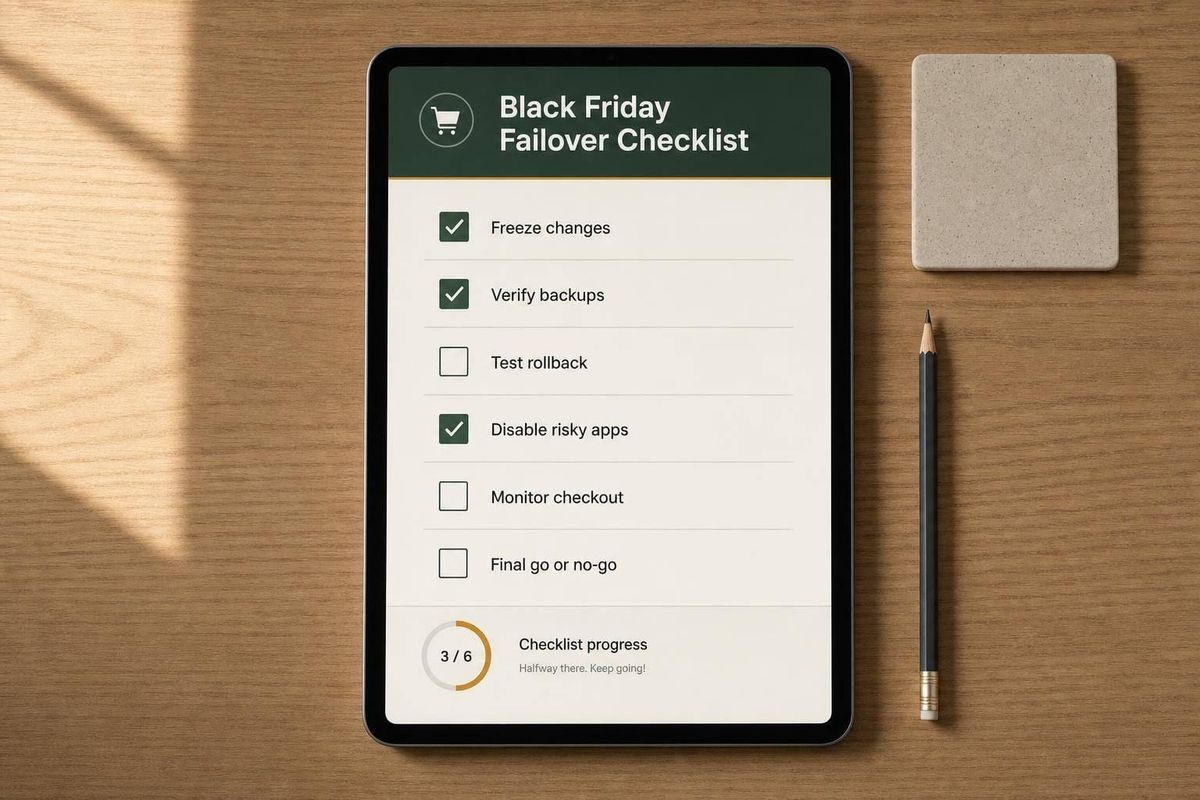
Freeze changes, verify backups, test rollbacks, disable risky apps, monitor checkout, and run a final go/no-go before Black Friday.

A short outage on Black Friday can cost a Shopify store a lot of money. Shopify stores did $9.3 billion in BFCM sales in 2023, and sales peaked at $4.2 million per minute. That means you do not need a long failure for revenue to drop fast.
If I had to boil this checklist down, I’d put it this way: freeze changes, confirm backups, test rollback, trim app risk, watch checkout live, and make one clear go/no-go call before traffic spikes. Most Black Friday problems are not from Shopify alone. They often start with apps, scripts, shipping rules, discounts, or tracking code that break cart or checkout.
Here’s the whole article in plain English:
- Set a freeze window with a clear cutoff in ET and UTC
- Lock all high-risk surfaces, like theme files, apps, checkout logic, shipping, tax, discounts, and pixels
- Allow changes only by approval from one business owner and one technical owner
- Confirm a clean restore point that can still place a test order on desktop and mobile
- Practice rollback for themes, app embeds, scripts, and app settings before the sale
- Map every app and vendor that touches product pages, cart, checkout, payment, or fulfillment
- Turn off extra scripts and features that do not help customers browse, buy, or get their order
- Set live monitoring for storefront, cart, checkout, payment, shipping, and tracking events
- Assign one owner and one backup for each revenue-facing surface
- Run a final yes/no review 30–60 minutes before the traffic ramp
- Log the decision, risks, and approved freeze changes in one shared runbook
What I like about this checklist is that it stays focused on one thing: getting the store back to a known-good state fast if something breaks. It is less about writing a long plan and more about making sure the team knows what is locked, what can fail, who responds, and how to roll back.
Before you get into the full article, this is the core idea: if backup, rollback, monitoring, or ownership is missing, the store is not ready for Black Friday.
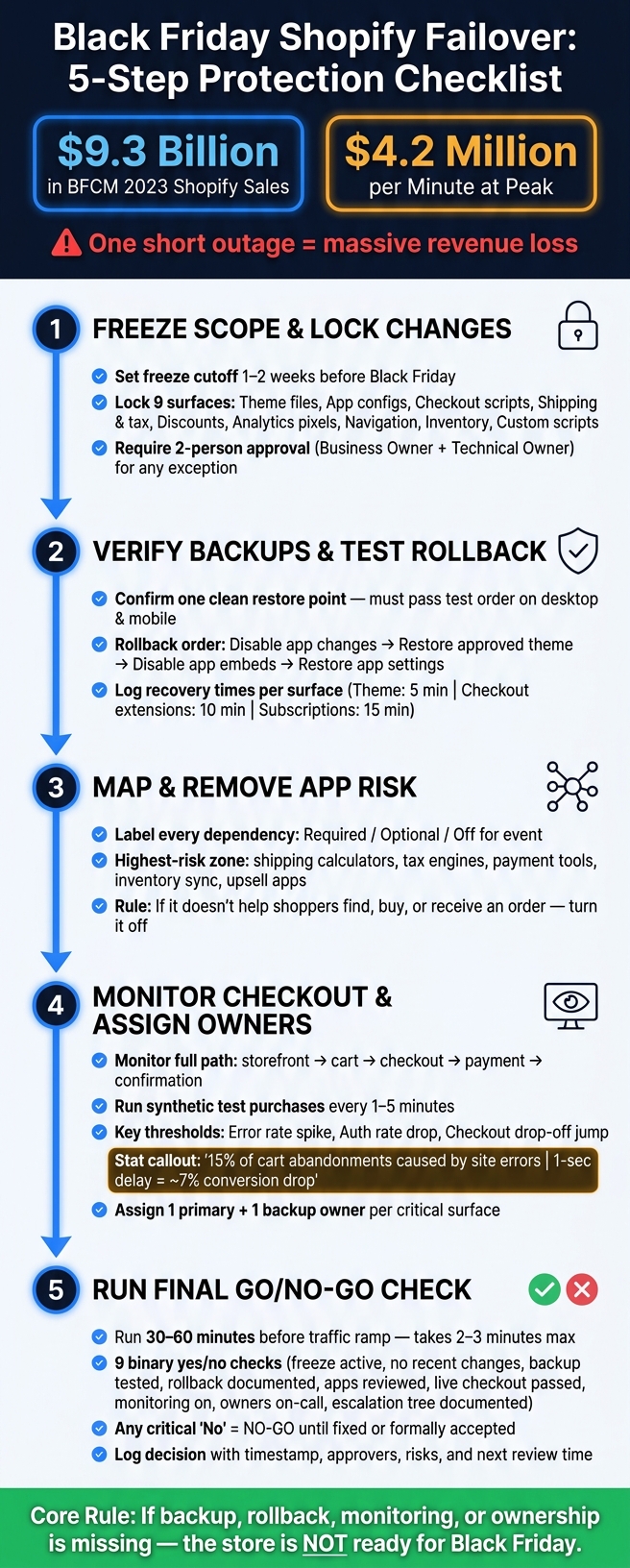
Black Friday Shopify Failover Checklist: 5-Step Protection Plan
1. Freeze scope and lock the change window
Once you’ve set the risk window, lock down every place where changes can slip in before traffic ramps up. Set the freeze cutoff 1–2 weeks before Black Friday. If the store is larger or has more moving parts, freeze 2+ weeks out.[2][7][9]
Pick one source of truth for timing, like Eastern Time, then document the freeze start in both local time and UTC so everyone sees the same deadline. After the freeze begins, nothing goes live without clear approval.
List every surface included in the freeze
Here, a surface means any customer-facing, revenue-critical, or checkout-related part of the store that touches the buying journey. Use the table below to mark each surface that stays frozen through the event.[3][4][5][8]
| Surface | Examples | Status |
|---|---|---|
| Theme files | Liquid templates, JavaScript, CSS, Online Store 2.0 sections and blocks | Ready / Needs work / Blocked |
| App configurations | Discount apps, upsell apps, subscriptions, loyalty, reviews | Ready / Needs work / Blocked |
| Checkout scripts & functions | Shopify Functions, custom payment rules, checkout extensibility embeds, Shopify Scripts | Ready / Needs work / Blocked |
| Shipping & tax settings | Rates, zones, carrier-calculated rates, tax overrides | Ready / Needs work / Blocked |
| Discounts & automatic discounts | Sitewide promos, BOGO logic, tiered discounts | Ready / Needs work / Blocked |
| Analytics pixels & tags | Meta, GA4, TikTok, Pinterest, server-side tracking, tag managers | Ready / Needs work / Blocked |
| Navigation & search | Main nav, footer nav, collection structure, filters, metafields | Ready / Needs work / Blocked |
| Inventory & back-in-stock flows | Stock levels, restock workflows | Ready / Needs work / Blocked |
| Custom scripts & third-party embeds | A/B testing tools, chat widgets, external JavaScript injections | Ready / Needs work / Blocked |
Ready means the item was tested in staging or in a preview theme. Needs work means there’s still a fix pending, and it has to be done before the freeze starts. Blocked means it won’t get to ready in time, so it needs a written fallback plan or leadership sign-off.
Also capture the current theme ID/version, enabled app embeds, main checkout settings, and screenshots of discount and checkout flows.[5][2] Think of this as your snapshot before the storm. If something breaks, you’ll know what changed and what to roll back.
Set rules for exception approvals during the freeze
During the freeze, only treat issues as critical if they hit revenue, compliance, or brand trust. Checkout errors, failed payments, wrong shipping rates, or promo pricing that applies the wrong way all count. Internal-only issues, minor content gaps, and vanity metric problems don’t.[6]
For approvals, require sign-off from two people:
- A business owner, such as the founder, VP of Ecommerce, or account lead
- A technical owner, such as the lead developer or agency technical lead
Before any exception goes live, log:
- What the issue is, which surface it affects, and the estimated revenue impact
- The exact change being made, down to the file name, app setting, or URL
- What was tested before deployment
- The rollback steps if the change backfires
- A timestamp with timezone, plus the names of both approvers
Right after deployment, run a smoke test. Best case, place a real test order on each live payment method. Then log the result with the exception record.[6]
Keep the exception log in a shared Google Sheet or Notion page that stakeholders can check in real time as part of incident control. After BFCM, that same log becomes your review artifact. It shows which surfaces caused trouble and where your process needs tightening before next year.[6]
Once the freeze is locked, move straight into backup and rollback checks.
sbb-itb-61169e3
2. Verify backups, restore points, and rollback order
Once the freeze is locked, you need proof that the store can get back to a known-good state fast.
Untested backups do not protect revenue.
Confirm current backups and a clean pre-freeze restore point
Set one restore target: a known-good store state that can still complete a standard test order on desktop and mobile. That target should include the published theme, key app settings, checkout settings, discount rules, product and inventory data, and any custom scripts that touch checkout.
Put that restore target into a one-page runbook. Include:
- Timestamp
- Scope
- Backup location
- The validation step used to prove the restore works
A restore point only counts if customers can still complete payment. In plain terms, success means a standard test order works on desktop and mobile, with discounts applied the right way. Assign one tech lead to confirm the store has returned to that state.
Test rollback for theme, app embeds, and custom scripts
Rollback needs a fixed order. Start with the least invasive changes, then move to the more disruptive ones.
The order is:
- Disable recent app changes
- Restore the approved theme
- Disable app embeds and script tags
- Restore saved app settings
Start by turning off recent toggles, experiments, and features, especially anything tied to discounts, subscriptions, or cart behavior. Next, publish the approved restore theme duplicate. Then disable app embeds and script tags in the theme editor. After that, restore app configurations from your saved exports.
Put extra attention on cart.liquid, checkout extensions, product-page scripts, and recent app blocks. Also document where each key setting lives, whether that's Shopify admin, the app dashboard, or an external service.
Run the rollback drill once during a low-traffic window and log recovery times in the runbook.
Use a rollback reference table
After the drill, write down what you learned in a reference table the on-call team can scan in under a minute during an incident. Keep it in the same shared doc as your exception log from Section 1.
| Change area | Backup source | Rollback trigger | Rollback owner | Expected recovery time |
|---|---|---|---|---|
| Live theme (Liquid, sections, JSON) | bf-2026-restore-point duplicate in Shopify plus ZIP in /Backups/Theme/2026-11-20 |
Storefront errors or broken layout on key pages | On-call developer | 5 min |
| Cart upsell app embeds | App config export in /Apps/Upsell/2026-11-20 |
Cart JS errors spike or cart abandonment jumps | Ecommerce lead | 5 min |
| Checkout extensibility extensions | Theme bf-2026-restore-point plus documented extension settings |
Checkout error rate > 2% for 5 consecutive minutes | On-call developer | 10 min |
| Tag manager / tracking scripts (Meta, TikTok) | Tag manager container export plus tag screenshots | Checkout issues or JavaScript errors at checkout | Analytics owner | 10 min |
| Subscription app configuration | Exported config JSON in /Apps/Subscriptions/2026-11-20 |
Subscription add-to-cart failures or checkout loop | On-call developer | 15 min |
| Discount codes and price rules | CSV export plus screenshots in /Discounts/2026-11-20 |
Wrong discount amount applied or codes rejected at checkout | Ecommerce lead | 10 min |
Assign one owner per row, then verify current contact info and required access.
After rollback is proven, map every app and script still touching the purchase path. Then remove nonessential app risk before sale day.
3. Review app dependencies and remove nonessential risk
With rollback already tested, the next move is simple: cut any dependency that could still interrupt checkout.
Map dependencies across the purchase path
A critical dependency is any app, script, or service that can affect product display, cart, checkout, payment, or fulfillment. Put plainly, if it has to work for a customer to finish a purchase, it belongs on this list.
Walk through the full purchase path and label each dependency as required, optional, or off for the event. The riskiest group usually sits closest to checkout: shipping-rate calculators, tax engines, payment and fraud tools, inventory sync apps, subscription logic, upsell or bundle apps that change cart rules, and ERP or fulfillment connectors. If just one of these goes down, conversion can stop cold even when the storefront itself is still up.
For each dependency, note:
- the vendor
- what it controls
- where it appears in the funnel
- who owns it
- what happens if it fails
A one-page dependency matrix makes it much easier to separate small annoyances from direct revenue blockers.
| System | Function | Failure impact | Fallback | Owner |
|---|---|---|---|---|
| Klarna / Afterpay | BNPL at checkout | Can block payment for BNPL users | Alternate payment path | Ecommerce lead |
| ShipStation / EasyShip | Order routing and carrier handoff | Delays fulfillment | Manual export | Operations lead |
| Klaviyo | Order confirmation and post-purchase email | Customers may miss confirmations and post-purchase messages | Backup notification path | Marketing lead |
| Inventory sync app | Real-time stock updates across channels | Overselling risk | Conservative inventory buffers | On-call developer |
| Checkout upsell extension | Post-purchase offer | The offer disappears | Disable safely | Ecommerce lead |
Pay close attention to any dependency that has no manual fallback, no cached response, or no support coverage during the sale window. Those are the single points of failure that can hurt you fastest.
Once the critical path is clear, start turning off anything you don't need.
Pause scripts and features not needed on sale day
A good rule of thumb: if a feature doesn't help a shopper find a product, add it to cart, pay, or receive the order, turn it off for the event.
Common items to pause include pop-ups, on-site personalization widgets, heavy heatmap tools, nonessential analytics tags, review carousels, chatbot overlays, referral prompts, and free-gift or promo add-ons that alter cart behavior without being part of the main offer. Shopify advises against app changes that drop Lighthouse scores by more than 10 points [10]. During a traffic spike, stacked nonessential scripts can easily push past that mark and slow down load time.
After you disable anything, test the full purchase path again: product view, add to cart, shipping estimate, tax calculation, payment handoff, and order confirmation. Then do it again after every removal. It may feel repetitive, but this is where small mistakes show up before shoppers find them.
After you've trimmed the risk, make sure it's clear who responds when a vendor fails.
Confirm vendor contacts and support coverage before the event
Contact info by itself won't save you in the middle of a sale. You need a tested escalation path with named people and clear response times before the event starts.
For every critical vendor - payment processors, shipping services, tax engines, ERP connectors - document the emergency support route, the account owner, SLA expectations, after-hours coverage, and any incident channel. If you're on Shopify Plus, confirm access to a dedicated Merchant Success Manager for platform-level issues [1]. For payment and shipping vendors, also spell out who can approve fallback actions, like disabling a feature or switching to manual processing.
If your agency manages multiple stores, StoreCensus can help surface app stacks, store changes, and decision-maker contacts before the freeze.
Once critical dependencies are mapped and nonessential scripts are off, move to live checkout monitoring and ownership.
4. Monitor checkout and define the escalation path
At this point, you've trimmed dependencies and tested rollback. Now the job is simple to say and hard to get right: spot problems the moment they happen and make sure the right person can move fast. A dashboard that nobody checks won't save sales.
Set monitoring on storefront, cart, checkout, and payment handoff
Monitor the entire buying path, not just site uptime. That includes page availability and speed across the storefront, collection pages, and product pages, plus add-to-cart success, cart updates, checkout start, shipping-method selection, payment authorization, order confirmation, and any handoff to third-party payment or fraud tools. Synthetic transaction monitoring - automated test purchases that run every 1–5 minutes through the live checkout flow - is one of the best ways to catch silent failures, where the storefront looks fine but a payment step or shipping calculator is broken. [11][12][13][14]
The main metrics to watch are error rate, payment authorization success rate, checkout-step drop-off, and response time. If errors or load time jump without a matching traffic spike, that's often a sign of a technical issue, not normal Black Friday traffic. Research shows that 15% of cart abandonments are caused directly by website errors and crashes, and that a one-second delay in load time can reduce conversions by around 7%. [15][16] On Black Friday, those losses add up fast because so much traffic lands in a short window.
Before traffic ramps up, run one last test order and confirm that product view, add to cart, checkout start, purchase, and pixel events all fire. Once that live path checks out, tie each alert to one owner.
Assign one owner per critical surface
Every alert should have a named responder before peak traffic starts. Assign one primary owner and one backup for each surface. The point is simple: when an alert fires at 3:00 AM on Black Friday, nobody should be wondering who's up next.
For each owner, document:
- Preferred contact method
- Backup contact channel
- Clear decision boundary
Write down the escalation order for a checkout outage before the event starts. The on-call owner investigates first. The technical lead decides on mitigation. The business owner approves rollback if needed. Marketing or support gets a ready-made status update if customers are affected.
For Shopify Plus stores, list the Merchant Success Manager as the platform contact. For payment and shipping vendors, name the person who can approve fallback actions - like disabling a feature or rolling back to the last known safe change - so that decision doesn't get stuck in the middle of a live incident.
Add a monitoring and ownership table
Use this table as the live incident reference.
| Critical Surface | Failure Signal | Monitoring Method | Primary Owner | Backup Owner | Escalation Trigger |
|---|---|---|---|---|---|
| Storefront / Theme | Slow load, page errors, unexpected publish events | Synthetic uptime check + real-user monitoring | Head of E-commerce | On-call developer | Page load time rises sharply or error rate spikes |
| Cart | Add-to-cart failures, cart update errors | Synthetic transaction + real-time analytics | Head of E-commerce | On-call developer | Add-to-cart success rate drops |
| Checkout Flow | Checkout errors, script failures, drop-off spikes | Synthetic checkout test + Shopify Live View | Head of E-commerce | On-call developer | Test order fails twice in a row |
| Payment Authorization | Authorization failures, BNPL errors, payment timeouts | Gateway status + authorization rate monitoring | Operations Lead | Founder | Auth rate drops or payment errors appear |
| Shipping Selection | Carrier-rate errors, missing shipping options | Synthetic checkout test through shipping step | Operations Lead | On-call developer | Shipping options missing on test order |
| Analytics / Pixels | Pixel firing drops, purchase event missing | Tag manager preview + real-time analytics view | Head of Marketing | On-call developer | Purchase event stops firing |
| Alert Routing | Alert not received, no response within 5–10 minutes | Escalation log + owner acknowledgement | Designated on-call lead | Business owner | No response after first alert |
5. Run the final go/no-go check and record the decision
Complete a yes-or-no readiness pass
Use this last pass to make sure every control is live before traffic ramps up. Run it 30–60 minutes before the ramp begins. It should take 2–3 minutes, max.
Each item is binary: yes means proceed, no means stop and fix it, or log that the risk is accepted before moving ahead.
| Check | Yes / No |
|---|---|
| Freeze active and communicated to all teams | |
| No theme changes, app installs, or app uninstalls in the last 24 hours | |
| A tested backup exists for the published theme and key data from the last 24–48 hours | |
| Rollback steps for the theme, app embeds, and key scripts are documented and tested in staging | |
| Critical app dependencies have been reviewed; nonessential ones are paused or disabled | |
| Live checkout test passed: browse → add to cart → payment → confirmation email | |
| Monitoring and alerts are enabled and routed to an owner | |
| One named owner per critical surface is on-call and reachable right now | |
| The escalation tree is documented with phone, Slack, and on-call details |
Any "No" on a critical item - untested rollback, missing backup, no monitoring - is a NO-GO until it's fixed or clearly accepted and logged before launch.
Record the final approval and exception log
Log the decision right after the pass in a shared runbook. Keep the format simple and consistent so people can scan it fast when things get busy.
A practical entry looks like this:
Decision: GO | Date: 11/27/2026 | Time: 11:45 PM ET | Approval Owner: John Doe (Founder) | Technical Approver: Sarah Lee (CTO) | Risks: Search relevance bug on mobile; workaround documented | Exceptions: Enable A/B banner test on homepage only | Next Review: 11/28/2026 7:00 AM ET | Notes: If error rate > 2% for 5 min, trigger checkout rollback plan.
If any exceptions were approved during the freeze - like a price-change script or discount script - give each one its own entry. Write down:
- What changed
- Why it was needed
- Who approved it
- The exact time window allowed
- The rollback steps if it breaks something
Unauthorized changes during the freeze should be treated as incidents and reviewed after the weekend.
Schedule the next formal review 6–12 hours later, or line it up with the next major campaign push. The go/no-go call isn't just a one-time gate. It's the reference point the team comes back to as Black Friday weekend moves along.
Conclusion: The shortest checklist that still protects revenue
Black Friday protection comes down to a few simple moves: lock scope, test rollback, cut nonessential risk, watch the critical path, and assign clear owners before traffic peaks. If a critical item is missing, stop and fix it before launch.
FAQs
How early should I freeze changes before Black Friday?
Aim to freeze changes at least 30 days before your peak season starts. That buffer gives your team time to steady the store and shift attention to performance monitoring instead of chasing issues from last-minute updates during your busiest stretch.
StoreCensus can help you keep an eye on your store’s tech stack and growth signals, so your prep stays in step with current store activity and day-to-day needs.
What should I include in a Shopify rollback plan?
Include layered recovery options: frequent short-term snapshots, daily copies, and encrypted offsite archives. Set clear recovery point and time objectives. Also keep granular restore options, so your team can recover specific items or categories instead of rolling back everything.
Test restorations on a regular schedule too. That way, alerts, automations, and team responses get checked before a high-stress incident hits. It also helps to assign one incident commander to lead the response, keep decisions moving, and avoid confusion when time is tight.
Which apps should I disable before peak traffic?
Disable apps that don’t support your main purchase flow or bring in revenue, especially ones that add render-blocking JavaScript or bulk up your storefront.
Start with the usual suspects: non-critical loyalty popups, review widgets, extra marketing integrations, and ghost scripts left behind by uninstalled apps. It’s also smart to remove third-party tools you’re no longer using. If an app isn’t helping shoppers buy or helping the business earn, it may be slowing things down for no good reason.