How to Avoid Spam Filters in WooCommerce Emails
Fix WooCommerce email deliverability by switching to SMTP/API, authenticating with SPF/DKIM/DMARC, and separating transactional from marketing.

Struggling with WooCommerce emails landing in spam? Here's the fix:
WooCommerce emails often fail to reach inboxes because of outdated email-sending methods and missing authentication protocols. These issues can result in low deliverability, especially with Gmail and Yahoo tightening requirements since February 2024.
To solve this, you need to:
- Switch from PHP
mail()to an SMTP service or email API like Postmark or Brevo. - Set up SPF, DKIM, and DMARC records in your DNS for authentication.
- Use a "From" email address that matches your store's domain.
- Avoid spammy content, poorly formatted HTML, and missing unsubscribe links.
Pro tip: Separate transactional and marketing emails using subdomains to protect deliverability.
Keep reading for step-by-step instructions on diagnosing issues, setting up a reliable email infrastructure, and crafting emails that pass spam filters.
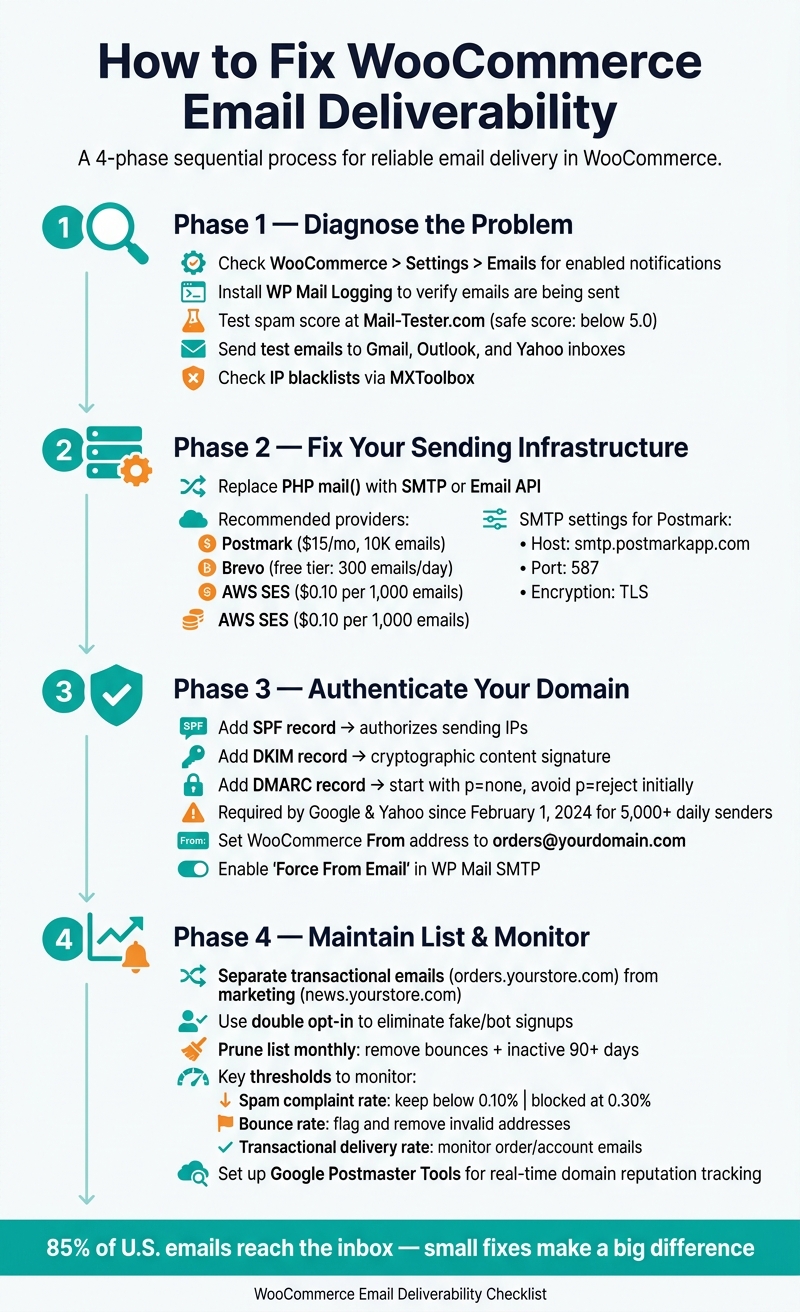
WooCommerce Email Deliverability Fix: Step-by-Step Setup Guide
Fix WooCommerce Email Deliverability with Mailgun API - Stop Emails Going to Spam
Diagnosing WooCommerce Email Deliverability Problems
When WooCommerce emails aren't reaching customers, you need to figure out where the process is breaking down. Make sure WooCommerce is triggering the emails, verify they're leaving your server, and check whether they're getting flagged as spam.
Check WooCommerce Email Settings and Logs
Start by heading to WooCommerce > Settings > Emails to confirm that the notifications you expect - like order confirmations or shipping updates - are enabled. Also, make sure the "From" address matches your store's domain. Using a personal Gmail or Yahoo address here can cause issues.
To dig deeper, install a logging plugin like WP Mail Logging or Check & Log Email. These tools track every wp_mail() call, showing whether WooCommerce is attempting to send emails. If the log shows a "Sent" status, it means the email was handed off to your mail server. However, as Jorijn Schrijvershof explains:
"A 'sent' status in a WordPress log never proves delivery, only that PHPMailer accepted the handoff."
If the logs show nothing, check that the order statuses aren't stuck on "Pending Payment", as this prevents emails from being triggered. You should also look under WooCommerce > Status > Scheduled Actions for any stalled woocommerce_send_queued_transactional_email tasks. A frozen queue often points to issues with WP-Cron.
Once you've confirmed emails are being sent, the next step is to see how different email providers handle them.
Test Spam Placement Across Mail Providers
Use Mail-Tester.com to send a test email and get a spam score. This tool also checks for issues with SPF, DKIM, DMARC, and email content. A score below 5.0 is generally safe, while anything at or above 5.0 increases the risk of emails being marked as spam.
Additionally, manually send test emails to accounts on Gmail, Outlook, and Yahoo to see where they land - whether in the inbox, the Promotions tab, or spam. If you send a lot of emails to Gmail users, setting up Google Postmaster Tools can be incredibly helpful. This tool monitors your domain's reputation in real time and shows your spam complaint rate. Keep in mind that both Google and Yahoo expect spam complaints to stay below 0.10%, with blocking starting at 0.30%.
If these tests reveal problems, it’s time to look at your hosting setup and email reputation.
Verify Your Hosting Environment, IP, and Domain Reputation
If emails are being sent but still landing in spam, the issue might lie with your IP or domain reputation. Shared hosting often means sharing an IP address with many other websites. If one of those sites sends spam, your deliverability can suffer - even if your emails are clean.
Run your sending IP through MXToolbox to check if it’s listed on any major email blacklists. Also, confirm that your IP has a valid reverse DNS (PTR) record. Mail servers are more likely to flag IPs without a reverse DNS record as suspicious.
Here’s a quick breakdown of key reputation checks and tools you can use:
| Check | What to Look For | Tool |
|---|---|---|
| IP Blacklists | Ensure your IP isn’t flagged on major RBLs | MXToolbox |
| Authentication | SPF, DKIM, and DMARC should pass | Mail-Tester.com / WP Mail Tester |
| Reverse DNS | Make sure the PTR record points to your domain | DNS lookup tools |
| Spam Rate | Keep complaints below 0.10% | Google Postmaster Tools |
| SPF Alignment | Verify that the sending subdomain matches the root SPF record | WP Mail Tester |
Addressing these reputation issues is crucial before moving to a stronger email-sending setup, which will be covered in the next section.
Setting Up a Reliable WooCommerce Email Sending Infrastructure
Once you've identified deliverability issues, it's time to strengthen your email-sending setup. Many WooCommerce email problems stem from the same issue: the default sending method isn't designed for consistent and reliable delivery.
Switch from PHP Mail to SMTP or an Email API
The default PHP mail function lacks authentication, relies on shared IPs, and provides no delivery tracking. To fix this, install an SMTP plugin like WP Mail SMTP, Post SMTP, or YaySMTP. These plugins allow you to route emails through a dedicated transactional email provider.
For most WooCommerce stores, Postmark and Brevo are excellent options. Postmark starts at $15/month for up to 10,000 emails and is tailored for high-priority transactional messages. Meanwhile, Brevo offers a free tier with 300 emails/day, making it a good fit for smaller stores. If you're already using AWS, SES via WP Offload SES Lite is a cost-effective choice at $0.10 per 1,000 emails after the free tier.
"The fix is 15 minutes and $15/month. For a store doing $50K/month in revenue, even recovering 1% of orders that would have been lost to missed confirmations pays for Postmark's annual cost in a single day." - Braedon, Mailflow Authority
To configure Postmark in WP Mail SMTP, use the following settings:
- Host:
smtp.postmarkapp.com - Port:
587 - Encryption:
TLS
Once you've established a reliable sending channel, the next step is to authenticate your emails with proper DNS records.
Set Up SPF, DKIM, and DMARC Records
Starting February 1, 2024, email providers like Google and Yahoo will require senders to have SPF or DKIM records in place. Additionally, if you're sending 5,000 or more emails daily to Gmail accounts, you'll need SPF, DKIM, and a DMARC policy.
Your transactional email provider will supply the specific TXT records you need to add to your DNS settings (whether managed through Cloudflare, GoDaddy, or another provider):
| Record | Purpose |
|---|---|
| SPF | Specifies which IP addresses are authorized to send emails on your behalf |
| DKIM | Adds a cryptographic signature to verify the email's content integrity |
| DMARC | Defines how to handle SPF or DKIM failures |
After adding these records, use tools like mail-tester.com or WP Mail Tester to ensure everything is correctly configured before going live. Start with a DMARC policy of p=none to monitor potential issues without affecting delivery. Avoid jumping straight to p=reject, as this could disrupt legitimate WordPress emails while you're still identifying all email sources.
Match WooCommerce From Settings to Your Authenticated Domain
For authentication records to work, the "From" address in your emails must match the domain you've authenticated. Go to WooCommerce > Settings > Emails and set the "From" address to your branded domain, such as orders@yourstore.com. Then, confirm that the same address is configured in your SMTP plugin. Enable the "Force From Email" option in WP Mail SMTP to prevent other plugins from overriding it.
It's also a good idea to use a monitored reply-to address instead of a noreply@ address. A monitored reply-to signals to inbox providers that you're a legitimate sender and helps maintain a healthy feedback loop.
Be aware that some managed WordPress hosts sign outgoing emails with their own domain instead of yours, which can cause DKIM to pass but DMARC alignment to fail. To resolve this, choose a transactional email service that supports custom domain DKIM signing.
sbb-itb-61169e3
Writing WooCommerce Email Content That Passes Spam Filters
Creating effective email content is just as important as having the right technical setup when it comes to keeping WooCommerce emails out of spam folders. Even if your email passes all authentication checks, poorly crafted content can still trigger spam filters or fail to resonate with recipients.
Avoid Spam Trigger Words and Aggressive Formatting
Spam filters have grown more sophisticated, but certain words and formatting choices still raise red flags. Phrases like "save big money", "pure profit", or "no cost" - especially when paired with urgency cues like "act now" or "limited time only" - can harm your email's credibility, particularly if your sender reputation is still building.
Similarly, aggressive formatting choices, such as excessive use of capital letters, too many exclamation points, or oversized fonts, can make your email appear promotional and untrustworthy to spam filters. For transactional emails like order confirmations or shipping updates, stick to a neutral and professional tone. These types of emails are inherently trusted, but adding promotional language could jeopardize that trust.
"Spam is often about perception, not policy. ... In 2025, permission doesn't guarantee attention - and compliance doesn't guarantee inboxing." - Jeanne Jennings, Consultant
Once you've refined your language and tone, focus on the technical structure of your email.
Use Clean HTML and Balanced Layouts
A clean, well-organized HTML structure is essential for avoiding deliverability problems. Spam filters often flag emails with malformed HTML tags as suspicious, interpreting them as attempts to hide content. To ensure consistent rendering across email clients, use nested tables for layout instead of relying on div-based designs. Additionally, apply inline CSS for all critical styling, as many email clients strip out <style> blocks entirely.
Keep your email’s file size under 100KB to prevent Gmail from clipping the content. Maintain a 60% text to 40% image ratio, add alt text for all images, and avoid URL shorteners like bit.ly, as they are frequently linked to phishing and can trigger spam filters. Using full URLs helps establish trust and improves deliverability.
Once your email design is polished, the final step is ensuring it complies with legal requirements and includes trust-building elements.
Add Legal and Trust Elements to Every Email
Compliance with the CAN-SPAM Act is non-negotiable, as violations can result in fines of up to $53,088 per email. To meet these requirements, include a valid physical postal address (this can be a street address, a registered PO box, or a private mailbox) and a clear unsubscribe link that remains functional for at least 30 days after the email is sent.
Starting in February 2024, Google and Yahoo will also require senders distributing more than 5,000 emails per day to implement a one-click unsubscribe option, which must appear in both the message header and body.
WooCommerce makes compliance easier with built-in placeholders like {site_title} and {site_address}, which you can configure under WooCommerce > Settings > Emails. Lastly, use a "From" name that matches your business name. More than 40% of recipients mark emails as spam based on the sender name alone, so a recognizable and branded identity can significantly improve your email's chances of reaching the inbox.
Keeping Your Email List Clean and Your Sending Practices Sound
Even if your email content is flawless and authentication is spot-on, a poorly maintained list can quietly damage your sender reputation over time. The way you approach list hygiene and sending practices is just as critical as any technical setup.
Keep Transactional and Marketing Emails Separate
Combining transactional emails, like order confirmations, with marketing campaigns is a recipe for trouble. If a promotional email triggers spam complaints, those complaints can spill over into your transactional emails. This could mean customers missing important notifications, such as order receipts.
To prevent this, use separate subdomains for each type of email. For instance, send order confirmations from orders.yourstore.com and promotional emails from news.yourstore.com. This separation ensures that if your marketing subdomain’s reputation takes a hit, your transactional emails remain unaffected.
"Transactional and marketing emails could be sent from separate subdomains to help boost your email deliverability... even if one subdomain becomes blocklisted, your entire domain won't be affected." - Rukailath Rehsan, ThemeHigh
Another safeguard is using different email service providers or dedicated IP addresses for each stream. A single misstep, like a misconfigured plugin or CRM sending emails from your root domain, can drag down the deliverability of all your emails.
Once you’ve separated your streams, focus on keeping your recipient list in top shape.
Clean and Maintain Your Email List
An outdated email list can lead to high bounce rates and increased spam complaints. Providers like Google and Yahoo expect spam complaint rates to stay below 0.10%, and hitting 0.30% or higher can result in your emails being blocked.
Using a double opt-in process is one of the best ways to keep problematic addresses off your list from the start. When users sign up, they receive a confirmation email before being added, which helps eliminate typos, fake addresses, and bot signups. Adding CAPTCHA to WooCommerce forms can also block automated signups and spam traps. Regularly cleaning your list not only reduces bounce rates but also ensures stronger engagement monitoring.
"Cleaning your email list once per month is reasonable, assuming you have the right processes in place." - Melapress
Make it a habit to prune your list monthly. Remove bounced addresses and subscribers who haven’t engaged in over 90 days. A smaller, active list will always perform better than a large, disengaged one.
Finally, keep an eye on engagement metrics to catch problems early.
Track Engagement and Monitor Feedback Loops
Deliverability issues don’t usually make a dramatic entrance. They tend to creep in through falling open rates and rising complaints. Staying ahead means actively tracking key metrics.
Set up Google Postmaster Tools and enroll in feedback loops with major mailbox providers. These tools alert you when recipients mark your emails as spam, so you can act quickly and remove them before complaints escalate.
| Metric | What It Tells You |
|---|---|
| Spam Complaint Rate | Keep under 0.10%; hitting 0.30% risks being blocked by Gmail and Yahoo |
| Bounce Rate | Highlights invalid addresses and list hygiene issues |
| Transactional Delivery Rate | Ensures order and account emails are reaching customers |
| Unsubscribe Rate | Indicates whether your marketing emails resonate with your audience |
| Revenue per Recipient | Measures the actual ROI of your email campaigns |
"Deliverability is revenue protection, not an email setting buried in a plugin." - Splinternet Marketing
Conclusion: Steps to Get WooCommerce Emails Into the Inbox
To make sure your WooCommerce emails land in customers' inboxes, combine a strong technical foundation with thoughtful content strategies and consistent list management. This approach tackles both the technical and content-related issues that often cause emails to be flagged as spam.
From a technical standpoint, switch from PHP mail to a dedicated SMTP service or API. Implement SPF, DKIM, and DMARC protocols for authentication. Keep in mind that, starting February 1, 2024, Google and Yahoo will block senders with spam complaint rates of 0.30% or higher. Make sure your sending address matches your authenticated domain to reduce common deliverability problems.
Content also plays a key role. Use clean HTML, maintain a balanced text-to-image ratio, and avoid overly aggressive subject lines. With about 85% of emails in the U.S. making it to the inbox, even small improvements can make a difference.
"If your domain sends mail from more than one system, this is not a 'newsletter setting.' It is a domain governance problem." - Splinternet Marketing
Finally, treat your sending domain like a valuable asset. Audit all systems that send emails on your behalf - whether it's your WooCommerce store, CRM, or invoicing tools - to confirm they are properly authenticated. Use monitoring tools to keep an eye on your domain's reputation and address issues before they impact your customers.
FAQs
How can I tell if WooCommerce emails are sent but not delivered?
When WordPress marks an email as sent, it simply means the email has been handed over to the server. However, this doesn't guarantee delivery - emails can fail at a later stage. To keep track of this, consider using an email logging plugin. These plugins help you confirm whether emails are actually being sent.
If the logs indicate that emails were sent but they never reach the recipient, you're likely dealing with a deliverability issue. In such cases, it's worth checking your WooCommerce order status. For instance, orders marked as Pending Payment won't trigger emails, so this could explain why some notifications are missing.
To troubleshoot further, use email testing tools to evaluate your email's authentication setup. Specifically, look for issues with SPF, DKIM, or DMARC records, as gaps in these can significantly impact email deliverability.
Which DNS records are needed for WooCommerce emails to pass authentication?
To make sure WooCommerce emails are authenticated and don't end up in spam folders, you need to set up three important DNS records:
- SPF: This record specifies which mail servers are allowed to send emails on behalf of your domain.
- DKIM: Adds a digital signature to your emails, ensuring their content hasn't been tampered with.
- DMARC: Tells receiving servers how to handle emails that fail SPF or DKIM checks.
These records not only boost email deliverability but also help safeguard your domain from spoofing attempts.
When should I use separate subdomains for transactional vs marketing emails?
Using separate subdomains is a smart way to safeguard your domain reputation and ensure dependable email delivery. By keeping marketing emails on one subdomain and transactional emails (like order confirmations) on another, you reduce the risk of poor campaign performance impacting essential communications. Each subdomain needs its own SPF, DKIM, and DMARC configuration, giving you greater control over email authentication. As your email volume increases, this separation becomes even more critical to maintain trust and reliability for transactional messages.