How to Identify a Store's Hosting Provider
Use WHOIS, DNS, source-code checks and hosting detection tools to confirm which provider hosts an online store, with Shopify-specific clues.

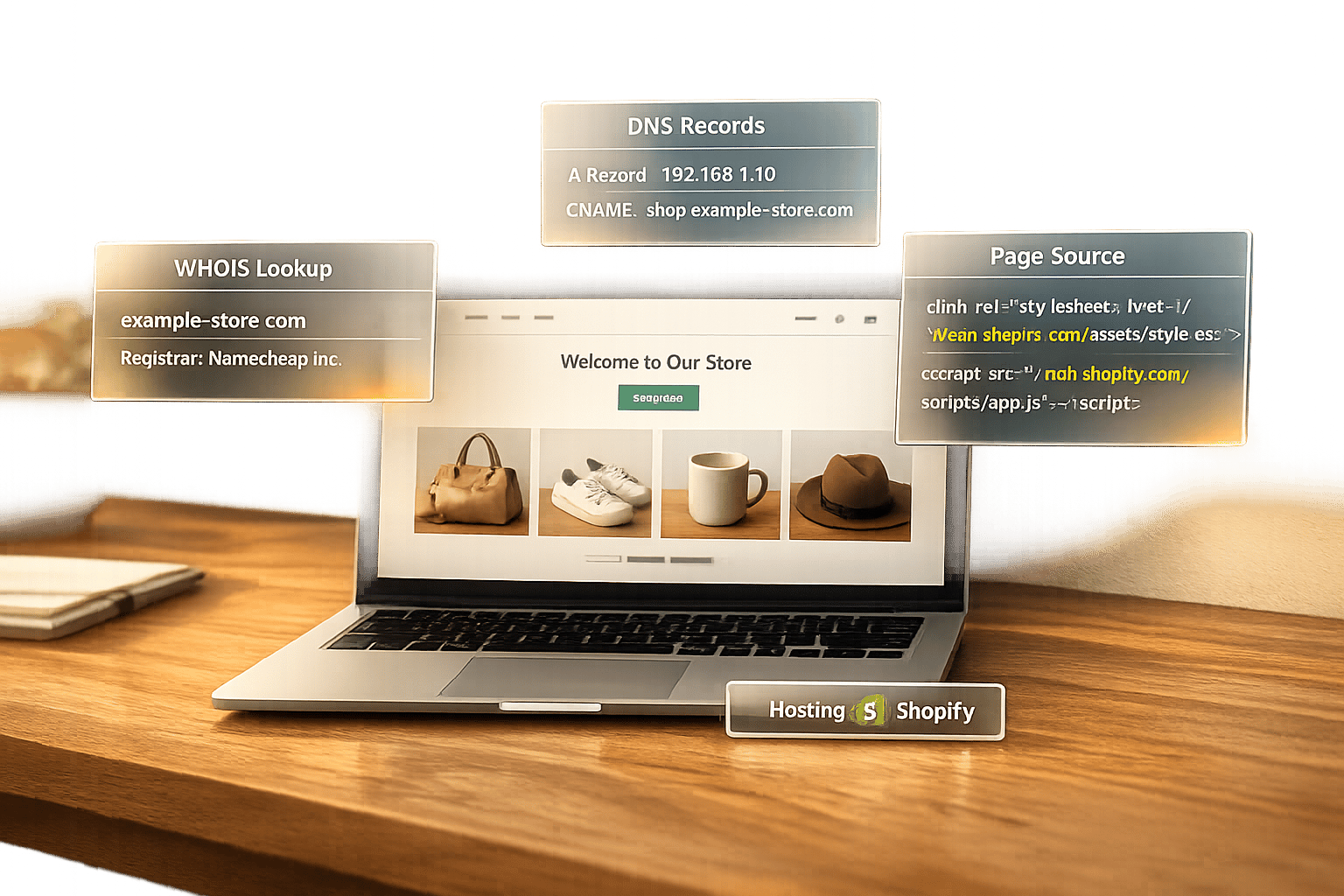
To figure out which hosting provider a store uses, start with these methods:
- WHOIS Lookup: Use tools like ICANN WHOIS to find nameservers and registrar details.
- Hosting Checker Tools: Tools like BuiltWith, Wappalyzer, or StoreCensus analyze website code to identify hosting providers, platforms, and even apps.
- DNS Records: Check A records and CNAME entries to confirm hosting details. For example,
shops.myshopify.comindicates Shopify hosting. - Reverse DNS Lookup: Use PTR records to trace IP addresses back to hostnames for additional confirmation.
- MX Records: Examine email hosting records to cross-reference with web hosting information.
For Shopify stores, look for patterns like cdn.shopify.com in source code or specific URL paths like /checkout. Automated tools, such as StoreCensus, simplify large-scale analysis by providing Shopify brand prospect lists with pre-verified data on apps, revenue, and platform types.
Key Takeaway: Combining WHOIS, DNS, and source code checks with tools like StoreCensus ensures accurate hosting identification, saving time and improving lead targeting.
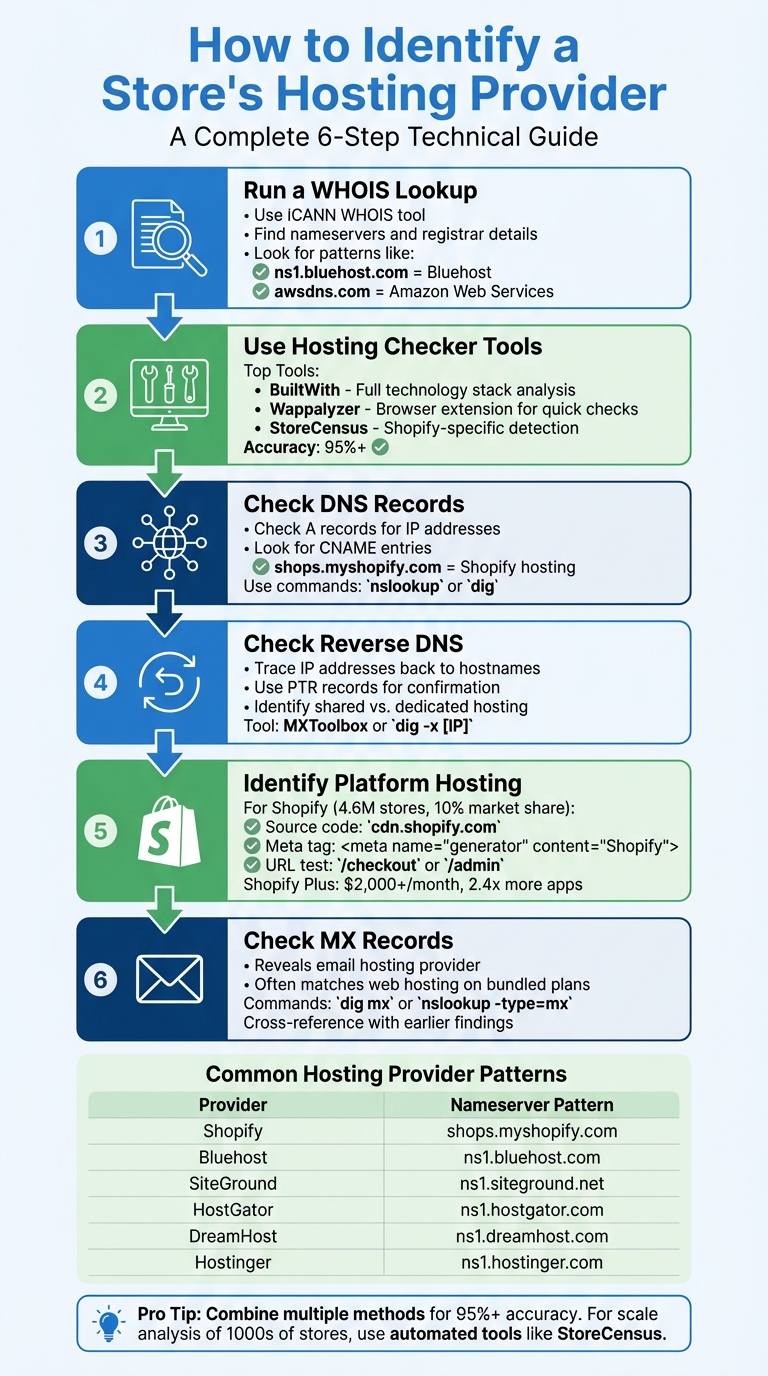
6-Step Process to Identify a Store's Hosting Provider
Find Out Who Hosts ANY Website
Step 1: Run a WHOIS Lookup
A WHOIS lookup helps you uncover details about a store's hosting provider. WHOIS is a protocol and database that reveals ownership details of a domain name and associated contact information. More critically, it provides the domain's nameserver data, which often includes the hosting provider's name.
How to Use ICANN WHOIS
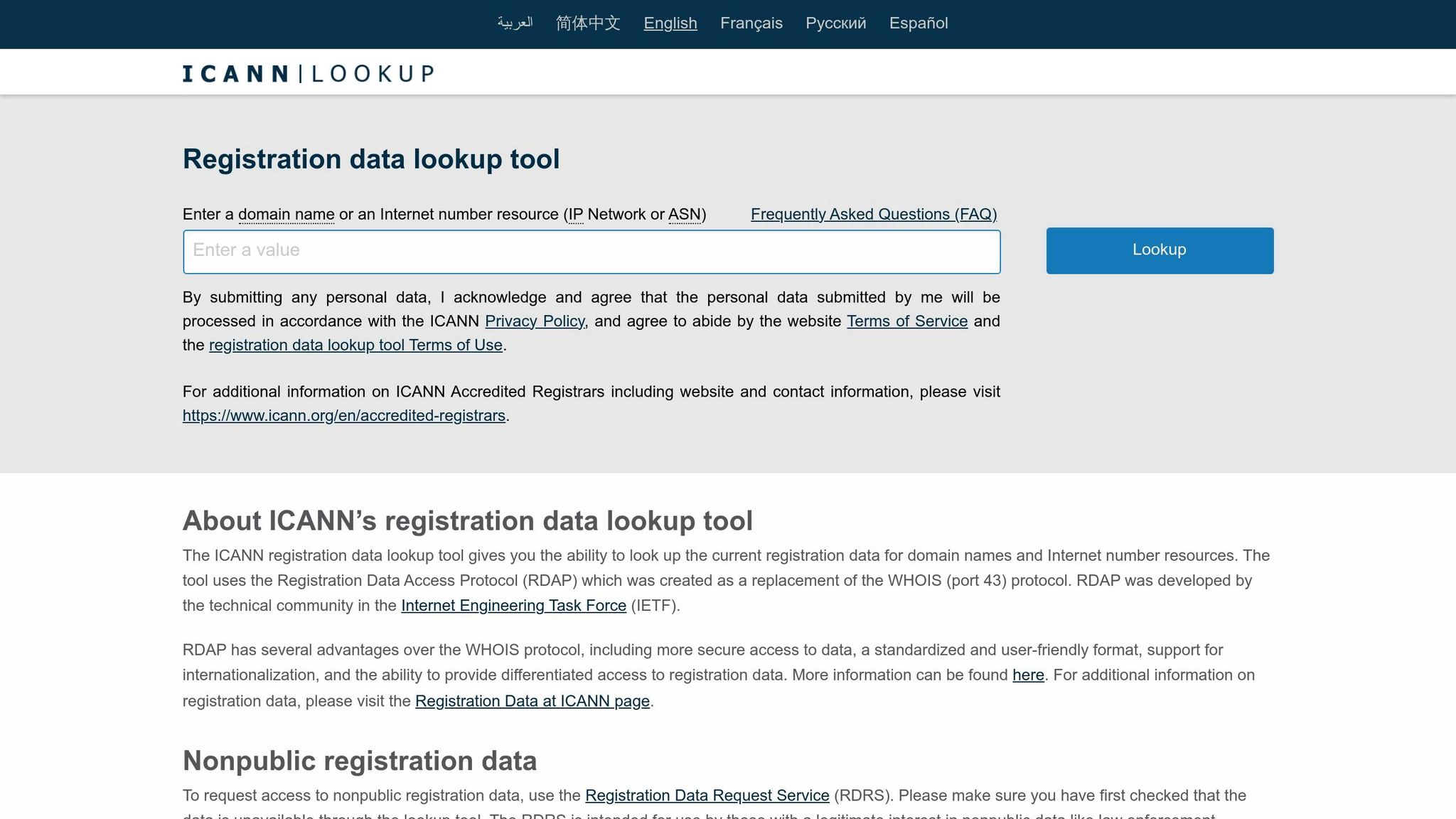
Head to the WHOIS tool on icann.org and input the domain name. The results will display the official registrar and nameserver information. While privacy services might obscure personal contact details, the registrar and nameserver data are typically visible.
It’s worth noting that your domain registrar and hosting provider aren’t always the same company. Many people use one company for both services, but this isn’t always the case. If you’re trying to identify your own store’s hosting provider and the WHOIS results aren’t clear, check your billing records for payments related to domain registration or hosting services.
Once you have the nameserver details, you can use them to identify the hosting provider.
Reading Nameserver Information
Nameserver results often include the hosting provider’s name. For instance, nameservers ending with ns1.bluehost.com indicate Bluehost, while those ending with awsdns.com point to Amazon Web Services.
"Name servers are the Internet's equivalent to a phone book. A name server maintains a directory of domain names and matching IP addresses." - Hostingchecker.com
Some WHOIS tools even feature a "Hosted by" field, which attempts to match the IP address to a known hosting company. Keep in mind that if nameservers are updated, it may take up to 48 hours for the changes to propagate fully.
Step 2: Use Hosting Checker Tools
WHOIS lookups can provide nameserver details, but hosting checker tools take things further by analyzing live website code. These tools dig into a domain's infrastructure to identify the hosting provider, IP address, and server location. They work by scanning for "fingerprints" - unique elements like JavaScript files, HTML tags, or CSS classes that hosting platforms and apps leave in the code.
Best Tools for Checking Hosting Providers
- BuiltWith: This tool is a website profiler that breaks down a site’s entire technology stack. It provides details on the hosting provider, ecommerce platform, CDN, and even payment processors. Perfect for a deep dive into any website's technology setup.
- Wappalyzer: A browser extension that identifies platforms, frameworks, and tools with just a click. It’s fast, simple, and works across various website types.
- StoreCensus: Designed specifically for Shopify, this tool uncovers platform-specific details, including installed apps, themes, and even revenue estimates. It’s tailored for Shopify users, offering filters for app stacks, revenue data, and verified contact details.
"Shopify injects specific JavaScript files and CDN references into every store. They're basically fingerprints hidden in the code." - StoreCensus
Modern detection systems claim over 95% accuracy. Browser extensions are great for quick checks, while database tools handle bulk analysis and lead generation tasks efficiently.
How to Read the Results
One common pitfall is mistaking a CDN for the actual hosting provider. For example, results showing cdn.shopify.com or shopifycdn.net indicate Shopify’s Content Delivery Network - but they also point to Shopify as the hosting platform itself, not just a third-party CDN.
To ensure accuracy, confirm findings using multiple methods, such as browser extensions, source code analysis, and live checkout testing. For Shopify-hosted sites, look for URLs like /cart or /collections/all.
If the site uses headless commerce, identifying the platform can be trickier. Check for app footprints, network activity, or meta tags in the HTML <head> section like <meta name="generator" content="Shopify">, which explicitly state the platform.
Keep in mind that legacy code from a previous host might linger after a migration, leading to false positives. To verify the current host, test live cart functionality or check the latest DNS records for confirmation.
Step 3: Check DNS Records
Once you've reviewed nameservers and hosting footprints, DNS records provide an additional layer of verification. These records help confirm how a website routes its traffic. If browser extensions or source code analysis fall short - especially with headless commerce setups or highly customized storefronts - DNS inspection is often your best bet. Infrastructure details are harder to conceal compared to front-end code.
Finding A Records and IP Addresses
A records link a domain to its IP addresses. To find these, you can use commands like nslookup [domain] or dig [domain]. For example, running dig example-store.com will return one or more IP addresses responsible for directing traffic to the site.
CNAME records, on the other hand, point a domain to another domain instead of an IP address. If a CNAME points to shops.myshopify.com, it’s a clear sign that Shopify hosts the store - even if the storefront uses a custom domain. This makes CNAME records especially helpful in challenging scenarios where heavy script optimization removes obvious platform identifiers.
Once you’ve obtained the IP address, the next step is verifying its ownership using a WHOIS lookup.
Running an IP WHOIS Lookup
When other methods yield unclear results, DNS checks can confirm your findings. After identifying the IP address from the A record, you’ll want to determine who owns it. An IP WHOIS lookup will reveal the organization linked to that address, whether it’s Shopify, Amazon Web Services, Google Cloud, or another provider. You can use online WHOIS lookup tools or run the command whois [IP address] directly in your terminal.
In platform identification, a DNS or CNAME match adds +1 point in a scoring model. For high-priority accounts, where accuracy is critical, DNS checks can act as the deciding factor when other methods produce conflicting results. While manual source code analysis offers 85-90% accuracy, combining it with infrastructure data significantly improves reliability for important cases.
Step 4: Check Reverse DNS and PTR Records
After analyzing DNS records, reverse DNS lookups offer another way to uncover hosting details. While A records show where a domain points, reverse DNS lookups trace an IP address back to its hostname, revealing who owns the infrastructure. This process relies on PTR (Pointer) records to connect the dots.
How to Perform a Reverse IP Lookup
To conduct a reverse lookup, you can use tools like MXToolbox or run the command dig -x [IP address]. The PTR record will resolve the IP to a hostname, identifying the hosting provider. For instance, if an IP resolves to server.bluehost.com, you can confirm that Bluehost manages the infrastructure. This method is especially helpful when front-end analysis doesn’t provide clear answers. Cross-referencing reverse DNS results with other methods strengthens your findings, which is particularly useful when evaluating high-value accounts.
Spotting Shared Hosting vs. Dedicated Servers
PTR records can also reveal whether a website uses shared hosting or a dedicated server. Shared hosting IPs typically resolve to generic provider hostnames like shared-123.hostgator.com, indicating that multiple websites share the same server resources. On the other hand, dedicated servers often have PTR records that either match the store’s domain or display a unique server identifier, signaling that the server is exclusively allocated to one client.
Understanding the type of hosting provides insight into a store’s technical priorities. Shared hosting might lead to performance issues during traffic surges caused by other sites on the same server. In contrast, dedicated servers reflect a store's investment in robust infrastructure, offering better control and stability. Whether you’re assessing a competitor or a potential client, this information sheds light on their technical capabilities and resource allocation.
Step 5: Identifying Hosting for Shopify and Platform-Hosted Stores

When it comes to Shopify, identifying hosting details requires a different approach. Since Shopify operates as a closed platform, it doesn’t rely on traditional hosting providers. Instead, its infrastructure or CDN details are often embedded in the site’s code or URL structure, making platform-specific clues essential.
How to Spot Shopify Hosting
With over 4.6 million stores and a 10% share of the global ecommerce market, Shopify is a major player in the industry. To determine if a store is built on Shopify, start by viewing the page source. Use Ctrl+U (or Cmd+U on Mac) to inspect the source code and look for indicators like cdn.shopify.com, shopifycdn.net, Shopify.theme, or the meta tag <meta name="generator" content="Shopify">.
Another method is to test specific URL paths. For example, appending /checkout or /admin to a Shopify store's URL often redirects to a branded checkout or login page. You can also confirm the store’s default [storename].myshopify.com subdomain by performing a targeted search using site:myshopify.com [keyword].
For Shopify Plus stores, which start at $2,000 per month, advanced signals such as custom checkout logic or scripts from checkout.shopifycs.com can indicate a higher-tier subscription. These stores show a significant level of investment, often using 2.4 times more apps and 2.7 times more tracking pixels than standard Shopify stores.
"Plus stores pay $2,000+/month for Shopify alone, which is a strong budget signal", notes the StoreInspect Team.
| Detection Method | Reliability | Key Indicator to Look For |
|---|---|---|
| Source Code Search | High | cdn.shopify.com or Shopify.theme |
| URL Path Testing | Medium | /checkout or /admin redirects |
| Meta Tag Inspection | High | <meta name="generator" content="Shopify"> |
| App Footprints | Medium | Scripts from tools like Klaviyo or Recharge |
When analyzing multiple stores, manual checks can be time-consuming. That’s where automated tools come in.
Using StoreCensus for Shopify Store Intelligence
For large-scale Shopify detection, automation is key. While manual methods work for individual stores, they’re not practical for analyzing hundreds or thousands of sites. This is where StoreCensus excels. It monitors over 2.5 million ecommerce stores and provides insights into more than 25 data points per store, including their technology stack.
StoreCensus doesn’t just identify hosting - it uncovers the entire tech infrastructure. By analyzing JavaScript files, API calls, and HTML elements injected by apps, it reveals payment gateways (like Stripe or PayPal), marketing tools (such as Klaviyo or Postscript), and even distinguishes between Shopify Plus and standard Shopify stores.
The platform’s data updates weekly, tracking app installations, removals, and updates. This ensures you always have the latest view of a store’s tech setup. Its historic change log is especially useful, showing when specific apps were added or removed. For sales teams and agencies, this provides a timeline of changes, helping pinpoint prospects who are actively modifying their technology.
StoreCensus also offers advanced filtering options. You can use Boolean logic - like "Klaviyo AND Recharge but NOT Mailchimp" - to narrow down stores with specific strengths or gaps. Features like Evergreen Automations send alerts when a store uninstalls a competitor’s tool, signaling potential opportunities. For Shopify app developers and SaaS founders, these insights can help you reach prospects precisely when they’re most likely to need your solution.
Step 6: Check MX Records for Additional Clues
MX records can reveal where a domain's email is hosted, and this often aligns with the web hosting provider. For stores using bundled hosting - common with budget-friendly providers like InterServer, Hostinger, or GreenGeeks - MX records frequently point to the same infrastructure hosting the website. This can help confirm the connection between email and web hosting.
How to Find MX Records
To uncover MX records, you can use tools like MXToolbox or run simple commands:
dig mx example.comnslookup -type=mx example.com
Once you retrieve the MX records, compare them to the nameservers or A records identified earlier. For instance, if the MX hostname includes a provider's name (e.g., "mx1.hostinger.com") and matches the nameservers (e.g., "ns1.hostinger.com"), it suggests that the email and website hosting are bundled together.
Connecting Email and Web Hosting Providers
The link between email and web hosting varies depending on the provider. Shared hosting services often include email hosting as part of their package, so their MX records point to their own mail servers. On the other hand, managed ecommerce hosts like Nexcess or Cloudways focus on website performance and typically rely on external email services like Google Workspace or Microsoft 365 instead of bundling email hosting.
For Shopify stores, the distinction is even more pronounced. Shopify doesn't provide email hosting for custom domains, so all Shopify stores use third-party email providers. If the MX records point to servers like aspmx.l.google.com or outlook.com, it's a clear sign that email hosting is separate from web hosting, indicating a platform-hosted store rather than a traditional self-hosted one.
"Many website owners often use their hosting companies to register domains. However, it is also possible to register domains through a separate company from the company that hosts the website." - cPanel Knowledge Base
This step helps solidify your understanding of the store's hosting configuration.
Common Hosting Provider Patterns
Once you've gone through the technical checks, you'll start spotting repetitive patterns that hosting providers leave across their infrastructure. These patterns act as fingerprints, making it easier to identify hosts without needing constant DNS lookups. They work hand-in-hand with the earlier technical checks, helping to speed up the identification process.
Recognizing Hosting Provider Indicators
Many hosting companies stick to predictable naming conventions for their nameservers and reverse DNS records. For instance, traditional providers often include their brand name in their nameservers, like ns1.hostinger.com or ns1.dreamhost.com. Similarly, reverse DNS lookups frequently reveal provider-specific hostnames, such as host123.bluehost.com or server456.siteground.net.
When it comes to Shopify stores, there are specific patterns to watch for. The [storename].myshopify.com subdomain and CNAME entries pointing to shops.myshopify.com are reliable giveaways, as noted in Step 5.
Quick Reference Table of Hosting Providers
Here’s a handy table summarizing common nameserver and DNS patterns for some popular hosting providers. Use it to quickly analyze DNS records:
| Provider/Platform | Nameserver Pattern | CNAME/DNS Indicator |
|---|---|---|
| Shopify | N/A (platform-hosted) | shops.myshopify.com |
| Shopify Plus | N/A (platform-hosted) | checkout.shopifycs.com |
| Bluehost | ns1.bluehost.com, ns2.bluehost.com |
N/A |
| SiteGround | ns1.siteground.net, ns2.siteground.net |
N/A |
| HostGator | ns1.hostgator.com, ns2.hostgator.com |
N/A |
| DreamHost | ns1.dreamhost.com, ns2.dreamhost.com |
N/A |
| Hostinger | ns1.hostinger.com, ns2.hostinger.com |
N/A |
For Shopify specifically, you can also check the source code for clues. Look for meta tags like <meta name="generator" content="Shopify"> or asset references to cdn.shopify.com. With these patterns in mind, you can efficiently confirm hosting details while using the earlier technical methods for verification.
Conclusion
Figuring out a store's hosting provider doesn't have to be complicated. Simple tools like browser extensions can quickly detect platforms, while source code inspection and URL route testing help confirm your findings. For cases like headless setups or heavily customized stores, DNS and CNAME lookups can provide the infrastructure-level evidence you need. These methods work best when used together, helping you reliably identify hosting configurations.
It's all about combining multiple clues. Tools like browser extensions, source code markers (e.g., cdn.shopify.com), and route behavior testing each add a layer of accuracy. This multi-faceted approach minimizes mistakes, especially when you're qualifying high-value leads.
That said, manual checks can be time-consuming, especially if you're working at scale. This is where platforms like StoreCensus come in. StoreCensus monitors over 2.5 million ecommerce stores, offering insights like platform details, installed apps, and even revenue estimates. Instead of doing DNS lookups or digging through source code for every lead, you can access pre-verified hosting data along with contact information.
"We switched from BuiltWith to StoreCensus and immediately saw better results. The revenue data and contact information saved us weeks of research time, and our outreach conversion rates doubled."
- John, VP of Sales at Shopify App Studio
Why does this matter? Because identifying hosting providers isn't just about the tech - it's also about understanding your prospects. For example, Shopify Plus merchants spend at least $2,000/month on their platform and use 2.4x more apps than standard stores. Spotting these merchants early means you're focusing on businesses with solid budgets and growth potential, rather than chasing leads that aren't a good fit.
Whether you're doing occasional checks or building a full-scale prospecting strategy, blend the manual techniques outlined here with tools that match your workload. For high-priority accounts, double-check with source code or network inspections to ensure your data is up-to-date.
FAQs
How can I tell the difference between a CDN and the actual host?
To tell the difference between a CDN (Content Delivery Network) and a website's main host, you can examine the source code or monitor network activity. Specifically, look for domains tied to CDNs, such as cdn.shopify.com, in the source code or through browser developer tools. Static assets like images or scripts served by a CDN will come from a domain distinct from the primary website. Additionally, tools like platform detectors can help pinpoint CDN usage and hosting information.
What should I do if a store hides its platform (headless or customized)?
If a store operates with a headless or customized setup to mask its platform, you'll need to dig deeper and rely on multiple clues and tools to figure out the technology behind it. Start by using platform detection tools to spot patterns such as CDN URLs or app footprints. For example, look for hints in the website's source code, like cdn.shopify.com or Shopify.theme. Additionally, tools like StoreCensus can help by offering detailed insights into the store's tech stack and app usage, making identification much easier.
How can StoreCensus help me identify hosting at scale?
StoreCensus specializes in identifying hosting providers for ecommerce stores on a large scale. By tracking over 2.5 million ecommerce stores, it enriches this data with insights like technology stacks and store activity signals. With tools for advanced filtering and real-time monitoring, StoreCensus makes it simple to analyze hosting setups, spot platform changes, and pinpoint high-growth stores. This can include stores leveraging specific hosting configurations, such as Shopify Plus or other premium environments.