How to Set Up Automated Task Reminders in CRMs
Step-by-step guide to automating CRM task reminders: set permissions, configure task fields, build workflows, and test notifications for timely follow-ups.

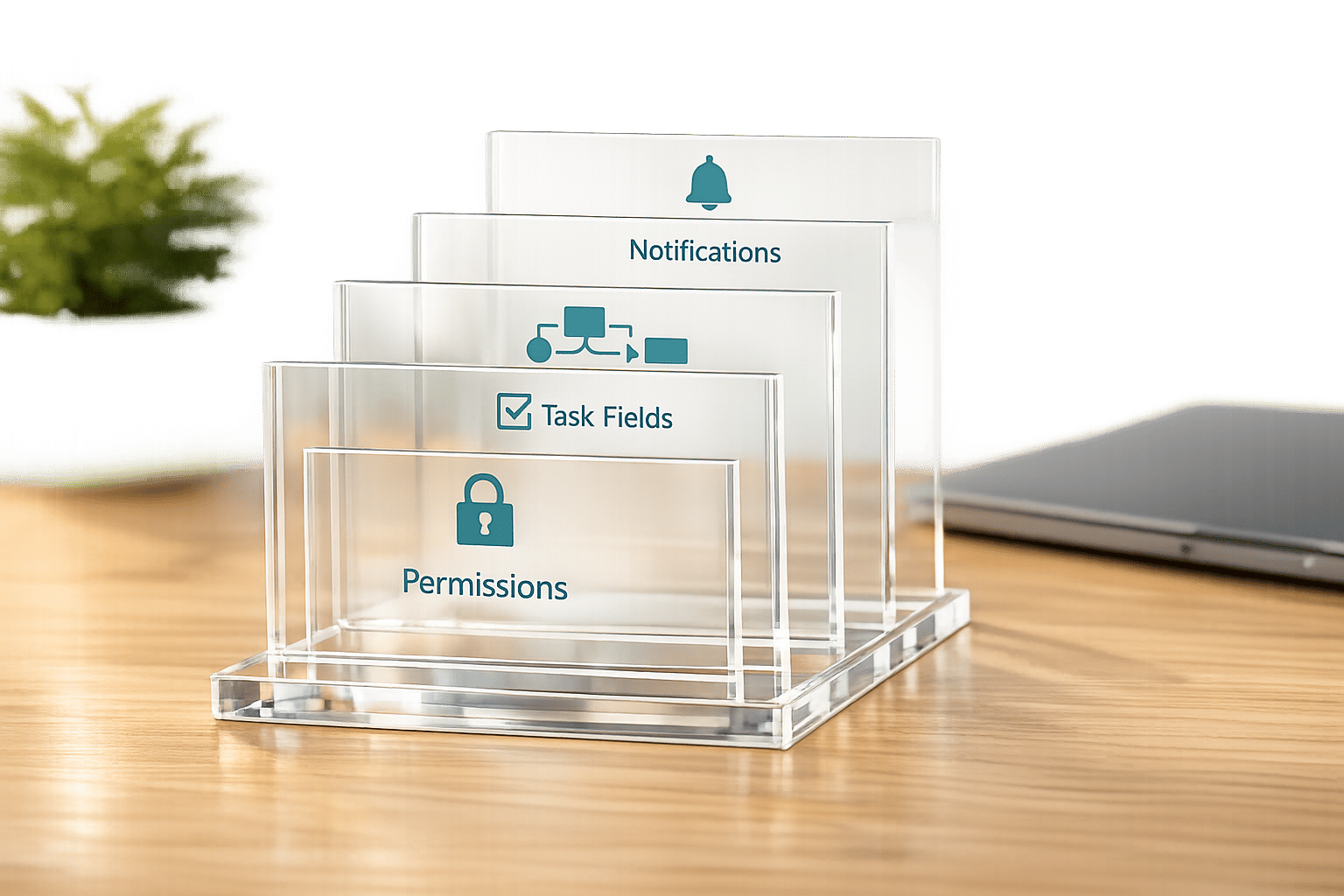
Automated task reminders in CRMs help sales teams stay on track, avoid missed follow-ups, and maintain smooth workflows. By setting up reminders, you ensure timely follow-ups, reduce manual tracking errors, and keep deals moving forward. Here's the quick process:
- Permissions: Ensure administrative access to configure automation.
- Task Features: Understand your CRM’s task modules, fields (e.g., due date, priority), and notification settings.
- Automation Tools: Use workflows or sequences to trigger tasks and reminders based on events like deal stage changes.
- Notification Channels: Enable alerts via email, in-app notifications, or mobile push to reach users effectively.
Platforms like HubSpot, Salesforce, and eWay-CRM offer tools to automate reminders based on triggers like form submissions or deal updates. Testing your setup ensures notifications work as expected, while tools like StoreCensus enhance CRM workflows by integrating Shopify brand prospect lists for more precise follow-ups.
Pro Tip: Tie reminders to specific sales pipeline stages and adjust timing to match task urgency. For example, set a reminder 2 days after sending a contract to follow up on signatures.
Efficient task reminders reduce delays, improve accountability, and help sales teams focus on meaningful interactions.
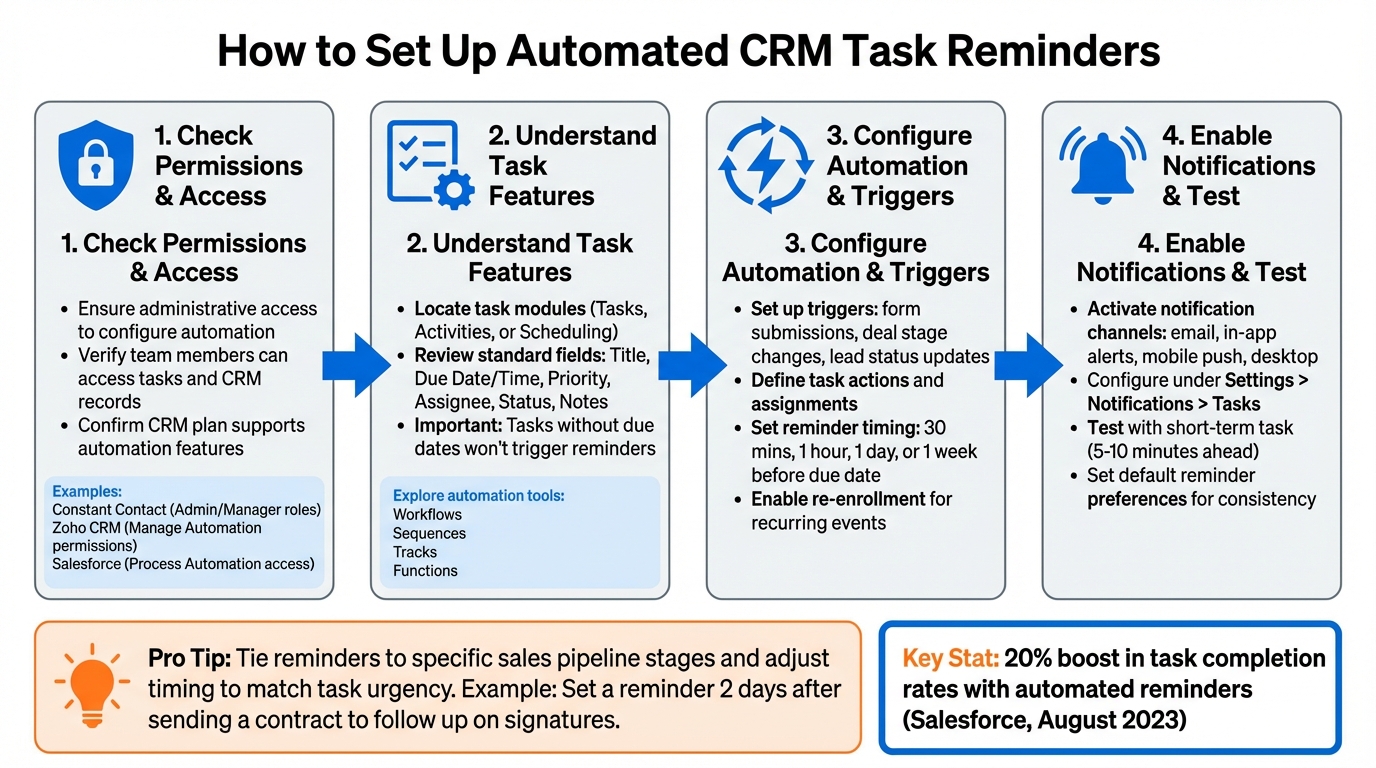
How to Set Up Automated CRM Task Reminders: 4-Step Process
How to set Task Reminders in Zoho CRM
Prerequisites for Setting Up Task Reminders
Before jumping into automation, it’s important to ensure your team has the right access and a solid understanding of your CRM’s task features. If permissions aren’t properly configured, reminder workflows simply won’t work.
CRM Access and Permissions
Your CRM role heavily influences your ability to set up task reminders. Typically, administrative or managerial permissions are required to configure system-wide automation. For example, in Constant Contact's Lead Gen & CRM platform, only Administrators, Company Managers, and Marketing Managers can create automated sales task reminders. Similarly, Zoho CRM requires "Manage Automation" permissions, while Salesforce users need access to the "Process Automation" section.
Team members also need permissions to access tasks and CRM records. Even if reminders are sent, they’ll be useless without access to the related tasks or records.
Advanced automation features often depend on higher-tier CRM plans. For instance, Constant Contact's Ultimate plan or HubSpot's Sales Hub Professional/Enterprise plans are necessary for more complex workflows. Before diving into automation, confirm that your CRM plan supports the features you need.
Once permissions are sorted, the next step is understanding the task features your CRM offers.
Understanding Task Features
Familiarize yourself with your CRM’s task features before setting up reminders. Start by locating the task modules - these are usually found under primary menus like "Tasks", "Activities", or "Scheduling." For example, HubSpot users go to Sales > Tasks, while NetSuite users navigate to Activities > Scheduling > Tasks.
Most CRMs come with standard task fields, such as Title, Due Date/Time, Priority (Low, Medium, High), Assignee, Status, and Notes. Understanding these fields is key because tasks without due dates won’t trigger reminders. As Jigar Thakker, a HubSpot Certified Expert, explains:
If you haven't selected your preferred channels under Settings > Notifications > Tasks, HubSpot won't send anything.
In addition to basic task creation, explore your CRM’s automation tools. Look for features like "Workflows", "Sequences", "Tracks", or "Functions" that can automatically trigger tasks based on events like deal stage changes or form submissions. Make sure to check your notification settings under "Profile & Preferences" or "Settings" to see which reminder channels are available - email, in-app alerts, browser pop-ups, or mobile push notifications. Test your setup by creating a short-term task (set for 5–10 minutes ahead) to confirm everything is working as expected.
By covering these steps, you’ll ensure your CRM is fully prepared to handle task reminder automation effectively.
Next, we’ll look at how to configure these features in popular CRMs.
How to Configure Task Reminders in Popular CRMs
Once you've confirmed your permissions and familiarized yourself with your CRM's task features, it's time to dive into setting up automated reminders. While the process varies across platforms, the main idea is straightforward: trigger reminders based on task deadlines and ensure notifications reach your team through their preferred channels.
Setting Up Task Reminders in HubSpot
HubSpot provides two main ways to automate task reminders. If you're a Professional or Enterprise user, you can use the Workflows tool for more advanced automation. Meanwhile, Starter users can utilize Form Automation for simpler setups.
To begin, create a contact-based workflow triggered by actions like form submissions or changes in lead status. Add the "Create task" action and customize the task title, such as "Follow up with [First Name]." Assign the task to the contact owner, set a due date offset (e.g., one day after enrollment), and configure the Reminder field to notify users at a specific time, like "1 hour before" or "1 day before". For recurring actions like multiple form submissions, enable Re-enrollment to ensure a new task and reminder are created each time the trigger happens.
As Jigar Thakker, a HubSpot Certified Expert, points out:
By automating task creation in HubSpot, you reduce the risk of human error and ensure important actions are never skipped.
However, automation is only part of the equation. Users must manually enable notifications under Settings > Notifications > Tasks and select their preferred channels, like email, in-app alerts, desktop, or mobile push notifications. Skipping this step means reminders won’t be delivered. Thakker adds:
If a rep has alerts disabled, tasks won't disappear - but they may never see the reminder unless they check manually.
For efficiency, you can bulk edit task reminders from the Tasks index. To save time on future tasks, set a default reminder (e.g., "1 day before") under Profile & Preferences > Tasks so that all manually created tasks automatically include a reminder. Additionally, you can opt into the Task daily digest in notification settings. This email, sent at 8 AM on weekdays, provides a summary of tasks due that day.
| Reminder Option | Description |
|---|---|
| At task due time | Sends a notification exactly when the task is due. |
| 30 mins / 1 hour before | Short-term alerts for immediate actions. |
| 1 day / 1 week before | Long-term reminders for tasks requiring preparation. |
| Custom Date | User-defined date and time for the alert. |
| Daily Digest | A summary email listing all tasks due that day, sent at 8 AM on weekdays. |
Test your setup by creating a short-term task and ensuring notifications are delivered. Similarly, platforms like Microsoft Dynamics 365 and eWay-CRM offer tailored workflows to meet various sales needs.
Set Up Dynamics 365 Task Reminders
Microsoft Dynamics 365 is a popular choice for managing customer databases and lead conversions. Its task reminder workflows can be configured using both native tools and third-party integrations. The process typically starts with defining a trigger, such as a lead status change to "Qualified" or the sending of a contract.
To set up a task reminder workflow:
- Start by specifying the trigger event.
- Add a wait condition to pause the workflow until a specific time, like a day before the task’s due date.
- Include a status check to verify that the task hasn’t been completed yet.
- If the task is still open, configure an email notification to be sent to the assigned team member with details about the task and its deadline.
For more advanced needs, users can interact with the Microsoft Dynamics CRM API using HTTP requests. This allows for deeper customization, such as integrating Dynamics 365 with other sales tools or ecommerce platforms.
Automating Task Reminders in eWay-CRM
eWay-CRM offers task reminders across desktop, online, and mobile platforms. The key to effective reminders here lies in setting the appropriate date and time offsets to fit your workflow.
When creating a task, specify the due date and time, then configure the reminder offset. Options include short-term alerts like 30 minutes or 1 hour before the task is due, as well as longer-term reminders like 1 day before. You can apply these settings to individual tasks or set defaults for all new tasks to ensure consistency. For ecommerce workflows, you can trigger reminders at key points, such as demo requests or contract signings. This ensures your team receives timely follow-ups without needing manual intervention.
As with other CRMs, it's important to test your reminders. Create a short-term task and confirm that notifications reach your chosen channels - whether via email, desktop alerts, or mobile push notifications. With these configurations, eWay-CRM helps your team stay on top of important tasks across platforms.
Best Practices for Automated Task Reminder Workflows
Once you've set up CRM task reminders, the next step is to fine-tune them for maximum effectiveness. Poorly timed reminders can cause more harm than good - too early, and they’re ignored; too late, and the moment is missed. The trick lies in striking the right balance: keeping tasks visible without overwhelming your team. These practices will help ensure reminders not only get noticed but also drive consistent action.
Timing and Frequency of Reminders
The timing of reminders should reflect the urgency and complexity of the task. For quick actions, like sending a follow-up email, a 30-minute to 1-hour notice often works best. For more involved tasks, such as preparing a proposal or reviewing a pricing strategy, a reminder a day before the deadline gives ample preparation time.
In August 2023, Salesforce users reported a 20% boost in task completion rates after implementing automated follow-up reminders. This improvement was attributed to timely notifications prompting immediate action. David Zhang from Aomni emphasizes this point:
Automated reminders keep your sales pipeline flowing. They ensure that potential leads are nurtured and existing relationships are maintained.
To avoid task overload, consider using daily digest emails that summarize upcoming tasks instead of sending individual notifications for every item. Also, set default reminder times in your CRM to maintain consistency and reduce the need for manual adjustments.
Connecting Reminders with Sales Pipelines
Reminders become far more impactful when tied to specific sales pipeline stages. Instead of generic tasks like "follow up with lead", configure your CRM to trigger reminders based on key milestones, such as "Contract Sent" or "Negotiation."
| Pipeline Trigger | Task Action | Suggested Timing |
|---|---|---|
| New Lead/Form Submission | Initial Outreach Call | Within 24 hours |
| Discovery Call Completed | Send Recap/Proposal | Within 1-2 days |
| Deal Stage: Negotiation | Review Pricing Strategy | Immediate |
| Deal Stage: Contract Sent | Follow up on Signature | 2-3 days after sending |
| Closed Won | Onboarding Handoff | Day 0 of closing |
Using standardized follow-up sequences, often called "Tracks", ensures a consistent series of actions for every opportunity. For example, Day 0 might involve an introductory call, Day 2 a follow-up email, and Day 5 a proposal submission. Dynamic task assignment also plays a crucial role. For high-value deals, you can implement if/then logic - for instance, automatically assigning deals over $10,000 to a senior representative with a shorter follow-up timeline.
Notifying Task Assignees Effectively
For reminders to be effective, they must reach the right person through their preferred communication channel. Use a combination of email, in-app notifications, browser pop-ups, and mobile push alerts to ensure no reminder goes unnoticed, no matter where your team is working.
Insidea highlights the importance of timely notifications:
A single missed reminder can lead to delayed responses, stalled deals, and frustrated prospects.
Make reminders actionable by using clear naming conventions with merge tags (e.g., "Follow up with [First Name] [Last Name] - [Form Name]"). Include detailed instructions in the task notes, like "Ask about 3-seat license interest" or "Review pricing strategy with manager", so the assignee knows exactly what’s expected. Always link tasks to the relevant CRM records (contacts, deals, or tickets) to provide full context. Lastly, ensure all team members have activated their preferred notification channels in the CRM, as many systems don’t enable all alerts by default. This small step ensures every reminder reaches its intended recipient.
Using StoreCensus for Enhanced CRM Task Automation
Boost your CRM's effectiveness by integrating it with StoreCensus, a platform that delivers real-time ecommerce insights. Traditional CRM reminders often fail to identify the best moment to reach out to prospects. StoreCensus solves this by injecting real-time ecommerce signals that highlight buying intent. Instead of relying on static lists, automated reminders can now be triggered by events like a Shopify store uninstalling a competitor's app, moving into a higher revenue tier, or adopting tools for growth. This transforms your CRM workflow, making follow-ups more precise and timely.
Integrating StoreCensus Data with CRMs
StoreCensus takes automated CRM workflows to a new level by improving the accuracy of follow-ups. With data on over 2.5 million ecommerce stores, updated weekly, and enriched with more than 25 data points, StoreCensus provides actionable insights. It integrates directly with CRMs like HubSpot and Salesforce through native connections or Zapier. Once linked, you can map StoreCensus fields - such as installed apps, estimated revenue, catalog size, and social media profiles - into your CRM's custom properties. This equips sales reps with the detailed context they need for personalized outreach.
For instance, if StoreCensus detects that a competitor’s app has been removed, it can automatically add the lead to your CRM and create a task like: "Follow up with [First Name] [Last Name] – Competitor App Removed". Key details, such as the app name and removal date, are included. These automated triggers not only save time but also deliver results - conversion rates can increase by 3x, and lead research time is slashed by 60%.
Automating Follow-Ups Based on Ecommerce Signals
StoreCensus shines in its ability to trigger CRM workflows by detecting changes in ecommerce activity. By monitoring over 8,300 apps and 1,000+ technologies, it tracks events like app installs, removals, theme updates, and revenue shifts. When a high-intent signal is identified - such as a store adopting tools like Klaviyo or Gorgias (indicating a focus on growth) - StoreCensus can automatically enroll that lead in a CRM workflow. This workflow might create a follow-up task and assign a reminder to the appropriate sales rep.
To get the most out of these signals, enable re-enrollment so recurring events generate new tasks. Use if/then branching to prioritize leads effectively: for example, stores entering higher revenue tiers can be assigned to senior reps with urgent tasks, while smaller changes might go to junior team members. You can also adjust reminder timing based on urgency - an app removal might trigger an immediate task, while a revenue shift might set a reminder for a few days later to allow for additional research. These automated workflows have been shown to deliver 3–5x higher response rates compared to traditional cold outreach.
Conclusion
Setting up automated CRM task reminders is a simple process that can significantly improve your team's efficiency. The main steps include defining clear trigger criteria (like when a lead reaches a specific stage or hasn't been contacted for a set number of days), setting reminder offsets (such as 1 hour before or at the due time), and enabling notification channels to ensure your team gets the alerts. As David Zhang aptly puts it:
In a high-velocity sales environment, efficiency is king. Staying on top of follow-up tasks with prospects and customers can make or break a deal.
Once you've configured these steps, fine-tuning your workflow with a few best practices can make a big difference. Assign tasks dynamically to the appropriate record owner rather than a fixed user. Always include due dates in your task templates - many CRMs won't trigger reminders without them. Add clear, actionable next-step instructions so your team can respond promptly. Keep an eye on metrics like Task Completion Rate and Task Age to identify and address potential bottlenecks in your process.
For teams focused on ecommerce businesses, integrating tools like StoreCensus can provide an extra edge. By leveraging real-time ecommerce signals - such as when a Shopify store uninstalls an app or moves into a higher revenue tier - you can automate more targeted and timely follow-ups, ensuring your outreach aligns with customer behavior.
Ultimately, the reliability of your reminders hinges on accurate data. By pairing a well-configured CRM with precise ecommerce insights, you can eliminate manual errors and ensure no lead slips through the cracks. The result? A streamlined, timely sales workflow that helps your team connect with prospects at just the right moment.
FAQs
Why aren’t my CRM task reminders sending?
If your CRM task reminders aren’t sending, it could be due to a few common issues. Start by checking notification settings to ensure activity reminders are enabled. Next, review your automation workflows - make sure they’re set up correctly with the right triggers in place. Also, double-check that the reminder dates and times are accurate and align with your expectations.
Finally, verify your notification preferences and email settings to confirm that reminders are allowed to be delivered. A small misconfiguration in any of these areas can disrupt the process.
What triggers should I use to auto-create follow-up tasks?
Triggers for automatically creating follow-up tasks in CRMs typically revolve around key actions or conditions. For instance, a task might be generated when a lead submits a form, progresses to a particular sales stage, or after a predetermined time delay - like 10 minutes, an hour, or even a day. Other frequent triggers include reaching task due dates or changes in task status that signal the need for follow-up actions.
How can StoreCensus signals trigger CRM reminders?
StoreCensus keeps your CRM on its toes by identifying real-time shifts in ecommerce stores, like app installations, removals, design tweaks, or activity spikes. These updates can set off automated workflows in your CRM, generating task reminders or follow-up alerts. For instance, when a Shopify store experiences growth or adds new apps, StoreCensus can nudge your CRM to assign tasks or alert your sales team for timely action.